# 什么是莱卡

让我们来认识一下吧！

## 概述

![](https://294893286-files.gitbook.io/~/files/v0/b/gitbook-x-prod.appspot.com/o/spaces%2F8Jtynj3iGhq8oyNqiD4W%2Fuploads%2FVJTUCgHKwNMK3WkxKyAd%2Fimage.png?alt=media\&token=a4dcf47a-2ef0-473b-950c-573e87356a43)

莱卡是一种区块链开发工具，可帮助您发起对智能合约的请求，省去编写测试代码的麻烦。

莱卡旨在为开发人员提供易于使用的合约请求界面、自动生成的代码、文档工具和增强的团队协作工具。

简单来说，莱卡在Web3做的东西就像Web2的Postman。

你可以从这里开始体验！(<https://web.getlaika.app/>)

{% embed url="<https://web.getlaika.app/>" %}

## 视频

有几分钟吗？查看视频概述：

{% embed url="<https://youtu.be/JuU8UqMTuzU>" %}

## 特性 <a href="#id-4f7d" id="id-4f7d"></a>

* 发送请求与任何基于 EVM 的区块链（包括本地托管的链叉）和 Terra 区块链上的智能合约进行交互，即将支持更多链！
* 根据参数和预期返回为智能合约自动生成 ABI。
* 以*raw* 、*formatted*或*bytes*形式查看返回响应。
* 保存过去请求的历史记录。
* 使用 Chain Explorer 导入任何带有自动生成的 ABI 的合约。
* 创建集合以便在开发过程中更轻松地管理您的合同。
* 自定义环境变量。
* 使用内置的文档工具做笔记。
* 根据函数自动生成 JS 或 Python 代码。
* 使用场景节点图工具构建流式调用，只需单击几下即可帮助您测试一堆请求。

还有更多! 🔥

![](https://294893286-files.gitbook.io/~/files/v0/b/gitbook-x-prod.appspot.com/o/spaces%2F8Jtynj3iGhq8oyNqiD4W%2Fuploads%2FQkgE4YDQJm3CSWiIOzvR%2Fimage%20\(5\).png?alt=media\&token=fe6e9f76-30d8-4d24-b344-1baf217b4f18)


# 快速入门

入门

欢迎来到莱卡快速入门！本指南旨在为新用户提供莱卡应用程序的基本介绍。

![](https://294893286-files.gitbook.io/~/files/v0/b/gitbook-x-prod.appspot.com/o/spaces%2F8Jtynj3iGhq8oyNqiD4W%2Fuploads%2Fd3UvWkzr6O6RYwUCzRJ0%2Fimage.png?alt=media\&token=f4963e7c-b9d4-4d5f-bf91-9a2243431bba)

> 许多用户私下地称我们为“**Web 3.0 的 Postman**” （如果您同意，请给我们留言或与您的朋友分享我们的产品！）对我们来说，这确实是一种赞美，我们喜欢这样称呼自己“Web 3.0 的请求生成器” 。

在撰写本文时，莱卡支持任何 EVM 兼容链。您可以使用莱卡向任何此类 EVM 链上的智能合约发出请求。

&#x20;在我们开始之前，您需要：

* Web3 钱包（您可以使用您选择的任何注入钱包）
* 一些用于将请求传递到区块链网络的原生token。

仅此而已！

现在，让我们前往Laika (<https://web.getlaika.app>)

![](https://294893286-files.gitbook.io/~/files/v0/b/gitbook-x-prod.appspot.com/o/spaces%2F8Jtynj3iGhq8oyNqiD4W%2Fuploads%2FQ9rypCsmKzFf6GgMANws%2Fimage.png?alt=media\&token=e358e208-20b2-4429-b22b-60834a6ce2ad)

首先，您需要通过单击右上角的红色按钮将您的钱包连接到该应用程序。

![连接后，您的地址将显示出来！](https://294893286-files.gitbook.io/~/files/v0/b/gitbook-x-prod.appspot.com/o/spaces%2F8Jtynj3iGhq8oyNqiD4W%2Fuploads%2FG692utNQGw8s6gmQaTXO%2Fimage.png?alt=media\&token=5931f323-be49-4893-b098-000061a0522c)

连接钱包后，显示屏将显示您连接的钱包和当前链。

在本教程中，我们建议您选择**Ethereum Testnet Sepolia**。

> 我们在 Sepolia 上提供了一个示例合约，用于快速测试 Laika 的功能

现在看看左侧，您会看到“工作区”窗格，在这里您可以选择要请求的函数调用。

![工作区窗口显示合约ABI中可用的所有功能](https://294893286-files.gitbook.io/~/files/v0/b/gitbook-x-prod.appspot.com/o/spaces%2F8Jtynj3iGhq8oyNqiD4W%2Fuploads%2FqupFqPHyF43064tHQ2EJ%2Fimage%20\(1\).png?alt=media\&token=9db98a77-41a6-415f-a671-4baeb6a94477)

让我们以**getCount**为例。

![在左侧工作区窗格中选择“getCount”函数调用](https://294893286-files.gitbook.io/~/files/v0/b/gitbook-x-prod.appspot.com/o/spaces%2F8Jtynj3iGhq8oyNqiD4W%2Fuploads%2FSUqXugxQ04kftWoofTeQ%2Fimage%20\(2\).png?alt=media\&token=20a43eba-b079-447f-9e72-1fe00d34b93b)

Laika 将向您显示带有请求详细信息的请求窗格。您只需单击右上角的发送按钮即可发送请求。

Laika 会将选定的请求发送到链上，并触发钱包事件，您可以确认交易通过（当然，READ 请求除外）。

![从函数调用收到的响应。](https://294893286-files.gitbook.io/~/files/v0/b/gitbook-x-prod.appspot.com/o/spaces%2F8Jtynj3iGhq8oyNqiD4W%2Fuploads%2FCKvlnK7cNWmnekrbGb5J%2Fimage.png?alt=media\&token=45ed2285-c69c-443e-a81b-92dda471af7e)

就是这样！在莱卡区块链实验室，我们正在尽最大努力使莱卡易于使用并促进您的区块链项目。


# 创建新请求

如何在 莱卡 中为您的合同创建新请求。

{% hint style="info" %}
莱卡正在积极开发中，某些功能可能会更改，并且本文档可能不会反映当前版本。 但是，我们将确保更新我们的文档以尽快反映更改（如果有）。如果出现错误或您有任何疑问，您可以随时与我们的支持团队沟通。
{% endhint %}

莱卡提供了多种方式来在您的工作区中创建新的请求。 在这里，我们将逐一讨论这些方法。&#x20;

要开始创建您自己的请求，请转到“集合”窗格并单击“新建”按钮。

<figure><img src="https://294893286-files.gitbook.io/~/files/v0/b/gitbook-x-prod.appspot.com/o/spaces%2F8Jtynj3iGhq8oyNqiD4W%2Fuploads%2FOob2JZF1l3ghJPifCaMS%2Fimage.png?alt=media&amp;token=31705ae6-2ad0-465e-9f98-3a4bd8b77d65" alt=""><figcaption></figcaption></figure>

单击该按钮后，您将在工作区中看到“新请求”模式弹出窗口。 您可以在此处选择要创建的请求类型。

![有多种方法可以在您的莱卡工作区中创建请求！](https://294893286-files.gitbook.io/~/files/v0/b/gitbook-x-prod.appspot.com/o/spaces%2F8Jtynj3iGhq8oyNqiD4W%2Fuploads%2FWTKE3OZFzX4VN7gwwS7V%2Fimage.png?alt=media\&token=0d1c5875-82b4-42bb-abee-a9f703e6c1b1)

<figure><img src="https://294893286-files.gitbook.io/~/files/v0/b/gitbook-x-prod.appspot.com/o/spaces%2F8Jtynj3iGhq8oyNqiD4W%2Fuploads%2Fo4SS7vdwFyTOe9vqGOIt%2Fimage%20(2).png?alt=media&amp;token=ed6e681b-7788-4bee-8dd4-ba36aa4c90ea" alt=""><figcaption></figcaption></figure>

方法 1 - 新请求

最简单的方法是只选择“**新请求**”。 这将从头开始创建一个简单的空白请求，您可以在其中选择定义请求名称和集合名称。&#x20;

<figure><img src="https://294893286-files.gitbook.io/~/files/v0/b/gitbook-x-prod.appspot.com/o/spaces%2F8Jtynj3iGhq8oyNqiD4W%2Fuploads%2FfhNXstRrDOTfKYT5uXZY%2Fimage.png?alt=media&amp;token=4e68ca4d-dea3-4c40-9ee1-ae95042e8409" alt=""><figcaption><p> 新请求 </p></figcaption></figure>

<figure><img src="https://294893286-files.gitbook.io/~/files/v0/b/gitbook-x-prod.appspot.com/o/spaces%2F8Jtynj3iGhq8oyNqiD4W%2Fuploads%2FR6hCcKH9QJICJSGCkuk5%2Fimage.png?alt=media&amp;token=d2284174-81bd-4261-bab7-68864649a2f1" alt=""><figcaption></figcaption></figure>

这将创建一个空白请求，该请求可以使用合约地址、方法名称、参数等值进行完全自定义。<br>

<figure><img src="https://294893286-files.gitbook.io/~/files/v0/b/gitbook-x-prod.appspot.com/o/spaces%2F8Jtynj3iGhq8oyNqiD4W%2Fuploads%2FgSgGOpW2ZdY72sHlceNJ%2Fimage.png?alt=media&amp;token=7facc56c-a82f-4c05-a49d-aaf35ca0d704" alt=""><figcaption></figcaption></figure>

#### 方法 2 - 新集合

如果您想为多个相关请求组织工作层次结构，您可以选择“新集合”来创建一个空白集合。

![新集合](https://294893286-files.gitbook.io/~/files/v0/b/gitbook-x-prod.appspot.com/o/spaces%2F8Jtynj3iGhq8oyNqiD4W%2Fuploads%2F7fojxcM3g9yY9tV2ipWP%2Fimage.png?alt=media\&token=4999078e-84cf-4400-aee2-cbda6a17fab2)

请注意，此选项只会在您的工作区中初始化一个空白的新集合文件夹。

#### 方法 3 - 从 Chain Explorer 导入

接下来，是“从 Chain Explorer 导入”。 这是您可以直接从链浏览器导入智能合约的地方。 这是我们最流行的创建请求的方法。 只需输入已部署的合约地址和正确的相关链，Laika 将自动从 Chain Explorer 导入函数调用 Requests，并在您的工作区中为它们创建一个新的集合。

<figure><img src="https://294893286-files.gitbook.io/~/files/v0/b/gitbook-x-prod.appspot.com/o/spaces%2F8Jtynj3iGhq8oyNqiD4W%2Fuploads%2FVW68qzyaG6FV77U0u3ko%2Fimage.png?alt=media&amp;token=e961b68b-378a-4a0a-903e-b5e18e0eddea" alt=""><figcaption></figcaption></figure>

{% hint style="info" %}
我们计划添加更多受支持的链。 告诉我们您希望我们添加什么链！
{% endhint %}

只需指定合约地址，选择该合约的链，然后单击导入按钮！

<figure><img src="https://294893286-files.gitbook.io/~/files/v0/b/gitbook-x-prod.appspot.com/o/spaces%2F8Jtynj3iGhq8oyNqiD4W%2Fuploads%2F6RrvgSE84TIZxiFfUccv%2Fimage.png?alt=media&amp;token=ccab09cd-784f-4945-85e1-cb3e4775e8b4" alt=""><figcaption></figcaption></figure>

#### 方法 4 - 预设 ABI

下一个是“预设 ABI”。 您可以在此处轻松自动导入几种常见合约的预设ABI，只需指定相关地址和ABI 类型即可！

![](https://294893286-files.gitbook.io/~/files/v0/b/gitbook-x-prod.appspot.com/o/spaces%2F8Jtynj3iGhq8oyNqiD4W%2Fuploads%2FWw3jeoSaKqmwqbAeMHdO%2Fimage.png?alt=media\&token=e0b04ef4-eb21-4a71-8907-1b633d36a093)

#### 方法 5 - “上传 JSON ABI”

下一个是“上传 JSON ABI”，如果您的本地计算机上有一个 ABI 文件并且只想快速浏览一下。 您可以选择此选项。 上传您的 JSON ABI 文件，指定地址然后导入！ 将在您的工作区中创建一个新集合，其中包含根据上传的 ABI 的所有请求。

![](https://294893286-files.gitbook.io/~/files/v0/b/gitbook-x-prod.appspot.com/o/spaces%2F8Jtynj3iGhq8oyNqiD4W%2Fuploads%2FfrFeVHh924paHgquae4z%2Fimage.png?alt=media\&token=e569d0f3-022d-4ced-a3ee-34d4935c300c)

#### 方法 6 - 纯文本 ABI

最后一个是使用“纯文本 ABI”选项卡导入。 这是当你想通过写一个ABI来写一组Requests的时候。 您只需简单地输入它或将 ABI 粘贴到文本字段中，点击导入，一切就绪！莱卡会自动将 ABI 中的 Requests 配置到您工作区中的新 Collection 中。

![](https://294893286-files.gitbook.io/~/files/v0/b/gitbook-x-prod.appspot.com/o/spaces%2F8Jtynj3iGhq8oyNqiD4W%2Fuploads%2FhPeGuhshKlpIP75yO0lI%2Fimage.png?alt=media\&token=dc70018c-af7c-4d6b-a859-948e34820af3)

这些都是创建新请求的方法！ 通过下面给出的 莱卡App探索它们！

{% embed url="<https://web.getlaika.app>" %}

如果您有想法或更多功能请求，您可以随时在我们的官方渠道上提出您的建议。


# 共享接口

在莱卡中导入/导出请求

在莱卡还可以让您通过实施请求集合的导入和导出轻松共享请求。

### 导出请求

要从您的收藏中导出请求，只需单击窗格中收藏名称上的菜单按钮，然后选择**导出**。

![](https://294893286-files.gitbook.io/~/files/v0/b/gitbook-x-prod.appspot.com/o/spaces%2F8Jtynj3iGhq8oyNqiD4W%2Fuploads%2FLEDjcHTeV5Ry7CvmrO5C%2Fimage%20\(3\).png?alt=media\&token=21943365-0a1e-441a-8c8a-155eeaadb5e7)

这将下载一个包含所有请求数据的 json 文件。 您可以共享或保存此文件； 您可以稍后使用此文件将集合**导入**回来。

### 导入请求

要导入集合，只需单击“集合”窗格中的 **\[ Import ]** 按钮。

<figure><img src="https://294893286-files.gitbook.io/~/files/v0/b/gitbook-x-prod.appspot.com/o/spaces%2F8Jtynj3iGhq8oyNqiD4W%2Fuploads%2FXE6Cz3Vuhtm2gZcXfSoD%2Fimage.png?alt=media&amp;token=226ade41-fd16-4ba5-a040-cc89246aea8a" alt=""><figcaption></figcaption></figure>

单击此按钮将打开一个导入模式，您可以在其中拖放 json 文件或单击空格以通过设备的文件管理器手动浏览文件位置。

<figure><img src="https://294893286-files.gitbook.io/~/files/v0/b/gitbook-x-prod.appspot.com/o/spaces%2F8Jtynj3iGhq8oyNqiD4W%2Fuploads%2FBGXlJdJm7y0mGpLxOMx4%2Fimage1.png?alt=media&amp;token=2a4bc27b-598b-4d2a-8304-af79b35d6daa" alt=""><figcaption></figcaption></figure>

<figure><img src="https://294893286-files.gitbook.io/~/files/v0/b/gitbook-x-prod.appspot.com/o/spaces%2F8Jtynj3iGhq8oyNqiD4W%2Fuploads%2F8rheYDW7F3E2leBBmEAQ%2Fimage.png?alt=media&amp;token=bdd889bb-c15e-4b33-8f8c-0243d7005542" alt=""><figcaption></figcaption></figure>

选择后，文件将显示在方框中，之后您可以单击 **\[ Upload ]** 按钮将收藏集导入您的工作区！

<figure><img src="https://294893286-files.gitbook.io/~/files/v0/b/gitbook-x-prod.appspot.com/o/spaces%2F8Jtynj3iGhq8oyNqiD4W%2Fuploads%2Fe7cXRWu35PKsyeDXIv3G%2Fimage.png?alt=media&amp;token=c55a1ceb-044b-4530-9de2-8996a188b7d1" alt=""><figcaption></figcaption></figure>


# 莱卡应用

帮助您的开发之旅变得更轻松！

在使用莱卡时，您可能会注意到工作区右侧有一堆图标。 此窗格包含我们的实用程序。

在这里我们提供了很多辅助功能，可以帮助您更轻松地开发智能合约。

![](https://294893286-files.gitbook.io/~/files/v0/b/gitbook-x-prod.appspot.com/o/spaces%2F8Jtynj3iGhq8oyNqiD4W%2Fuploads%2FFHG2U9JZH8vuF8XqOFts%2Fimage.png?alt=media\&token=a784fa62-64a8-490f-b5e6-aaa051238c56)

让我们一一探索他们！

1. **笔记**

如果需要做一些简短的笔记作为记忆碎片，或者可能需要为自己做一些非正式的文档？ 在这里您可以记录您的请求。

![](https://294893286-files.gitbook.io/~/files/v0/b/gitbook-x-prod.appspot.com/o/spaces%2F8Jtynj3iGhq8oyNqiD4W%2Fuploads%2FmDAbhPSm1U1orazLRqVy%2Fimage.png?alt=media\&token=0894494b-84eb-47c0-b766-3cf165ab65eb)

点击[创建笔记](/docs/docs-cn/ji-chu/lai-ka-ying-yong/chuang-jian-bi-ji)  了解更多信息。

2\. 代码片段

您的莱卡工作区还有一个灵巧的编辑器，您可以在其中获取根据您的请求生成的简单代码。 您只需将其复制到您想要的代码编辑器中，即可立即在您的项目中运行！

![](https://294893286-files.gitbook.io/~/files/v0/b/gitbook-x-prod.appspot.com/o/spaces%2F8Jtynj3iGhq8oyNqiD4W%2Fuploads%2FNRv0eOZilRTbYyhkCMH1%2Fimage.png?alt=media\&token=57f64d41-e4db-45e5-b05d-513740ba547b)

3.转换器

这是我们保留几个您可以使用的转换器的地方。 当您在发出请求和在智能合约上开发时想要转换数据类型时，这会非常有用。

这些是在撰写时可用的转换器：

* Hash
* Unit
* Number
* Ethereum Name Service (ENS) Resolver/Converter

![](https://294893286-files.gitbook.io/~/files/v0/b/gitbook-x-prod.appspot.com/o/spaces%2F8Jtynj3iGhq8oyNqiD4W%2Fuploads%2F9WVhD8Ju9iSvYTnGX2wr%2Fimage.png?alt=media\&token=bffd811e-55e0-4762-a0af-ca0af94ca82c)

您可以随时向我们反馈您希望我们添加哪些接口！


# 创建笔记

莱卡为您提供了一种为每个请求创建小记的便捷方式。 通过这种方式，您可以留下一些评论或您的工作想法，或者为该特定请求创建一些自我文档。 因此，您可以在需要时稍后再回来使用它！

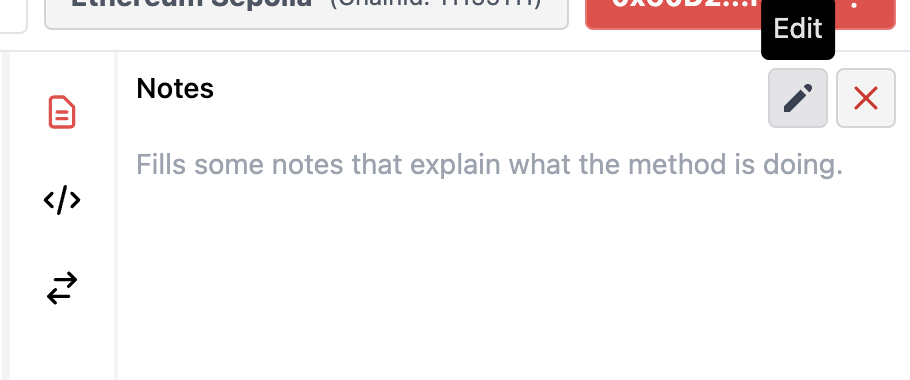
您可以通过单击工作区右侧窗格中的注释（“页面”）图标来访问“**Note**”。

![Note icon](https://294893286-files.gitbook.io/~/files/v0/b/gitbook-x-prod.appspot.com/o/spaces%2F8Jtynj3iGhq8oyNqiD4W%2Fuploads%2FXBbtRTRAj5My1WZLk1Zl%2Fimage2.png?alt=media\&token=d0f9aac5-5ab3-4d69-bdd7-240c5dafbc89)

如果要编辑或添加注释，只需单击“**Edit**”按钮。

<figure><img src="https://294893286-files.gitbook.io/~/files/v0/b/gitbook-x-prod.appspot.com/o/spaces%2F8Jtynj3iGhq8oyNqiD4W%2Fuploads%2F2X1iujxnYpqZo3ePmOuF%2Fimage.png?alt=media&amp;token=56b0d78a-2684-41d2-bd3f-e2ba6f17ca84" alt=""><figcaption></figcaption></figure>

就是这样！&#x20;

此外，您可以使用 Markdown 选项卡在笔记上书写，然后使用预览选项卡预览您所写的内容！

<figure><img src="https://294893286-files.gitbook.io/~/files/v0/b/gitbook-x-prod.appspot.com/o/spaces%2F8Jtynj3iGhq8oyNqiD4W%2Fuploads%2FvASFid6hvjbXNuyA46GE%2Fimage.png?alt=media&amp;token=de9e2bc9-16ed-4328-8217-5d9b35630767" alt=""><figcaption></figcaption></figure>


# 代码模板

莱卡熟知dapp开发中的需求，并为在工作区中为你提供了在Dapp中对函数发出请求的必要代码模板。我们提供以下代码生成模式：

1. Ethers.js (ES6)
2. Ethers.js (CommonJS)
3. Web3.js (ES6)
4. Web3.js (CommonJS)
5. Web3.py&#x20;

要使用代码模板，只需要点击工作区右侧仪表盘中的代码符号按钮 "**\</>**"

![](https://294893286-files.gitbook.io/~/files/v0/b/gitbook-x-prod.appspot.com/o/spaces%2F8Jtynj3iGhq8oyNqiD4W%2Fuploads%2F2Wd9yEkYREqnswit7X8P%2Fimage.png?alt=media\&token=4445941c-3955-4e20-ad22-7735bd860e6e)

点击按钮后，仪表盘会展开并显示代码生成器。您可以在此处选择用于生成函数特定代码片段的模式。

![](https://294893286-files.gitbook.io/~/files/v0/b/gitbook-x-prod.appspot.com/o/spaces%2F8Jtynj3iGhq8oyNqiD4W%2Fuploads%2FQ52MiH6Tr8TxvhkCyQzZ%2Fimage.png?alt=media\&token=a82437d6-92f1-46e8-840b-d2d58389cad5)

就是这样！你可以直接复制这些模板并在你的喜欢的代码编辑器使用。


# 转换器

转换器是把一种类型的数据转换为另一类型的数据的一个快捷功能。当你需要处理有着多种不同数据格式的智能合约时，这个功能十分好用。莱卡为你提供了内置的数据转换器作为帮手。

截止文档编辑，可用的转换器有：

* 哈希转换器
  * keccak256
  * ripemd10
  * sha256
  * sha512
* 单位转换器(Wei ↔ Gwei ↔ Ether)
* 数字进制转换器 (Decimal ↔ Hexadecimal)
* 以太坊域名服务解析器（Address ↔ ENS）

使用转换器，请转到工作区的右侧窗格并单击 ⇄ 图标（双箭头）

![](https://294893286-files.gitbook.io/~/files/v0/b/gitbook-x-prod.appspot.com/o/spaces%2F8Jtynj3iGhq8oyNqiD4W%2Fuploads%2F5m9QlsZ5nQIt2TdmnXrY%2Fimage.png?alt=media\&token=01e1c335-98b5-4e75-b92c-ad886de82382)

&#x20;Converter 菜单会打开，您可以在其中使用 Choose Converter 下拉菜单为您的应用程序选择所需的转换器。

![](https://294893286-files.gitbook.io/~/files/v0/b/gitbook-x-prod.appspot.com/o/spaces%2F8Jtynj3iGhq8oyNqiD4W%2Fuploads%2Feplr9cRp4LoMapoVhKjE%2Fimage.png?alt=media\&token=73b3d485-caf2-4800-8947-5c407965ce10)

只需将您的输入放在input字段中，然后单击 Convert ，莱卡就会为您完成工作。


# 莱卡场景

多重调用的强大工具

### 创建场景请求 <a href="#c7d9ecae-19cf-4c75-8e02-70822c306e5d" id="c7d9ecae-19cf-4c75-8e02-70822c306e5d"></a>

莱卡为 Web3 开发人员提供了一个强大的工具包。 这些强大的工具之一是能够为您的智能合约场景创建节点图！ 您可以连接任意数量的调用和条件，直接在工作区中创建 dapp 流，以使用您的集合测试和开发多调用事件。 在这里，我们将带您通过一个小示例来了解如何使用此功能。 做好准备。 创建您需要的所有请求并粘贴您要与之交互的合约的地址。

想要了解更多关于创建请求的问题，请参阅 [创建新请求](/docs/docs-cn/ji-chu/chuang-jian-xin-qing-qiu).

<figure><img src="https://294893286-files.gitbook.io/~/files/v0/b/gitbook-x-prod.appspot.com/o/spaces%2F8Jtynj3iGhq8oyNqiD4W%2Fuploads%2F8iQHaTpjSu4GgKPKwLEI%2Fimage.png?alt=media&amp;token=2742d4a3-d261-4ca0-b09d-6d6272d4d2fe" alt=""><figcaption><p>Laika工作区，包含收藏集中的创建请求</p></figcaption></figure>

一起看看吧！选中左侧仪表盘&#x7684;**\[Scenario Request (beta)]**&#x20;

<figure><img src="https://294893286-files.gitbook.io/~/files/v0/b/gitbook-x-prod.appspot.com/o/spaces%2F8Jtynj3iGhq8oyNqiD4W%2Fuploads%2FfvJAHYZCAAG7daPbSGcT%2Fimage.png?alt=media&amp;token=e603be08-9dce-4ae3-b1ba-e772ca0538bf" alt=""><figcaption></figcaption></figure>

选中 **\[ New ]** 来新建场景。

<figure><img src="https://294893286-files.gitbook.io/~/files/v0/b/gitbook-x-prod.appspot.com/o/spaces%2F8Jtynj3iGhq8oyNqiD4W%2Fuploads%2FfvJAHYZCAAG7daPbSGcT%2Fimage.png?alt=media&amp;token=e603be08-9dce-4ae3-b1ba-e772ca0538bf" alt=""><figcaption></figcaption></figure>

为场景命名然后点击 **\[ Create ]**

<figure><img src="https://294893286-files.gitbook.io/~/files/v0/b/gitbook-x-prod.appspot.com/o/spaces%2F8Jtynj3iGhq8oyNqiD4W%2Fuploads%2FpwknKMyL1L34sa8eXjmW%2Fimage.png?alt=media&amp;token=11b8d056-0ed8-4312-84ad-df603f7e3c57" alt=""><figcaption></figcaption></figure>

对于场景请求节点图，您可以使用 3 种类型的节点。&#x20;

1. 请求节点：用于根据您定义的参数传递请求&#x20;
2. 条件节点：用于设置条件（即 if 函数）&#x20;
3. 连接器节点：用于将场景的流从 2 个流合并为 1 个流

创建节点有以下两种方式：

* 从工具箱（在场景仪表盘的最下方）中拖拽你想要使用的节点

<figure><img src="https://294893286-files.gitbook.io/~/files/v0/b/gitbook-x-prod.appspot.com/o/spaces%2F8Jtynj3iGhq8oyNqiD4W%2Fuploads%2FQfgRaR6XAuhUV8K1ambj%2Fimage.png?alt=media&amp;token=26c694d4-5b77-469f-89cd-68dfcec55250" alt=""><figcaption></figcaption></figure>

* 在场景仪表盘的任意处右击鼠标并选择你想创建的节点。

<figure><img src="https://294893286-files.gitbook.io/~/files/v0/b/gitbook-x-prod.appspot.com/o/spaces%2F8Jtynj3iGhq8oyNqiD4W%2Fuploads%2FYCmD0Y6xbVY4H93ZPmpA%2Fimage.png?alt=media&amp;token=64b7d212-b8c9-4f89-9e79-e63548fb0bd2" alt=""><figcaption></figcaption></figure>

### **使用请求节点** <a href="#id-27d6840a-c560-4516-a64c-797dc4080e30" id="id-27d6840a-c560-4516-a64c-797dc4080e30"></a>

在创建请求节点后，对应的方块会在用户界面中弹出。

<figure><img src="https://294893286-files.gitbook.io/~/files/v0/b/gitbook-x-prod.appspot.com/o/spaces%2F8Jtynj3iGhq8oyNqiD4W%2Fuploads%2FSWkC52zXkgmltYuIyOxU%2Fimage.png?alt=media&amp;token=874ba5a2-d7e9-400c-99b6-99796e0851c4" alt=""><figcaption></figcaption></figure>

通&#x8FC7;**\[ Select a method ] 选择已有的请求。**

![](https://294893286-files.gitbook.io/~/files/v0/b/gitbook-x-prod.appspot.com/o/spaces%2F8Jtynj3iGhq8oyNqiD4W%2Fuploads%2FWEdnIhdDAdg8SlJ0ON5S%2Fimage.png?alt=media\&token=c06fd45f-5b77-4abe-8a37-caa5fcd5543e)

对于**写/读方法请求**，通过选&#x62E9;**\[ Edit Parameters** ]来调整参数，如果要检查当前参数的状态，请将鼠标悬停在视觉图标上。

<figure><img src="https://1664627178-files.gitbook.io/~/files/v0/b/gitbook-x-prod.appspot.com/o/spaces%2FlODSmBGoBlX8YKKqUIHt%2Fuploads%2FL7QypaDb7rzeWuQoL6Fc%2Fimage3.png?alt=media&#x26;token=d3b54b66-9c7c-409b-9794-93f60ccb821f" alt=""><figcaption></figcaption></figure>

对于读请求，您可以通过单击 **\[Assign return to Context]** 声明一个变量来存储请求的响应。 同样地，如果您想检查当前上下文变量的状态，请将鼠标悬停在视觉图标上。

<figure><img src="https://1664627178-files.gitbook.io/~/files/v0/b/gitbook-x-prod.appspot.com/o/spaces%2FlODSmBGoBlX8YKKqUIHt%2Fuploads%2FcNrNgSpOPB436yC8SMMv%2Fimage.png?alt=media&#x26;token=d0cd4ec3-003e-4593-90fa-83820b412dc0" alt=""><figcaption></figcaption></figure>

### **使用条件节点**

创建条件节点后，对应的方块会弹出。

<figure><img src="https://1664627178-files.gitbook.io/~/files/v0/b/gitbook-x-prod.appspot.com/o/spaces%2FlODSmBGoBlX8YKKqUIHt%2Fuploads%2FDJOF6vD7ol1lXFjBibfS%2Fimage.png?alt=media&#x26;token=ed17c7b0-3354-4814-8bde-153f131a70cf" alt=""><figcaption></figcaption></figure>

在左侧框和右侧框中声明值，然后选择条件。 可以通过 3 种方式在左侧框和右侧框中声明值：

1. &#x20;{{变量名}} ：来自莱卡环境中设置的值
2. Context.context\_name : 上下文中的值（在创建请求节点时声明，参阅请求节点部分）
3. 普通值：一个常数值

<figure><img src="https://1664627178-files.gitbook.io/~/files/v0/b/gitbook-x-prod.appspot.com/o/spaces%2FlODSmBGoBlX8YKKqUIHt%2Fuploads%2FhIVVzjYKeKWpfyIAexky%2Fimage.png?alt=media&#x26;token=27e281ca-52e0-47d9-b69c-4939e516ebfa" alt=""><figcaption></figcaption></figure>

接下来，要连接条件节点的流程，如果结果为真，请将条件节点右上角的点连接到要运行的节点。 相反，如果结果为假，则将条件节点右下角的点连接到要运行的节点。

<figure><img src="https://1664627178-files.gitbook.io/~/files/v0/b/gitbook-x-prod.appspot.com/o/spaces%2FlODSmBGoBlX8YKKqUIHt%2Fuploads%2Fakuc9Klqr2BfvVniWQoi%2Fimage.png?alt=media&#x26;token=b1bde30e-80c0-4987-9b1e-6589fcac4438" alt=""><figcaption></figcaption></figure>

### **使用连接节点**

创建连接节点后，对应的方块会弹出。

<figure><img src="https://1664627178-files.gitbook.io/~/files/v0/b/gitbook-x-prod.appspot.com/o/spaces%2FlODSmBGoBlX8YKKqUIHt%2Fuploads%2F4McgigtmVwjbw1Jrf544%2Fimage.png?alt=media&#x26;token=74b4e427-ff7a-4b52-8497-a82578c9e104" alt=""><figcaption></figcaption></figure>

连接下方图片中显示的端点，将两条控制流合并为一条。

<figure><img src="https://1664627178-files.gitbook.io/~/files/v0/b/gitbook-x-prod.appspot.com/o/spaces%2FlODSmBGoBlX8YKKqUIHt%2Fuploads%2FD6XM3t4C6paKW3WbC5Qg%2Fimage.png?alt=media&#x26;token=c1ec5ce0-118d-4af9-b7b1-98a365b50583" alt=""><figcaption></figcaption></figure>

**需要更多的帮助？来看看使用莱卡场景的功能的视频吧！**

<figure><img src="https://1664627178-files.gitbook.io/~/files/v0/b/gitbook-x-prod.appspot.com/o/spaces%2FlODSmBGoBlX8YKKqUIHt%2Fuploads%2FVMqOTtVKML5nBeeHsBYn%2Fimage.png?alt=media&#x26;token=c3205b50-8582-4d28-87bb-0d3b6e5d3ca0" alt=""><figcaption></figcaption></figure>

{% embed url="<https://drive.google.com/file/d/12m9QcE6gFEJJPq51GBW_mGB43NnKH9qf/view>" %}
使用莱卡场景请求案例
{% endembed %}


# 莱卡环境

### 创建新环境并定义变量。

点击 **\[ Environment ]**  按钮

![](https://294893286-files.gitbook.io/~/files/v0/b/gitbook-x-prod.appspot.com/o/spaces%2F8Jtynj3iGhq8oyNqiD4W%2Fuploads%2F97p7yv3BmlXZn6UTRnfd%2FScreen%20Shot%202565-04-24%20at%2014.43.34.png?alt=media\&token=d0b31eed-3b3b-41b8-b725-473ff723ed07)

点击新建 **\[ New ]** 一个环境space

![](https://294893286-files.gitbook.io/~/files/v0/b/gitbook-x-prod.appspot.com/o/spaces%2F8Jtynj3iGhq8oyNqiD4W%2Fuploads%2FeptuaPA8lCFzhB5pkiRU%2FScreen%20Shot%202565-04-25%20at%2022.42.00.png?alt=media\&token=92e8d4df-8ba5-441e-a1de-3dbcbc852844)

命名环境，然后通过单击 \[+] 按钮在该环境中添加一个新变量。 命名环境变量时。 您的变量必须满足此规则。&#x20;

* 以字母 (a-z,A-Z) 或下划线 (*) 开头*&#x20;
* *由字母 (a-z,A-Z)、下划线 (*) 或数字 (0-9) 组成&#x20;

`注意：同一环境中的两个变量不能重名。`

然后点击 **\[ Create ]**&#x6309;钮

![](https://294893286-files.gitbook.io/~/files/v0/b/gitbook-x-prod.appspot.com/o/spaces%2F8Jtynj3iGhq8oyNqiD4W%2Fuploads%2Fsp8h0DxDJLk9HwvBm41s%2FScreen%20Shot%202565-04-25%20at%2022.50.16.png?alt=media\&token=f5700f71-c8ac-402d-8bc9-350cd675629b)

就是这样！

### 使用环境中的变量

通过选择UI右上角的环境下拉菜单来选择你想要使用的环境。

![](https://294893286-files.gitbook.io/~/files/v0/b/gitbook-x-prod.appspot.com/o/spaces%2F8Jtynj3iGhq8oyNqiD4W%2Fuploads%2FbwiyWND7aDxRcyAq9c7e%2FScreen%20Shot%202565-04-25%20at%2022.57.24.png?alt=media\&token=255d209e-be53-4c38-bcb4-a36151402612)

然后，挑选你要使用的环境。

![](https://294893286-files.gitbook.io/~/files/v0/b/gitbook-x-prod.appspot.com/o/spaces%2F8Jtynj3iGhq8oyNqiD4W%2Fuploads%2FcwHU7f0FzmancGEZwPVi%2FScreen%20Shot%202565-04-25%20at%2023.01.41.png?alt=media\&token=b546b805-3685-4710-92dd-d8a58954a560)

在您要在请求中能够使用来自该环境的变量时， 将环境中的变量名以 {{变量名}} 的形式使用

提示：使用环境变量的输入表单时会有一个建议下拉列表，您可以轻松识别和使用它们。

![](https://294893286-files.gitbook.io/~/files/v0/b/gitbook-x-prod.appspot.com/o/spaces%2F8Jtynj3iGhq8oyNqiD4W%2Fuploads%2FpO2Mgjlbg47keO44hOhH%2FScreen%20Shot%202565-04-25%20at%2023.06.20.png?alt=media\&token=5e6cda83-cb4a-4f2e-a040-133f20802316)


# 使用 hardhat-laika

**什么是 hardhat-laika？**

`hardhat-laika` 是 莱卡自己的 Hardhat 插件，可帮助您将已编译的合约与莱卡同步。这使您无需编写任何额外代码即可发出请求。

相反，它还可以提高您使用 Hardhat 进行开发时的性能！💪

**让我们试试吧！**

首先，我们将开始一个新的 Hardhat 项目，执行

```
npx hardhat init
```

然后，选择您喜欢的配置（我们将使用此配置和 Greeter.sol 作为本指导示例中的示例合约）

```
√ What do you want to do? · Create a basic sample project
√ Hardhat project root: · /path/to/project/
√ Do you want to add a .gitignore? (Y/n) · y
√ Do you want to install this sample project's dependencies with npm (...)? (Y/n) · y
```

项目设置完成后，让我们使用安装hardhat-laika

```
npm i hardhat-laika
```

现在，通过在顶部添加 require(...) 语句将其导入**hardhat.config.js**&#x20;

{% embed url="<https://gist.github.com/nonkung51/b3a7e1dade2f0c89f2b41c9731565001#file-hardhat-config-js>" %}

好了，现在我们都准备好了！让我们尝试使用它！

有两种方法可以使用 hardhat-laika，即

1. 通过命令行
2. 通过你自己的javascript代码（通过定义 hardhat-laika 任务）

让我们试试第一种方法。

1. **The Hardhat Runner CLI**

首先，让我们编译我们的合约，以便我们可以获得 ABI。

```
npx hardhat compile
```

然后，使用 **laika-sync** 任务将其同步到 Laika

```
npx hardhat laika-sync --contract <contract_name> --address <OPTIONAL address_of_that_contract>
```

对于此示例，我们将使用带有以下参数的命令：

```
npx hardhat laika-sync --contract Greeter --address 0x5FbDB2315678afecb367f032d93F642f64180aa
```

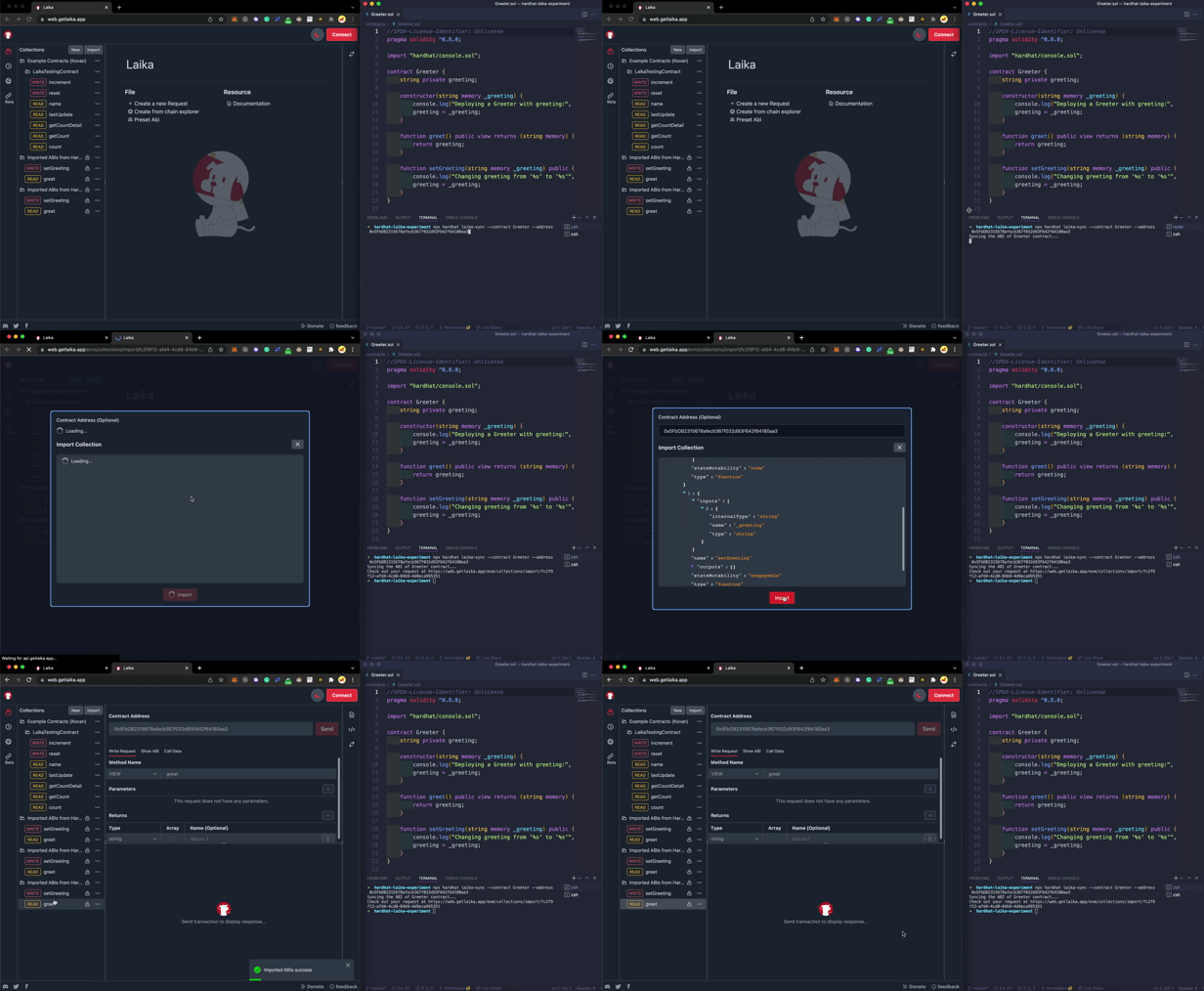
你应该能够看到这样的东西。

<br>

![莱卡同步任务](https://miro.medium.com/max/1232/1*2bkX75lbOFii1pl_UCdA1A.gif)

**2. 创建脚本**

让我们看看 scripts/sample-script.js

{% embed url="<https://gist.github.com/nonkung51/d9e0137c2005a2c91fc8c2e43c13b44f#file-sample-script-js>" %}

我们只需简单地**将 hre.run() 添加到第 25** 行即可！我们可以使用命令来运行它。

```
npx hardhat run scripts/sample-script.js
```

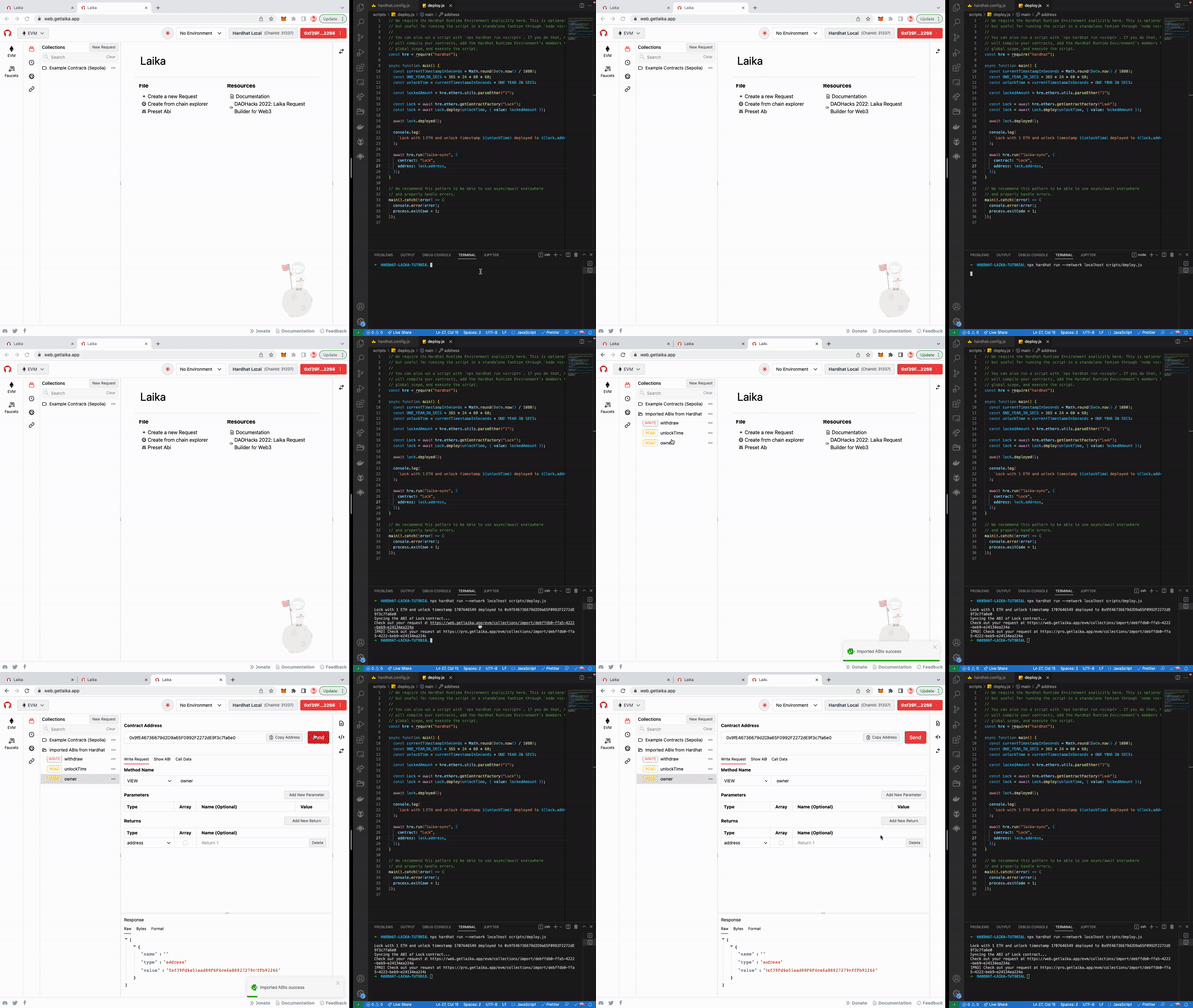
你应该能够看到这样的东西。

![](https://miro.medium.com/max/1200/0*SjVc6BI5SiEUakBU.gif)

这两种方法都可以让您直接将莱卡与您的Hardhat环境集成，如图所示。


# 将莱卡与Web3节点供应商一起使用

此处：使用 Quicknode 探索莱卡

### 概述

本指南将演示如何使用 QuickNode 与莱卡中的智能合约进行交互。也可以复制此过程以与您选择的任何其他提供商一起使用！

**先决条件**

* 以太坊节点
* 对智能合约和节点控制的基本了解

### 节点供应商入门

#### 第 1 步 - 启动节点提供程序

出于本教程的目的，我们使用 Quicknode 作为我们的节点提供者。只需在 Quicknode 上注册一个节点，选择您喜欢的订阅计划，然后通过仪表板启动您喜欢的节点（在这里，我们将使用 Sepolia 测试网上的一个节点）。如果您不使用 Quicknode，请按照其他平台的具体说明进行操作。&#x20;

本教程需要 HTTP 提供程序 URL，因此请将此 URL 放在手边。它应该看起来像这样：

![](https://294893286-files.gitbook.io/~/files/v0/b/gitbook-x-prod.appspot.com/o/spaces%2F8Jtynj3iGhq8oyNqiD4W%2Fuploads%2Fx4HijyOxZY3rgDNhvHv7%2Fimage.png?alt=media\&token=b64cc5dd-357d-4c7c-92a5-b10820c23f14)

#### 第 2 步 - 设置您的莱卡工作区

现在我们的区块链基础设施已经准备就绪，我们可以继续使用莱卡查询区块链数据。

首先，我们必须使用我们的 QuickNode 端点和助记词配置莱卡。如果你手头没有助记词，不用担心，莱卡会自动生成一个测试钱包供你使用。单击右上角的**Connect**按钮，然后单击**Web3 Provider** 。

![](https://294893286-files.gitbook.io/~/files/v0/b/gitbook-x-prod.appspot.com/o/spaces%2F8Jtynj3iGhq8oyNqiD4W%2Fuploads%2FYmFAtsOGDKPafFZIGl5f%2Fimage.png?alt=media\&token=190cf701-11e8-4a65-b26f-a715b1753f90)

输入您的 QuickNode URL 并单击**Connect**：

![](https://294893286-files.gitbook.io/~/files/v0/b/gitbook-x-prod.appspot.com/o/spaces%2F8Jtynj3iGhq8oyNqiD4W%2Fuploads%2FnMWo4vm7VJKNKKVAjr8f%2Fimage.png?alt=media\&token=9289cbc4-1a6d-4ee7-b188-0e123eeec8b6)

连接好我们的钱包和节点后，单击页面左上角的**新建**按钮。

然后，根据您想要导入合约的方式，您可以单击“上传 JSON ABI”或“纯文本 ABI”以通过 ABI 导入智能合约。或者，如果智能合约已经在 Etherscan 上验证，您可以使用“Chain Explorer”选项输入智能合约地址， 莱卡会自动为您获取 ABI。

![](https://294893286-files.gitbook.io/~/files/v0/b/gitbook-x-prod.appspot.com/o/spaces%2F8Jtynj3iGhq8oyNqiD4W%2Fuploads%2F0kZXTtyOGA051VXVRDmp%2Fimage.png?alt=media\&token=a45a4483-16a4-4d97-9959-6d0863f69aaf)

对于本指南，我们将使用“Chain Explorer”选项和以下智能合约地址：0xd0A1E359811322d97991E03f863a0C30C2cF029C （WETH 地址）。确保从“链”下拉列表中选择“Ethereum Kovan”。然后，单击“导入”，您应该会在“New Imported ABIs from...”下的集合面板上看到加载的智能合约。

![](https://294893286-files.gitbook.io/~/files/v0/b/gitbook-x-prod.appspot.com/o/spaces%2F8Jtynj3iGhq8oyNqiD4W%2Fuploads%2FjyJ1BTv0TUIo4mxHIxsH%2Fimage.png?alt=media\&token=f0d2e9ed-3e79-4e27-bf57-7bce087f45cf)

您可以在以下位置阅读更多信息关于 [创建新请求](/docs/docs-cn/ji-chu/chuang-jian-xin-qing-qiu)

#### 第 3 步 - 使用莱卡提出请求

我们已经加载了智能合约。现在剩下要做的就是开始与区块链交互！

![](https://294893286-files.gitbook.io/~/files/v0/b/gitbook-x-prod.appspot.com/o/spaces%2F8Jtynj3iGhq8oyNqiD4W%2Fuploads%2FjDisKZpa6ugS8SaV69Dl%2Fimage.png?alt=media\&token=1ba87586-2303-48b5-8882-7344d8e9ed59)

单击**balanceOf**函数以查看有关该函数的更多详细信息，例如所需参数、预期响应等。我们看到该函数有一个需要地址的必需参数。在Value1字段中使用以下地址： **0x2ED0fE9a8FbB3b7f0ffC45a18eff8f0c3A0ABE2C** ，然后单击**Send** 。<br>

![](https://294893286-files.gitbook.io/~/files/v0/b/gitbook-x-prod.appspot.com/o/spaces%2F8Jtynj3iGhq8oyNqiD4W%2Fuploads%2FLIoxhkcWBKBAjtJuKiBh%2Fimage.png?alt=media\&token=138449b4-3b50-40c3-bb2f-1839d843e079)

您将收到以下响应：

```
[
  {
    "name": "",
    "type": "uint256",
    "value": "100000000000000000"
  }
]
```

你有它！我们刚刚使用莱卡和Web3节点提供商 (QuickNode) 发出了一个请求！


# 使用莱卡交互Lens

轻松地使用莱卡探寻 Lens Protocol

![](https://294893286-files.gitbook.io/~/files/v0/b/gitbook-x-prod.appspot.com/o/spaces%2F8Jtynj3iGhq8oyNqiD4W%2Fuploads%2FA4pS3LjbFVeDaoI9BLXX%2Fimage.png?alt=media\&token=f07e7439-c7f9-440a-b5ac-e1c661e23763)

你们中的许多人可能听说过 Lens Protocol， 这是AAVE团队构建的新 Web3 社交图协议。 解决我们目前在基于Web2生活中使用的社交媒体中的许多重大问题。

更多关于 Lens Protocol 的详情可以在它的文档中找到 <https://docs.lens.xyz/docs/what-is-lens>

> **Introduction**
>
> **Lens Protocol** 是 Polygon 链上的 Web3 社交图谱。 它旨在使创作者能够拥有自己与社区之间的链接，形成一个完全组合的，用户拥有的社交图。 该协议是从地面上构建的，考虑到模块化，允许添加新功能和修复程序，同时确保不可变的用户拥有的内容和社交关系。
>
> — <https://docs.lens.xyz/docs/what-is-lens>

本文旨在成为一个小帮手，我们将在其中探索如何使用莱卡与 Lens Protocol 交互！

**我们接下来要一起做的：**

* 我么将探索 在 Polygon Mumbai 测试网上的 Lens  Protocol。
* 通过 **MockProfileCreationProxy 合约来创建我们的 Lens Handle。**
* 通过 **LensHub Proxy 来创建一个新的推文**

### **Lens Protocol 总览** <a href="#dce1" id="dce1"></a>

Lens Protocol 的团队将其设计成模块化的。这样就使得很容易扩展 Lens 的社区，Lens 将很多功能都变成 ERC721 兼容的形式。因此如果有人想给 Lens Protocol 加入更多的 modeul。他们只需要写一个新的模块然后插入即可。就是这么简单。

你将要交互的合约叫做 "Lens Hub"。这个合约与是 Lens Protocol 大多数交互的入口。

在下面链接中，你可以看到在不同的链上的部署的合约列表：\
<https://docs.lens.xyz/docs/deployed-contract-addresses>

> 在开始做任何事情之前，请确认你的钱包在 Mumbai 测试网上有一些 MATIC，你可以在 <https://faucet.polygon.technology/> 获取一些 MATIC。

### **创建 Lens Profile** <a href="#id-7eb7" id="id-7eb7"></a>

在 Polygon Mumbai 测试网上创建 Lens Profile 需要使用一些跟其他交互不同的方式来交互。

Lens Protocol 有一个白名单，这个白名单限制了谁可以创建 Lens Profile。通常情况下，我们的地址不在白名单里面。但是我们可以通过 "**MockProfileCreationProxy" 来创建 Lens Profile，**

> MockProfileCreationProxy 在 Polygon Mumbai 的地址是[0x420f0257D43145bb002E69B14FF2Eb9630Fc4736](https://mumbai.polygonscan.com/address/0x420f0257D43145bb002E69B14FF2Eb9630Fc4736)

让我们继续吧。

为了让你们更方便的跟上这个教程，我把在这篇文章中使用的 collection 导出了，你可以在从下面的代码块中复制。

```json
{"name":"Exploring Lens Protocol","children":[{"name":"MockProfileCreatorProxy","children":[{"lock":false,"address":"{{MOCK_PROFILE_CREATOR_PROXY}}","name":"proxyCreateProfile","abi":{"inputs":[{"components":[{"internalType":"address","name":"to","type":"address"},{"internalType":"string","name":"handle","type":"string"},{"internalType":"string","name":"imageURI","type":"string"},{"internalType":"address","name":"followModule","type":"address"},{"internalType":"bytes","name":"followModuleInitData","type":"bytes"},{"internalType":"string","name":"followNFTURI","type":"string"}],"internalType":"struct DataTypes.CreateProfileData","name":"vars","type":"tuple"}],"name":"proxyCreateProfile","outputs":[],"stateMutability":"nonpayable","type":"function"},"params":[[]]}],"lock":false},{"name":"LensHub","children":[{"lock":true,"address":"{{LENS_HUB}}","name":"whitelistReferenceModule","abi":{"inputs":[{"internalType":"address","name":"referenceModule","type":"address"},{"internalType":"bool","name":"whitelist","type":"bool"}],"name":"whitelistReferenceModule","outputs":[],"stateMutability":"nonpayable","type":"function"},"params":["",""]},{"lock":true,"address":"{{LENS_HUB}}","name":"whitelistProfileCreator","abi":{"inputs":[{"internalType":"address","name":"profileCreator","type":"address"},{"internalType":"bool","name":"whitelist","type":"bool"}],"name":"whitelistProfileCreator","outputs":[],"stateMutability":"nonpayable","type":"function"},"params":["",""]},{"lock":true,"address":"{{LENS_HUB}}","name":"whitelistFollowModule","abi":{"inputs":[{"internalType":"address","name":"followModule","type":"address"},{"internalType":"bool","name":"whitelist","type":"bool"}],"name":"whitelistFollowModule","outputs":[],"stateMutability":"nonpayable","type":"function"},"params":["",""]},{"lock":true,"address":"{{LENS_HUB}}","name":"whitelistCollectModule","abi":{"inputs":[{"internalType":"address","name":"collectModule","type":"address"},{"internalType":"bool","name":"whitelist","type":"bool"}],"name":"whitelistCollectModule","outputs":[],"stateMutability":"nonpayable","type":"function"},"params":["",""]},{"lock":true,"address":"{{LENS_HUB}}","name":"transferFrom","abi":{"inputs":[{"internalType":"address","name":"from","type":"address"},{"internalType":"address","name":"to","type":"address"},{"internalType":"uint256","name":"tokenId","type":"uint256"}],"name":"transferFrom","outputs":[],"stateMutability":"nonpayable","type":"function"},"params":["","",""]},{"lock":true,"address":"{{LENS_HUB}}","name":"totalSupply","abi":{"inputs":[],"name":"totalSupply","outputs":[{"internalType":"uint256","name":"","type":"uint256"}],"stateMutability":"view","type":"function"},"params":[]},{"lock":true,"address":"{{LENS_HUB}}","name":"tokenURI","abi":{"inputs":[{"internalType":"uint256","name":"tokenId","type":"uint256"}],"name":"tokenURI","outputs":[{"internalType":"string","name":"","type":"string"}],"stateMutability":"view","type":"function"},"params":[""]},{"lock":true,"address":"{{LENS_HUB}}","name":"tokenOfOwnerByIndex","abi":{"inputs":[{"internalType":"address","name":"owner","type":"address"},{"internalType":"uint256","name":"index","type":"uint256"}],"name":"tokenOfOwnerByIndex","outputs":[{"internalType":"uint256","name":"","type":"uint256"}],"stateMutability":"view","type":"function"},"params":["",""]},{"lock":true,"address":"{{LENS_HUB}}","name":"tokenDataOf","abi":{"inputs":[{"internalType":"uint256","name":"tokenId","type":"uint256"}],"name":"tokenDataOf","outputs":[{"components":[{"internalType":"address","name":"owner","type":"address"},{"internalType":"uint96","name":"mintTimestamp","type":"uint96"}],"internalType":"struct IERC721Time.TokenData","name":"","type":"tuple"}],"stateMutability":"view","type":"function"},"params":[""]},{"lock":true,"address":"{{LENS_HUB}}","name":"tokenByIndex","abi":{"inputs":[{"internalType":"uint256","name":"index","type":"uint256"}],"name":"tokenByIndex","outputs":[{"internalType":"uint256","name":"","type":"uint256"}],"stateMutability":"view","type":"function"},"params":[""]},{"lock":true,"address":"{{LENS_HUB}}","name":"symbol","abi":{"inputs":[],"name":"symbol","outputs":[{"internalType":"string","name":"","type":"string"}],"stateMutability":"view","type":"function"},"params":[]},{"lock":true,"address":"{{LENS_HUB}}","name":"supportsInterface","abi":{"inputs":[{"internalType":"bytes4","name":"interfaceId","type":"bytes4"}],"name":"supportsInterface","outputs":[{"internalType":"bool","name":"","type":"bool"}],"stateMutability":"view","type":"function"},"params":[""]},{"lock":true,"address":"{{LENS_HUB}}","name":"sigNonces","abi":{"inputs":[{"internalType":"address","name":"","type":"address"}],"name":"sigNonces","outputs":[{"internalType":"uint256","name":"","type":"uint256"}],"stateMutability":"view","type":"function"},"params":[""]},{"lock":true,"address":"{{LENS_HUB}}","name":"setState","abi":{"inputs":[{"internalType":"enum DataTypes.ProtocolState","name":"newState","type":"uint8"}],"name":"setState","outputs":[],"stateMutability":"nonpayable","type":"function"},"params":[""]},{"lock":true,"address":"{{LENS_HUB}}","name":"setProfileImageURIWithSig","abi":{"inputs":[{"components":[{"internalType":"uint256","name":"profileId","type":"uint256"},{"internalType":"string","name":"imageURI","type":"string"},{"components":[{"internalType":"uint8","name":"v","type":"uint8"},{"internalType":"bytes32","name":"r","type":"bytes32"},{"internalType":"bytes32","name":"s","type":"bytes32"},{"internalType":"uint256","name":"deadline","type":"uint256"}],"internalType":"struct DataTypes.EIP712Signature","name":"sig","type":"tuple"}],"internalType":"struct DataTypes.SetProfileImageURIWithSigData","name":"vars","type":"tuple"}],"name":"setProfileImageURIWithSig","outputs":[],"stateMutability":"nonpayable","type":"function"},"params":[""]},{"lock":true,"address":"{{LENS_HUB}}","name":"setProfileImageURI","abi":{"inputs":[{"internalType":"uint256","name":"profileId","type":"uint256"},{"internalType":"string","name":"imageURI","type":"string"}],"name":"setProfileImageURI","outputs":[],"stateMutability":"nonpayable","type":"function"},"params":["",""]},{"lock":true,"address":"{{LENS_HUB}}","name":"setGovernance","abi":{"inputs":[{"internalType":"address","name":"newGovernance","type":"address"}],"name":"setGovernance","outputs":[],"stateMutability":"nonpayable","type":"function"},"params":[""]},{"lock":true,"address":"{{LENS_HUB}}","name":"setFollowNFTURIWithSig","abi":{"inputs":[{"components":[{"internalType":"uint256","name":"profileId","type":"uint256"},{"internalType":"string","name":"followNFTURI","type":"string"},{"components":[{"internalType":"uint8","name":"v","type":"uint8"},{"internalType":"bytes32","name":"r","type":"bytes32"},{"internalType":"bytes32","name":"s","type":"bytes32"},{"internalType":"uint256","name":"deadline","type":"uint256"}],"internalType":"struct DataTypes.EIP712Signature","name":"sig","type":"tuple"}],"internalType":"struct DataTypes.SetFollowNFTURIWithSigData","name":"vars","type":"tuple"}],"name":"setFollowNFTURIWithSig","outputs":[],"stateMutability":"nonpayable","type":"function"},"params":[""]},{"lock":true,"address":"{{LENS_HUB}}","name":"setFollowNFTURI","abi":{"inputs":[{"internalType":"uint256","name":"profileId","type":"uint256"},{"internalType":"string","name":"followNFTURI","type":"string"}],"name":"setFollowNFTURI","outputs":[],"stateMutability":"nonpayable","type":"function"},"params":["",""]},{"lock":true,"address":"{{LENS_HUB}}","name":"setFollowModuleWithSig","abi":{"inputs":[{"components":[{"internalType":"uint256","name":"profileId","type":"uint256"},{"internalType":"address","name":"followModule","type":"address"},{"internalType":"bytes","name":"followModuleInitData","type":"bytes"},{"components":[{"internalType":"uint8","name":"v","type":"uint8"},{"internalType":"bytes32","name":"r","type":"bytes32"},{"internalType":"bytes32","name":"s","type":"bytes32"},{"internalType":"uint256","name":"deadline","type":"uint256"}],"internalType":"struct DataTypes.EIP712Signature","name":"sig","type":"tuple"}],"internalType":"struct DataTypes.SetFollowModuleWithSigData","name":"vars","type":"tuple"}],"name":"setFollowModuleWithSig","outputs":[],"stateMutability":"nonpayable","type":"function"},"params":[""]},{"lock":true,"address":"{{LENS_HUB}}","name":"setFollowModule","abi":{"inputs":[{"internalType":"uint256","name":"profileId","type":"uint256"},{"internalType":"address","name":"followModule","type":"address"},{"internalType":"bytes","name":"followModuleInitData","type":"bytes"}],"name":"setFollowModule","outputs":[],"stateMutability":"nonpayable","type":"function"},"params":["","",""]},{"lock":true,"address":"{{LENS_HUB}}","name":"setEmergencyAdmin","abi":{"inputs":[{"internalType":"address","name":"newEmergencyAdmin","type":"address"}],"name":"setEmergencyAdmin","outputs":[],"stateMutability":"nonpayable","type":"function"},"params":[""]},{"lock":true,"address":"{{LENS_HUB}}","name":"setDispatcherWithSig","abi":{"inputs":[{"components":[{"internalType":"uint256","name":"profileId","type":"uint256"},{"internalType":"address","name":"dispatcher","type":"address"},{"components":[{"internalType":"uint8","name":"v","type":"uint8"},{"internalType":"bytes32","name":"r","type":"bytes32"},{"internalType":"bytes32","name":"s","type":"bytes32"},{"internalType":"uint256","name":"deadline","type":"uint256"}],"internalType":"struct DataTypes.EIP712Signature","name":"sig","type":"tuple"}],"internalType":"struct DataTypes.SetDispatcherWithSigData","name":"vars","type":"tuple"}],"name":"setDispatcherWithSig","outputs":[],"stateMutability":"nonpayable","type":"function"},"params":[""]},{"lock":true,"address":"{{LENS_HUB}}","name":"setDispatcher","abi":{"inputs":[{"internalType":"uint256","name":"profileId","type":"uint256"},{"internalType":"address","name":"dispatcher","type":"address"}],"name":"setDispatcher","outputs":[],"stateMutability":"nonpayable","type":"function"},"params":["",""]},{"lock":true,"address":"{{LENS_HUB}}","name":"setDefaultProfileWithSig","abi":{"inputs":[{"components":[{"internalType":"address","name":"wallet","type":"address"},{"internalType":"uint256","name":"profileId","type":"uint256"},{"components":[{"internalType":"uint8","name":"v","type":"uint8"},{"internalType":"bytes32","name":"r","type":"bytes32"},{"internalType":"bytes32","name":"s","type":"bytes32"},{"internalType":"uint256","name":"deadline","type":"uint256"}],"internalType":"struct DataTypes.EIP712Signature","name":"sig","type":"tuple"}],"internalType":"struct DataTypes.SetDefaultProfileWithSigData","name":"vars","type":"tuple"}],"name":"setDefaultProfileWithSig","outputs":[],"stateMutability":"nonpayable","type":"function"},"params":[""]},{"lock":true,"address":"{{LENS_HUB}}","name":"setDefaultProfile","abi":{"inputs":[{"internalType":"uint256","name":"profileId","type":"uint256"}],"name":"setDefaultProfile","outputs":[],"stateMutability":"nonpayable","type":"function"},"params":[""]},{"lock":true,"address":"{{LENS_HUB}}","name":"setApprovalForAll","abi":{"inputs":[{"internalType":"address","name":"operator","type":"address"},{"internalType":"bool","name":"approved","type":"bool"}],"name":"setApprovalForAll","outputs":[],"stateMutability":"nonpayable","type":"function"},"params":["",""]},{"lock":true,"address":"{{LENS_HUB}}","name":"safeTransferFrom","abi":{"inputs":[{"internalType":"address","name":"from","type":"address"},{"internalType":"address","name":"to","type":"address"},{"internalType":"uint256","name":"tokenId","type":"uint256"},{"internalType":"bytes","name":"_data","type":"bytes"}],"name":"safeTransferFrom","outputs":[],"stateMutability":"nonpayable","type":"function"},"params":["","","",""]},{"lock":true,"address":"{{LENS_HUB}}","name":"safeTransferFrom","abi":{"inputs":[{"internalType":"address","name":"from","type":"address"},{"internalType":"address","name":"to","type":"address"},{"internalType":"uint256","name":"tokenId","type":"uint256"}],"name":"safeTransferFrom","outputs":[],"stateMutability":"nonpayable","type":"function"},"params":["","",""]},{"lock":true,"address":"{{LENS_HUB}}","name":"postWithSig","abi":{"inputs":[{"components":[{"internalType":"uint256","name":"profileId","type":"uint256"},{"internalType":"string","name":"contentURI","type":"string"},{"internalType":"address","name":"collectModule","type":"address"},{"internalType":"bytes","name":"collectModuleInitData","type":"bytes"},{"internalType":"address","name":"referenceModule","type":"address"},{"internalType":"bytes","name":"referenceModuleInitData","type":"bytes"},{"components":[{"internalType":"uint8","name":"v","type":"uint8"},{"internalType":"bytes32","name":"r","type":"bytes32"},{"internalType":"bytes32","name":"s","type":"bytes32"},{"internalType":"uint256","name":"deadline","type":"uint256"}],"internalType":"struct DataTypes.EIP712Signature","name":"sig","type":"tuple"}],"internalType":"struct DataTypes.PostWithSigData","name":"vars","type":"tuple"}],"name":"postWithSig","outputs":[{"internalType":"uint256","name":"","type":"uint256"}],"stateMutability":"nonpayable","type":"function"},"params":[""]},{"lock":true,"address":"{{LENS_HUB}}","name":"post","abi":{"inputs":[{"components":[{"internalType":"uint256","name":"profileId","type":"uint256"},{"internalType":"string","name":"contentURI","type":"string"},{"internalType":"address","name":"collectModule","type":"address"},{"internalType":"bytes","name":"collectModuleInitData","type":"bytes"},{"internalType":"address","name":"referenceModule","type":"address"},{"internalType":"bytes","name":"referenceModuleInitData","type":"bytes"}],"internalType":"struct DataTypes.PostData","name":"vars","type":"tuple"}],"name":"post","outputs":[{"internalType":"uint256","name":"","type":"uint256"}],"stateMutability":"nonpayable","type":"function"},"params":[""]},{"lock":true,"address":"{{LENS_HUB}}","name":"permitForAll","abi":{"inputs":[{"internalType":"address","name":"owner","type":"address"},{"internalType":"address","name":"operator","type":"address"},{"internalType":"bool","name":"approved","type":"bool"},{"components":[{"internalType":"uint8","name":"v","type":"uint8"},{"internalType":"bytes32","name":"r","type":"bytes32"},{"internalType":"bytes32","name":"s","type":"bytes32"},{"internalType":"uint256","name":"deadline","type":"uint256"}],"internalType":"struct DataTypes.EIP712Signature","name":"sig","type":"tuple"}],"name":"permitForAll","outputs":[],"stateMutability":"nonpayable","type":"function"},"params":["","","",""]},{"lock":true,"address":"{{LENS_HUB}}","name":"permit","abi":{"inputs":[{"internalType":"address","name":"spender","type":"address"},{"internalType":"uint256","name":"tokenId","type":"uint256"},{"components":[{"internalType":"uint8","name":"v","type":"uint8"},{"internalType":"bytes32","name":"r","type":"bytes32"},{"internalType":"bytes32","name":"s","type":"bytes32"},{"internalType":"uint256","name":"deadline","type":"uint256"}],"internalType":"struct DataTypes.EIP712Signature","name":"sig","type":"tuple"}],"name":"permit","outputs":[],"stateMutability":"nonpayable","type":"function"},"params":["","",""]},{"lock":true,"address":"{{LENS_HUB}}","name":"ownerOf","abi":{"inputs":[{"internalType":"uint256","name":"tokenId","type":"uint256"}],"name":"ownerOf","outputs":[{"internalType":"address","name":"","type":"address"}],"stateMutability":"view","type":"function"},"params":[""]},{"lock":true,"address":"{{LENS_HUB}}","name":"name","abi":{"inputs":[],"name":"name","outputs":[{"internalType":"string","name":"","type":"string"}],"stateMutability":"view","type":"function"},"params":[]},{"lock":true,"address":"{{LENS_HUB}}","name":"mirrorWithSig","abi":{"inputs":[{"components":[{"internalType":"uint256","name":"profileId","type":"uint256"},{"internalType":"uint256","name":"profileIdPointed","type":"uint256"},{"internalType":"uint256","name":"pubIdPointed","type":"uint256"},{"internalType":"bytes","name":"referenceModuleData","type":"bytes"},{"internalType":"address","name":"referenceModule","type":"address"},{"internalType":"bytes","name":"referenceModuleInitData","type":"bytes"},{"components":[{"internalType":"uint8","name":"v","type":"uint8"},{"internalType":"bytes32","name":"r","type":"bytes32"},{"internalType":"bytes32","name":"s","type":"bytes32"},{"internalType":"uint256","name":"deadline","type":"uint256"}],"internalType":"struct DataTypes.EIP712Signature","name":"sig","type":"tuple"}],"internalType":"struct DataTypes.MirrorWithSigData","name":"vars","type":"tuple"}],"name":"mirrorWithSig","outputs":[{"internalType":"uint256","name":"","type":"uint256"}],"stateMutability":"nonpayable","type":"function"},"params":[""]},{"lock":true,"address":"{{LENS_HUB}}","name":"mirror","abi":{"inputs":[{"components":[{"internalType":"uint256","name":"profileId","type":"uint256"},{"internalType":"uint256","name":"profileIdPointed","type":"uint256"},{"internalType":"uint256","name":"pubIdPointed","type":"uint256"},{"internalType":"bytes","name":"referenceModuleData","type":"bytes"},{"internalType":"address","name":"referenceModule","type":"address"},{"internalType":"bytes","name":"referenceModuleInitData","type":"bytes"}],"internalType":"struct DataTypes.MirrorData","name":"vars","type":"tuple"}],"name":"mirror","outputs":[{"internalType":"uint256","name":"","type":"uint256"}],"stateMutability":"nonpayable","type":"function"},"params":[""]},{"lock":true,"address":"{{LENS_HUB}}","name":"mintTimestampOf","abi":{"inputs":[{"internalType":"uint256","name":"tokenId","type":"uint256"}],"name":"mintTimestampOf","outputs":[{"internalType":"uint256","name":"","type":"uint256"}],"stateMutability":"view","type":"function"},"params":[""]},{"lock":true,"address":"{{LENS_HUB}}","name":"isReferenceModuleWhitelisted","abi":{"inputs":[{"internalType":"address","name":"referenceModule","type":"address"}],"name":"isReferenceModuleWhitelisted","outputs":[{"internalType":"bool","name":"","type":"bool"}],"stateMutability":"view","type":"function"},"params":[""]},{"lock":true,"address":"{{LENS_HUB}}","name":"isProfileCreatorWhitelisted","abi":{"inputs":[{"internalType":"address","name":"profileCreator","type":"address"}],"name":"isProfileCreatorWhitelisted","outputs":[{"internalType":"bool","name":"","type":"bool"}],"stateMutability":"view","type":"function"},"params":[""]},{"lock":true,"address":"{{LENS_HUB}}","name":"isFollowModuleWhitelisted","abi":{"inputs":[{"internalType":"address","name":"followModule","type":"address"}],"name":"isFollowModuleWhitelisted","outputs":[{"internalType":"bool","name":"","type":"bool"}],"stateMutability":"view","type":"function"},"params":[""]},{"lock":true,"address":"{{LENS_HUB}}","name":"isCollectModuleWhitelisted","abi":{"inputs":[{"internalType":"address","name":"collectModule","type":"address"}],"name":"isCollectModuleWhitelisted","outputs":[{"internalType":"bool","name":"","type":"bool"}],"stateMutability":"view","type":"function"},"params":[""]},{"lock":true,"address":"{{LENS_HUB}}","name":"isApprovedForAll","abi":{"inputs":[{"internalType":"address","name":"owner","type":"address"},{"internalType":"address","name":"operator","type":"address"}],"name":"isApprovedForAll","outputs":[{"internalType":"bool","name":"","type":"bool"}],"stateMutability":"view","type":"function"},"params":["",""]},{"lock":true,"address":"{{LENS_HUB}}","name":"initialize","abi":{"inputs":[{"internalType":"string","name":"name","type":"string"},{"internalType":"string","name":"symbol","type":"string"},{"internalType":"address","name":"newGovernance","type":"address"}],"name":"initialize","outputs":[],"stateMutability":"nonpayable","type":"function"},"params":["","",""]},{"lock":true,"address":"{{LENS_HUB}}","name":"getState","abi":{"inputs":[],"name":"getState","outputs":[{"internalType":"enum DataTypes.ProtocolState","name":"","type":"uint8"}],"stateMutability":"view","type":"function"},"params":[]},{"lock":true,"address":"{{LENS_HUB}}","name":"getReferenceModule","abi":{"inputs":[{"internalType":"uint256","name":"profileId","type":"uint256"},{"internalType":"uint256","name":"pubId","type":"uint256"}],"name":"getReferenceModule","outputs":[{"internalType":"address","name":"","type":"address"}],"stateMutability":"view","type":"function"},"params":["",""]},{"lock":true,"address":"{{LENS_HUB}}","name":"getPubType","abi":{"inputs":[{"internalType":"uint256","name":"profileId","type":"uint256"},{"internalType":"uint256","name":"pubId","type":"uint256"}],"name":"getPubType","outputs":[{"internalType":"enum DataTypes.PubType","name":"","type":"uint8"}],"stateMutability":"view","type":"function"},"params":["",""]},{"lock":true,"address":"{{LENS_HUB}}","name":"getPubPointer","abi":{"inputs":[{"internalType":"uint256","name":"profileId","type":"uint256"},{"internalType":"uint256","name":"pubId","type":"uint256"}],"name":"getPubPointer","outputs":[{"internalType":"uint256","name":"","type":"uint256"},{"internalType":"uint256","name":"","type":"uint256"}],"stateMutability":"view","type":"function"},"params":["",""]},{"lock":true,"address":"{{LENS_HUB}}","name":"getPubCount","abi":{"inputs":[{"internalType":"uint256","name":"profileId","type":"uint256"}],"name":"getPubCount","outputs":[{"internalType":"uint256","name":"","type":"uint256"}],"stateMutability":"view","type":"function"},"params":[""]},{"lock":true,"address":"{{LENS_HUB}}","name":"getPub","abi":{"inputs":[{"internalType":"uint256","name":"profileId","type":"uint256"},{"internalType":"uint256","name":"pubId","type":"uint256"}],"name":"getPub","outputs":[{"components":[{"internalType":"uint256","name":"profileIdPointed","type":"uint256"},{"internalType":"uint256","name":"pubIdPointed","type":"uint256"},{"internalType":"string","name":"contentURI","type":"string"},{"internalType":"address","name":"referenceModule","type":"address"},{"internalType":"address","name":"collectModule","type":"address"},{"internalType":"address","name":"collectNFT","type":"address"}],"internalType":"struct DataTypes.PublicationStruct","name":"","type":"tuple"}],"stateMutability":"view","type":"function"},"params":["",""]},{"lock":true,"address":"{{LENS_HUB}}","name":"getProfileIdByHandle","abi":{"inputs":[{"internalType":"string","name":"handle","type":"string"}],"name":"getProfileIdByHandle","outputs":[{"internalType":"uint256","name":"","type":"uint256"}],"stateMutability":"view","type":"function"},"params":[""]},{"lock":true,"address":"{{LENS_HUB}}","name":"getProfile","abi":{"inputs":[{"internalType":"uint256","name":"profileId","type":"uint256"}],"name":"getProfile","outputs":[{"components":[{"internalType":"uint256","name":"pubCount","type":"uint256"},{"internalType":"address","name":"followModule","type":"address"},{"internalType":"address","name":"followNFT","type":"address"},{"internalType":"string","name":"handle","type":"string"},{"internalType":"string","name":"imageURI","type":"string"},{"internalType":"string","name":"followNFTURI","type":"string"}],"internalType":"struct DataTypes.ProfileStruct","name":"","type":"tuple"}],"stateMutability":"view","type":"function"},"params":[""]},{"lock":true,"address":"{{LENS_HUB}}","name":"getHandle","abi":{"inputs":[{"internalType":"uint256","name":"profileId","type":"uint256"}],"name":"getHandle","outputs":[{"internalType":"string","name":"","type":"string"}],"stateMutability":"view","type":"function"},"params":[""]},{"lock":true,"address":"{{LENS_HUB}}","name":"getGovernance","abi":{"inputs":[],"name":"getGovernance","outputs":[{"internalType":"address","name":"","type":"address"}],"stateMutability":"view","type":"function"},"params":[]},{"lock":true,"address":"{{LENS_HUB}}","name":"getFollowNFTURI","abi":{"inputs":[{"internalType":"uint256","name":"profileId","type":"uint256"}],"name":"getFollowNFTURI","outputs":[{"internalType":"string","name":"","type":"string"}],"stateMutability":"view","type":"function"},"params":[""]},{"lock":true,"address":"{{LENS_HUB}}","name":"getFollowNFTImpl","abi":{"inputs":[],"name":"getFollowNFTImpl","outputs":[{"internalType":"address","name":"","type":"address"}],"stateMutability":"view","type":"function"},"params":[]},{"lock":true,"address":"{{LENS_HUB}}","name":"getFollowNFT","abi":{"inputs":[{"internalType":"uint256","name":"profileId","type":"uint256"}],"name":"getFollowNFT","outputs":[{"internalType":"address","name":"","type":"address"}],"stateMutability":"view","type":"function"},"params":[""]},{"lock":true,"address":"{{LENS_HUB}}","name":"getFollowModule","abi":{"inputs":[{"internalType":"uint256","name":"profileId","type":"uint256"}],"name":"getFollowModule","outputs":[{"internalType":"address","name":"","type":"address"}],"stateMutability":"view","type":"function"},"params":[""]},{"lock":true,"address":"{{LENS_HUB}}","name":"getDomainSeparator","abi":{"inputs":[],"name":"getDomainSeparator","outputs":[{"internalType":"bytes32","name":"","type":"bytes32"}],"stateMutability":"view","type":"function"},"params":[]},{"lock":true,"address":"{{LENS_HUB}}","name":"getDispatcher","abi":{"inputs":[{"internalType":"uint256","name":"profileId","type":"uint256"}],"name":"getDispatcher","outputs":[{"internalType":"address","name":"","type":"address"}],"stateMutability":"view","type":"function"},"params":[""]},{"lock":true,"address":"{{LENS_HUB}}","name":"getContentURI","abi":{"inputs":[{"internalType":"uint256","name":"profileId","type":"uint256"},{"internalType":"uint256","name":"pubId","type":"uint256"}],"name":"getContentURI","outputs":[{"internalType":"string","name":"","type":"string"}],"stateMutability":"view","type":"function"},"params":["",""]},{"lock":true,"address":"{{LENS_HUB}}","name":"getCollectNFTImpl","abi":{"inputs":[],"name":"getCollectNFTImpl","outputs":[{"internalType":"address","name":"","type":"address"}],"stateMutability":"view","type":"function"},"params":[]},{"lock":true,"address":"{{LENS_HUB}}","name":"getCollectNFT","abi":{"inputs":[{"internalType":"uint256","name":"profileId","type":"uint256"},{"internalType":"uint256","name":"pubId","type":"uint256"}],"name":"getCollectNFT","outputs":[{"internalType":"address","name":"","type":"address"}],"stateMutability":"view","type":"function"},"params":["",""]},{"lock":true,"address":"{{LENS_HUB}}","name":"getCollectModule","abi":{"inputs":[{"internalType":"uint256","name":"profileId","type":"uint256"},{"internalType":"uint256","name":"pubId","type":"uint256"}],"name":"getCollectModule","outputs":[{"internalType":"address","name":"","type":"address"}],"stateMutability":"view","type":"function"},"params":["",""]},{"lock":true,"address":"{{LENS_HUB}}","name":"getApproved","abi":{"inputs":[{"internalType":"uint256","name":"tokenId","type":"uint256"}],"name":"getApproved","outputs":[{"internalType":"address","name":"","type":"address"}],"stateMutability":"view","type":"function"},"params":[""]},{"lock":true,"address":"{{LENS_HUB}}","name":"followWithSig","abi":{"inputs":[{"components":[{"internalType":"address","name":"follower","type":"address"},{"internalType":"uint256[]","name":"profileIds","type":"uint256[]"},{"internalType":"bytes[]","name":"datas","type":"bytes[]"},{"components":[{"internalType":"uint8","name":"v","type":"uint8"},{"internalType":"bytes32","name":"r","type":"bytes32"},{"internalType":"bytes32","name":"s","type":"bytes32"},{"internalType":"uint256","name":"deadline","type":"uint256"}],"internalType":"struct DataTypes.EIP712Signature","name":"sig","type":"tuple"}],"internalType":"struct DataTypes.FollowWithSigData","name":"vars","type":"tuple"}],"name":"followWithSig","outputs":[{"internalType":"uint256[]","name":"","type":"uint256[]"}],"stateMutability":"nonpayable","type":"function"},"params":[""]},{"lock":true,"address":"{{LENS_HUB}}","name":"follow","abi":{"inputs":[{"internalType":"uint256[]","name":"profileIds","type":"uint256[]"},{"internalType":"bytes[]","name":"datas","type":"bytes[]"}],"name":"follow","outputs":[{"internalType":"uint256[]","name":"","type":"uint256[]"}],"stateMutability":"nonpayable","type":"function"},"params":[[],[]]},{"lock":true,"address":"{{LENS_HUB}}","name":"exists","abi":{"inputs":[{"internalType":"uint256","name":"tokenId","type":"uint256"}],"name":"exists","outputs":[{"internalType":"bool","name":"","type":"bool"}],"stateMutability":"view","type":"function"},"params":[""]},{"lock":true,"address":"{{LENS_HUB}}","name":"emitFollowNFTTransferEvent","abi":{"inputs":[{"internalType":"uint256","name":"profileId","type":"uint256"},{"internalType":"uint256","name":"followNFTId","type":"uint256"},{"internalType":"address","name":"from","type":"address"},{"internalType":"address","name":"to","type":"address"}],"name":"emitFollowNFTTransferEvent","outputs":[],"stateMutability":"nonpayable","type":"function"},"params":["","","",""]},{"lock":true,"address":"{{LENS_HUB}}","name":"emitCollectNFTTransferEvent","abi":{"inputs":[{"internalType":"uint256","name":"profileId","type":"uint256"},{"internalType":"uint256","name":"pubId","type":"uint256"},{"internalType":"uint256","name":"collectNFTId","type":"uint256"},{"internalType":"address","name":"from","type":"address"},{"internalType":"address","name":"to","type":"address"}],"name":"emitCollectNFTTransferEvent","outputs":[],"stateMutability":"nonpayable","type":"function"},"params":["","","","",""]},{"lock":true,"address":"{{LENS_HUB}}","name":"defaultProfile","abi":{"inputs":[{"internalType":"address","name":"wallet","type":"address"}],"name":"defaultProfile","outputs":[{"internalType":"uint256","name":"","type":"uint256"}],"stateMutability":"view","type":"function"},"params":[""]},{"lock":true,"address":"{{LENS_HUB}}","name":"createProfile","abi":{"inputs":[{"components":[{"internalType":"address","name":"to","type":"address"},{"internalType":"string","name":"handle","type":"string"},{"internalType":"string","name":"imageURI","type":"string"},{"internalType":"address","name":"followModule","type":"address"},{"internalType":"bytes","name":"followModuleInitData","type":"bytes"},{"internalType":"string","name":"followNFTURI","type":"string"}],"internalType":"struct DataTypes.CreateProfileData","name":"vars","type":"tuple"}],"name":"createProfile","outputs":[{"internalType":"uint256","name":"","type":"uint256"}],"stateMutability":"nonpayable","type":"function"},"params":[""]},{"lock":true,"address":"{{LENS_HUB}}","name":"commentWithSig","abi":{"inputs":[{"components":[{"internalType":"uint256","name":"profileId","type":"uint256"},{"internalType":"string","name":"contentURI","type":"string"},{"internalType":"uint256","name":"profileIdPointed","type":"uint256"},{"internalType":"uint256","name":"pubIdPointed","type":"uint256"},{"internalType":"bytes","name":"referenceModuleData","type":"bytes"},{"internalType":"address","name":"collectModule","type":"address"},{"internalType":"bytes","name":"collectModuleInitData","type":"bytes"},{"internalType":"address","name":"referenceModule","type":"address"},{"internalType":"bytes","name":"referenceModuleInitData","type":"bytes"},{"components":[{"internalType":"uint8","name":"v","type":"uint8"},{"internalType":"bytes32","name":"r","type":"bytes32"},{"internalType":"bytes32","name":"s","type":"bytes32"},{"internalType":"uint256","name":"deadline","type":"uint256"}],"internalType":"struct DataTypes.EIP712Signature","name":"sig","type":"tuple"}],"internalType":"struct DataTypes.CommentWithSigData","name":"vars","type":"tuple"}],"name":"commentWithSig","outputs":[{"internalType":"uint256","name":"","type":"uint256"}],"stateMutability":"nonpayable","type":"function"},"params":[""]},{"lock":true,"address":"{{LENS_HUB}}","name":"comment","abi":{"inputs":[{"components":[{"internalType":"uint256","name":"profileId","type":"uint256"},{"internalType":"string","name":"contentURI","type":"string"},{"internalType":"uint256","name":"profileIdPointed","type":"uint256"},{"internalType":"uint256","name":"pubIdPointed","type":"uint256"},{"internalType":"bytes","name":"referenceModuleData","type":"bytes"},{"internalType":"address","name":"collectModule","type":"address"},{"internalType":"bytes","name":"collectModuleInitData","type":"bytes"},{"internalType":"address","name":"referenceModule","type":"address"},{"internalType":"bytes","name":"referenceModuleInitData","type":"bytes"}],"internalType":"struct DataTypes.CommentData","name":"vars","type":"tuple"}],"name":"comment","outputs":[{"internalType":"uint256","name":"","type":"uint256"}],"stateMutability":"nonpayable","type":"function"},"params":[""]},{"lock":true,"address":"{{LENS_HUB}}","name":"collectWithSig","abi":{"inputs":[{"components":[{"internalType":"address","name":"collector","type":"address"},{"internalType":"uint256","name":"profileId","type":"uint256"},{"internalType":"uint256","name":"pubId","type":"uint256"},{"internalType":"bytes","name":"data","type":"bytes"},{"components":[{"internalType":"uint8","name":"v","type":"uint8"},{"internalType":"bytes32","name":"r","type":"bytes32"},{"internalType":"bytes32","name":"s","type":"bytes32"},{"internalType":"uint256","name":"deadline","type":"uint256"}],"internalType":"struct DataTypes.EIP712Signature","name":"sig","type":"tuple"}],"internalType":"struct DataTypes.CollectWithSigData","name":"vars","type":"tuple"}],"name":"collectWithSig","outputs":[{"internalType":"uint256","name":"","type":"uint256"}],"stateMutability":"nonpayable","type":"function"},"params":[""]},{"lock":true,"address":"{{LENS_HUB}}","name":"collect","abi":{"inputs":[{"internalType":"uint256","name":"profileId","type":"uint256"},{"internalType":"uint256","name":"pubId","type":"uint256"},{"internalType":"bytes","name":"data","type":"bytes"}],"name":"collect","outputs":[{"internalType":"uint256","name":"","type":"uint256"}],"stateMutability":"nonpayable","type":"function"},"params":["","",""]},{"lock":true,"address":"{{LENS_HUB}}","name":"burnWithSig","abi":{"inputs":[{"internalType":"uint256","name":"tokenId","type":"uint256"},{"components":[{"internalType":"uint8","name":"v","type":"uint8"},{"internalType":"bytes32","name":"r","type":"bytes32"},{"internalType":"bytes32","name":"s","type":"bytes32"},{"internalType":"uint256","name":"deadline","type":"uint256"}],"internalType":"struct DataTypes.EIP712Signature","name":"sig","type":"tuple"}],"name":"burnWithSig","outputs":[],"stateMutability":"nonpayable","type":"function"},"params":["",""]},{"lock":true,"address":"{{LENS_HUB}}","name":"burn","abi":{"inputs":[{"internalType":"uint256","name":"tokenId","type":"uint256"}],"name":"burn","outputs":[],"stateMutability":"nonpayable","type":"function"},"params":[""]},{"lock":true,"address":"{{LENS_HUB}}","name":"balanceOf","abi":{"inputs":[{"internalType":"address","name":"owner","type":"address"}],"name":"balanceOf","outputs":[{"internalType":"uint256","name":"","type":"uint256"}],"stateMutability":"view","type":"function"},"params":[""]},{"lock":true,"address":"{{LENS_HUB}}","name":"approve","abi":{"inputs":[{"internalType":"address","name":"to","type":"address"},{"internalType":"uint256","name":"tokenId","type":"uint256"}],"name":"approve","outputs":[],"stateMutability":"nonpayabnle","type":"function"},"params":["",""]}]}],"lock":false,"version":1}
```

然后在 [web.getlaika.app](http://web.getlaika.app/) 上点击 "Import Collection"，然后将刚刚下载的 JSON 导入进去。

![](https://294893286-files.gitbook.io/~/files/v0/b/gitbook-x-prod.appspot.com/o/spaces%2F8Jtynj3iGhq8oyNqiD4W%2Fuploads%2F2xqOfYfaici9KPTlmBvX%2Fimage.png?alt=media\&token=6de65849-e56c-4faa-8a49-c145d83daf47)

你将会看到我们已经准备好的请求列表：

![](https://294893286-files.gitbook.io/~/files/v0/b/gitbook-x-prod.appspot.com/o/spaces%2F8Jtynj3iGhq8oyNqiD4W%2Fuploads%2FcF8aDS7zBgkF1IzSto0t%2Fimage.png?alt=media\&token=f589133d-fa4f-4d34-a5de-fb6b09ed47d7)

我们用来创建一个 profile 的请求叫做 "**proxyCreateProfile"**，让我们开始吧。

在我们做任何事情之前，你会注意到，在 contract address 那一栏会显示 **Invalid Address**，这是因为我们放入了名为 **MOCK\_PROFILE\_CREATOR\_PROXY** 的环境变量。

在开始与合约交互之前，我们需要设置这一环境变量。

![](https://294893286-files.gitbook.io/~/files/v0/b/gitbook-x-prod.appspot.com/o/spaces%2F8Jtynj3iGhq8oyNqiD4W%2Fuploads%2F4ZCKLyHBDldCh5vCKxRs%2Fimage.png?alt=media\&token=b91a8b06-73ed-4cc9-8fcf-e4036e9f8dd2)

我们点击 UI 左侧的 environment 按钮，然后点击 New 按钮新建一个。

![](https://294893286-files.gitbook.io/~/files/v0/b/gitbook-x-prod.appspot.com/o/spaces%2F8Jtynj3iGhq8oyNqiD4W%2Fuploads%2FccQO2dnILe0UurfAODnw%2Fimage.png?alt=media\&token=bcba68f2-0e33-4db0-a7de-37898bc4a6c5)

现在我们把新的环境变量加进去。

```
//Here we add
LENS_HUB = 0x60Ae865ee4C725cd04353b5AAb364553f56ceF82
MOCK_PROFILE_CREATOR_PROXY = 0x420f0257D43145bb002E69B14FF2Eb9630Fc4736
//Which is address of both of these contracts on Polygon Mumbai
```

![](https://294893286-files.gitbook.io/~/files/v0/b/gitbook-x-prod.appspot.com/o/spaces%2F8Jtynj3iGhq8oyNqiD4W%2Fuploads%2F2eq3SN0lPMISZrDfQr93%2Fimage.png?alt=media\&token=afce6867-d921-41e0-8a21-e45d03e7bb91)

切换到我们刚刚创建的新环境中。

![](https://294893286-files.gitbook.io/~/files/v0/b/gitbook-x-prod.appspot.com/o/spaces%2F8Jtynj3iGhq8oyNqiD4W%2Fuploads%2Fp6HPgwlPE8EBXdyPBptU%2Fimage.png?alt=media\&token=d9eb08e4-b532-47d4-8be0-b94f627b789b)

现在我们可以填入参数了。

```
/** 
to = your address
handle = your desired lens handle
imageURI = link to your profile pic
followModule = address to follow module (This is add when you want some fancy logic happen when someone follow you. In this case we just put Null Address to it)
followModuleInitData = data that use to initialized follow module
followNFTURI = uri for followNFT
**/
```

在这里的场景里，我们会填入：

```
to = <My Address>
handle = <My Desired Handle>
imageURI = https://ipfs.io/ipfs/QmY9dUwYu67puaWBMxRKW98LPbXCznPwHUbhX5NeWnCJbX
followModule = 0x0000000000000000000000000000000000000000
followModuleInitData = 0x00
followNFTURI = https://ipfs.io/ipfs/QmTFLSXdEQ6qsSzaXaCSNtiv6wA56qq87ytXJ182dXDQJS
```

![](https://294893286-files.gitbook.io/~/files/v0/b/gitbook-x-prod.appspot.com/o/spaces%2F8Jtynj3iGhq8oyNqiD4W%2Fuploads%2FCv4EnSoqHaUj2Nwwvtq3%2Fimage.png?alt=media\&token=61915549-ec5b-4373-9ad5-34b8b2f51ab0)

现在你已经填入了所有的参数，让我们点击 Send 来创建一个新的 Profile 吧。

在交易完成后，你就有一个属于你自己的 Lens Profile 了(你可以在 polygonscan 上确认此交易并 verify).

让我们看看它是什么样子！

我们找到 Lenshub 合约里面的 tokenOfOwnerByIndex 方法，然后填入我们的地址（刚刚获得新 Profile的地址）和 index 0。

它会返回我们个人 Profile 的 tokenID。这样我们就可以通过 getProfile 请求再次使用它来查询数据。

![](https://294893286-files.gitbook.io/~/files/v0/b/gitbook-x-prod.appspot.com/o/spaces%2F8Jtynj3iGhq8oyNqiD4W%2Fuploads%2FIUfFtX4v9vGXwav24lpD%2Fimage.png?alt=media\&token=4b5bdaee-8011-4a4d-a887-5021047e462c)

我现在查询一下 **getProfile** 方法。你就会看到自己的 Lens Profile 详情。

还有很多其他方法可以获取数据，例如 **tokenURI**， **tokenDataOf**，但这里先不赘述了。

![](https://294893286-files.gitbook.io/~/files/v0/b/gitbook-x-prod.appspot.com/o/spaces%2F8Jtynj3iGhq8oyNqiD4W%2Fuploads%2FgPDViCRjzGJ3XoXwEr3n%2Fimage.png?alt=media\&token=d091aa5c-c7d6-47fa-a3a7-ab030c99dd41)

> 小贴士：我们将多次重用ProfileID，如果我们将它存储为环境变量，这将非常方便!

### **发表一篇 Post** <a href="#id-4697" id="id-4697"></a>

我们有了 Lens Profile 后，就可以创建新的 Post。

只需在Lens Hub文件夹中找到 **post** 方法。这是我们将要用来发布一个 post 的方法。

![](https://294893286-files.gitbook.io/~/files/v0/b/gitbook-x-prod.appspot.com/o/spaces%2F8Jtynj3iGhq8oyNqiD4W%2Fuploads%2FOy66qQq0hby9D1qcugZv%2Fimage.png?alt=media\&token=2c2c12a2-3d72-4e57-a157-f94eddc6c51c)

现在我们需要填入参数：

```
/**
profileId = your profile id from previous
contentURI = URI to the content of the post
collectModule = address to collect module (remember about follow module? this is similar to it. since anyone can collect any post you who post the content can specify how the collect process is going to be like)
collectModuleInitData = data that use to initialized collect module
referenceModule = address to reference module
collectModuleInitData = data that use to initialized reference module
**/
```

具体的，我们填入：

```
profileId = 13329
contentURI = https://ipfs.io/ipfs/Qmby8QocUU2sPZL46rZeMctAuF5nrCc7eR1PPkooCztWPz
collectModule = 0x0BE6bD7092ee83D44a6eC1D949626FeE48caB30c
collectModuleInitData = 0x0000000000000000000000000000000000000000000000000000000000000001
referenceModule = 0x0000000000000000000000000000000000000000
collectModuleInitData = 0x00
```

![](https://294893286-files.gitbook.io/~/files/v0/b/gitbook-x-prod.appspot.com/o/spaces%2F8Jtynj3iGhq8oyNqiD4W%2Fuploads%2FpagKBageVHb8ItY1muB7%2Fimage.png?alt=media\&token=272531e2-fbbd-4cdb-9d58-89d6e3f53314)

创建完成后，你可以通过 **getPubB** 方法读取&#x5230;**。**

{% hint style="info" %}
**这里我们必须设置 pubId = 1，因为Lens中的索引从1开始(而不是0!)**
{% endhint %}

笑死，我们现在已经能拿到我们发的 post 了。

![](https://294893286-files.gitbook.io/~/files/v0/b/gitbook-x-prod.appspot.com/o/spaces%2F8Jtynj3iGhq8oyNqiD4W%2Fuploads%2FQIaPYFtVZUbVqHHPfq3x%2Fimage.png?alt=media\&token=dee8a738-fdf7-4e4e-ab5b-859ff9a8e2a9)

就是这样！我们只是创建了一个新的 Lens Profile，并发布了一个关于 Lens Profile 的新 Post！有关 Lens Protocol 的更多信息，请参阅其官方文档 <https://docs.lens.xyz/docs>


# 与 hardhat一起使用

目录

* [什么是 Hardhat](/docs/docs-cn/shi-yong-an-li/yu-hardhat-yi-qi-shi-yong/shen-me-shi-hardhat)
* [为什么使用 Hardhat](/docs/docs-cn/shi-yong-an-li/yu-hardhat-yi-qi-shi-yong/wei-shen-me-shi-yong-hardhat)
* [设置项目](/docs/docs-cn/shi-yong-an-li/yu-hardhat-yi-qi-shi-yong/she-zhi-xiang-mu)
* [例子](/docs/docs-cn/shi-yong-an-li/yu-hardhat-yi-qi-shi-yong/li-zi)


# 什么是Hardhat

Hardhat是为希望开发智能合约以支持以太坊或任何EVM链的开发人员提供的框架。Hardhat是智能合约开发人员最常用的工具之一。

![https://hardhat.org/](https://294893286-files.gitbook.io/~/files/v0/b/gitbook-x-prod.appspot.com/o/spaces%2F8Jtynj3iGhq8oyNqiD4W%2Fuploads%2FzRL0RiscnViu2f4xK5fg%2Fhardhat.org_.png?alt=media\&token=347ba801-913b-4563-91ea-be9e510b2149)


# 为什么使用Hardhat

在使用Hardhat时，我们可以使用它来编译、部署和测试我们的智能合约。有很多插件供我们选择安装，这样我们就可以提高开发效率。Hardhat 运行在我们的个人计算机上，允许我们选择使用我们喜欢在开发中使用的文本编辑器(如果我们使用REMIX，我们必须使用REMIX IDE)。我们可以在 Vscode 里面使用 hardhat，这样我们就可以选择安装任何我们喜欢的扩展。

![](https://294893286-files.gitbook.io/~/files/v0/b/gitbook-x-prod.appspot.com/o/spaces%2F8Jtynj3iGhq8oyNqiD4W%2Fuploads%2FD0O1TqOVaHCVFVXXj3O3%2Fimage.png?alt=media\&token=08e5c642-c9ce-4f8b-b9ff-a72d0ce06c86)


# 设置项目

## 启动并运行 Hardhat 项目 🛠

在我们了解 Hardhat 之后，下一步我们将去安装Hardhat。

第一步我们需要安装 Node.js 版本 12 或更高

![https://nodejs.org/](https://294893286-files.gitbook.io/~/files/v0/b/gitbook-x-prod.appspot.com/o/spaces%2F8Jtynj3iGhq8oyNqiD4W%2Fuploads%2Flo86btELCldQ8jrEBo4p%2Fimage.png?alt=media\&token=49da9852-5050-4c81-8ef3-6404fd176c1a)

然后我们将通过打开文本编辑器构建我们的项目Hardhat。这里我们将选择Visual Studio Code。当我们打开Visual Studio Code时，让我们选择一个目录。我将目录的名称定义为HARDHAT-LAIKA-TUTORIAL

之后，我们将打开 Terminal，并使用命令`npx hardhat init` 来创建 hardhat 项目 。

![](https://294893286-files.gitbook.io/~/files/v0/b/gitbook-x-prod.appspot.com/o/spaces%2F8Jtynj3iGhq8oyNqiD4W%2Fuploads%2F6xUnue3xgYEJaIbkAHpC%2Fimage.png?alt=media\&token=ca814b93-d6c9-4314-9bea-5526252fdb53)

当我们运行Hardhat命令时。这将由我们来选择我们想要创建什么样的项目。在这里，我们将选择创建一个基本示例项目。接下来，我们必须将项目的根目录分配到我们想要用于安装 hardhat 的位置，在这种情况下，我们将选择默认目录。它会问我们是否想要 gitignore。我们想要使用 Git，因此我会回答Yes，将 .gitignore 添加到项目中。接下来，它将询问我们是否想要安装任何依赖项，我们将回答是，并等待安装。

```
√ What do you want to do? · Create a basic sample project
√ Hardhat project root: · /path/to/project/
√ Do you want to add a .gitignore? (Y/n) · y
√ Do you want to install this sample project's dependencies with npm (...)? (Y/n) · y 
```

安装后，Hardhat会为我们生成一个文件夹结构。将会有一个包含合约、脚本、测试和config.js文件的文件夹，这些文件将是Hardhat项目所需的文件。

![](https://294893286-files.gitbook.io/~/files/v0/b/gitbook-x-prod.appspot.com/o/spaces%2F8Jtynj3iGhq8oyNqiD4W%2Fuploads%2Fji1ilPjaGwpoGXWnAQel%2Fimage.png?alt=media\&token=1f15a289-c854-4440-807d-43079da45c70)

正如我所说，Hardhat可以编译脚本、测试或部署任何东西。Hardhat 另外一个很酷的功能就是运行本地链。运行本地链后，我们会看到如何让本地链连接到MetaMask。运行 hardhat 本地链的命令很简单。

```
npx hardhat node
```

这里Hardhat会在本地机器上创建一个节点来运行这些帐户，并为不同的帐户提供私钥，它说:在默认设置下，它将在端口8545运行，但这里没有什么，只是运行它。

接下来，我们将配置这里运行的本地链，以便它可以连接MetaMask。

![](https://294893286-files.gitbook.io/~/files/v0/b/gitbook-x-prod.appspot.com/o/spaces%2F8Jtynj3iGhq8oyNqiD4W%2Fuploads%2FqnBFDd9WNnbFeznYOE6K%2Fimage.png?alt=media\&token=8db4aceb-971e-44a3-a048-197b57d45643)

我们转到 web.getlaika.app

![](https://294893286-files.gitbook.io/~/files/v0/b/gitbook-x-prod.appspot.com/o/spaces%2F8Jtynj3iGhq8oyNqiD4W%2Fuploads%2FvUwIcerciyfu1NNfLFFs%2Fimage.png?alt=media\&token=363eb335-92c1-479f-8af7-61ee15869f5a)

连接到右上角的MetaMask。

## **添加到 Metamask 网络🌏**

在我们连接到MetaMask之后，我们将能够选择网络。在这种情况下，任何以前从未使用过Hardhat的人，网络将没有Hardhat网络可供选择。我们必须点击添加网络。

![](https://lh5.googleusercontent.com/r6oC3RbcAD09BF6ch2H_2U8YGWyV4q-7wS0vI0OyFeIy_PUfA8tBkVZ10Pc4R2mA6cV6JT69C7v0KKJmMwMT3K1JetATSwSlvwHQB9k9XvnETsg8ONiu6JFM9GariMkyt5-OgdtB)

当我们选择添加网络时，我们将进入一个页面，在那里我们可以输入我们的网络信息。

之后，我们将转到 New RPC URL，把复制的 RPC 地址填进去。

![](https://lh5.googleusercontent.com/abMNw5kGnpZt0BdeBmKj4SXPAHMtK8TFBKSVCxeirg9PpgwWrzbxcb-sXXXYm8agSQwZ8QMPRkSs-gbgDwJfoXJuvP_hVkkBNL5OsqFRQWVwq_Y4iIgGjwrYJJrwSv4HF_E3fdGF)

![](https://lh6.googleusercontent.com/Xqu5zdWVY0wxDwrlUZBY8wqNrpswMOebqN275njWqn7epIacGwEn8HInbILHspWF8E5cO0qGYDPoRiMItHbCDJ3rp3amItAVQ4CM3Y-Wfio90i0C7jtZfpheJX9YK9zUYMOyaG1n)

### Hardhat网络

**Network Name** : Hardhat Network (Local)

**New RPC URL** : <http://127.0.0.1:8545/>

**Chain ID** : 31337

**Currency Symbol** :&#x20;

**Block Explorer URL** :&#x20;

货币符号和区块链浏览器部分可以留空。填写完网络信息后，单击“保存”。在我们添加一个新的链到MetaMask之后，我们将看到如何连接到新的网络，如何直接连接，在这里我们将打开Laika网站并连接钱包，然后点击 MetaMask 钱包。选择我们创建的 Hardhat 网络。

![](https://lh5.googleusercontent.com/RseCNf1IlE_MBsKfIeZUnC8zeno50IEN5Y4SIBC_lrVx8Krk9zHhqueO1Zi78nDj47NsR7LIuyXl8dl0mqfprevVPIJKU561PW8S4dgrYS2egUyCyZWJtQ1bXTaAsJJIHlHqy1Ds)

现在莱卡显示说我们已经在 Hardhat 网络上了。

![](https://lh6.googleusercontent.com/lPmhRNV2dM6e8BzhRPzSgC385BjPJqEZQgyrQJsaQ5ArzW_loE5j0pnGkksSDPcPwlC8vnecJQATy58fu9qiTiG4d6InYRSfilia6JQeX0Nvu1IxFsSE8X6ww362G8iKcxQxyAPq)

## 修改账户余额  👛

如果我们看一下钱包，我们可以看到我们有0 ETH，这意味着我们没办法发交易，所以我们将往钱包中添加更多的钱。

![](https://lh3.googleusercontent.com/eIBGFgwp3UpUeepigyGi4Yke9y4L20PFV4w4sl8Qcoeb_D3m_01VzQdyzsPPA3WC7ENPudnBLpq-mdoNLxr7EiflgyT2MsfA2f4GW7zjVyQmgBVNLFGPrDv32_PUa8AKjGMmBIz7)

我们将回到VS Code，并在不篡改正在运行Hardhat节点的终端的情况下打开一个新终端。

在这个终端中，我们将使用命令 `npx hardhat console -network localhost`。当我们运行这个命令时，它将打开控制台以与我们运行的链通信，我们需要在命令中使用flag `--network`，表示我们想要连接 Hardhat 所运行的本地网络。

在我们运行命令`npx hardhat console --network localhost`之后，hardhat将编译合约并将控制台显示给我们。

![](https://lh5.googleusercontent.com/iSO5m4bpoj2buhX864kZYvAVeMW4cjeNlDAiFNis7ZmoNf7lV8tozHBEhqJtwD6ERRmrjvQOgdURF5XxObXSBirSQqBoGv07MhGB3onuvOHKK1VuhKGdSnUJ_ctj4vjdb-R3sTQ0)

一旦控制台启动，我们就可以编写代码来连接到网络。 这里我们将使用命令`hre.network.provider.send(‘hardhat_setBalance’,[array])`&#x20;

在这个数组中，我们将输入 2 件事：

1\. 我们要将 ETH 放入钱包的地址

2\. 我们需要多少 ETH 我们将得到一个订单`hre.network.provider.send(‘hardhat_setBalance’,[‘0x5C314eCB105F3e7A78BD19EE86823e44fd81D3DF’,’0xffffffffff’])`

![](https://lh3.googleusercontent.com/5uCzQfSTIFetQHSmYNHyLf0tuRjwyCisv8B4G197UMyAZdr6lqqBzgHn5WlURhuAP7xHWKt6_UeA9-mWghDcGMxvejvPRcHVZRhKBXWmu1ONh3QN-Ri_3qTxBft3GV1NCx-dVltc)

之后，它返回一个 Promise，我们等待它运行一段时间。

![](https://lh5.googleusercontent.com/aMMrGlyGgiEOZSEZ2nqI1OrUtkf1LAhNKoOSsXVJ0MW8xpdet3Hhf1ZMKU08AR885akN0qt4kxUAh6ZQbd3_gSZw2XopDUUe_pG2zGTdecSXXR1UlMDq-z_IAY52Xc8xpLvKHJ4s)

让我们看看运行本地链的终端，会出现一个 setBalance。

![](https://lh5.googleusercontent.com/5pZmVzK_3eGTlWNwjPWzBMSFNNbuqQHJ3yOTZG_4LR4sm5y5vrGbUTeuTUHK94Jso_DlILSQXVtdvpLhkreRDzPWgRjSBaiRIKbl2mpP11miNynFsgb-owp3h9EmKAys0Wo2gaS0)

让我们看看我们的MetaMask，我们钱包里的ETH数量将会增加。我们用它来做 gas。

![](https://lh4.googleusercontent.com/6FSvrmFh0JXIdebNgRkmhZ9fDK9DtxTyBnRWLe2dl1qA3qWKcoRPn2mK8VDSBMo2CIxZ8LNRnGcPM8K-gxt1s4u0cHTNoJJ2KpVproz-t-1v6oLGWyzSiuKNzFVGeF92BkWNEGsm)


# 例子

接下来，让我们看一下一个示例，何时实现合约以及如何使用它。

我举的例子是一个名为 Greeter 的合约，它是 Hardhat 为我们生成的。在与Greeter交互时，我们可以选择使用它的函数，greet 函数，它将返回一个已设置的问候语，并具有 setGreeting 方法，当我们调用它时，它必须传递问候语值来设置问候语。现在当我们设置问候语时后，然后我们再次调用 greet命令，合约返回一个新的问候语。

![](https://lh4.googleusercontent.com/CteGJ75Np7JVMnp_8OihqL7pl5R1ito70w6k-35GaYwC7I4ynKXNB8aj4bmzpyxuaO6jizCquKtbmRSiY44vPd1lOC7pVMc_a-yZUM94SSPe6yOLfe9o7mc5KqzKZM8oMCmai1Kh)

我们将回到 VS code，打开文件 Greeter.sol，它将是我前面提到的示例合约。

![](https://lh4.googleusercontent.com/zdqm0bCMqbLLDUhg-KzwB45Vu7VLk4iz_j0skUVuw7d6XF0YXLSeTVnJbQxyR2H9xzh0LBqBv-rHOtzqgyvXeodF6IrBjXsfHJ7qoH5KbstBlsZcfteSiKQh_dq_x1i3jbA8SWi9)

接下来，让我们回顾一下部署这个合约的基础知识，以及如何将它部署到本地链。这里我们将向您展示位于 script 文件夹中的 sample-script.js 文件。这个文件可以用 hardhat 为我们生成。这是一个脚本，当我们运行它时，脚本将引导 Greeter 部署，请注意，第17行是我们设置对 Greeter 合约的引用的地方，第18行是我们部署这个契约的地方。进入网络，它会告诉我们，我们已经完成部署，并将部署到某个地址。在部署时，我们可以使用这个脚本：

![](https://294893286-files.gitbook.io/~/files/v0/b/gitbook-x-prod.appspot.com/o/spaces%2F8Jtynj3iGhq8oyNqiD4W%2Fuploads%2FQt4WM14Kx8y2rOMOi6ft%2Fimage.png?alt=media\&token=b87f9441-90b0-4859-b459-b18535402051)

下面是一个运行脚本的例子，我们将使用 `npx hardhat run` 命令在控制台中运行它，并选择我们想要在这里运行脚本的文件夹 sample-script.js 文件。在脚本文件夹中会有 `npx hardhat run script/sample-script.js` 命令。我们需要选择要将合约部署到的网络，然后输入命令 `--network localhost`，这是我们正在运行的 Hardhat 的网络。最后，我们将得到要部署的命令 `npx run script/sample-script.js --network localhost` 并按 enter 键。

![](https://294893286-files.gitbook.io/~/files/v0/b/gitbook-x-prod.appspot.com/o/spaces%2F8Jtynj3iGhq8oyNqiD4W%2Fuploads%2Fubx3r5UYOCxNihQfcARm%2Fimage.png?alt=media\&token=d344f866-2d9c-4da2-8c6f-4af1ef6bde96)

现在我们已经完成了，我们将返回部署到的 Greeter 的合约地址。一旦我们获得了 Greeter 的合约地址，复制它，看看我们是否想在不编写代码的情况下跟合约交互。

![](https://294893286-files.gitbook.io/~/files/v0/b/gitbook-x-prod.appspot.com/o/spaces%2F8Jtynj3iGhq8oyNqiD4W%2Fuploads%2F40OwZ7rftr3jrDxVaigK%2Fimage.png?alt=media\&token=b159063e-2e55-4cbb-aff5-1677e6290908)

复制合约地址后，回到莱卡的网页，点击添加一个新的 collection。

![](https://294893286-files.gitbook.io/~/files/v0/b/gitbook-x-prod.appspot.com/o/spaces%2F8Jtynj3iGhq8oyNqiD4W%2Fuploads%2FN5cX3576XTrWsTQbmNxb%2Fimage.png?alt=media\&token=4b1af676-1048-40e1-a160-d34c20856fec)

接下来，单击刚刚创建的集合后面的三个点，并添加一个方法，然后单击刚刚创建的新方法。

![](https://294893286-files.gitbook.io/~/files/v0/b/gitbook-x-prod.appspot.com/o/spaces%2F8Jtynj3iGhq8oyNqiD4W%2Fuploads%2FivGM0mrdW9dZQhs452iC%2Fimage.png?alt=media\&token=2a23b95f-adce-4eab-b509-9f0ccabcf6ef)

让我们使用我们刚刚复制的 Greeter 的合约地址。

![](https://294893286-files.gitbook.io/~/files/v0/b/gitbook-x-prod.appspot.com/o/spaces%2F8Jtynj3iGhq8oyNqiD4W%2Fuploads%2F6eRCfSbrsClmr2IC9QFh%2Fimage.png?alt=media\&token=dfc47ad8-9bfe-4310-ba8c-064e13ff8648)

这里我们要调用的第一个函数是函数 greet，然后我们输入一个 greet 的方法名。

![](https://294893286-files.gitbook.io/~/files/v0/b/gitbook-x-prod.appspot.com/o/spaces%2F8Jtynj3iGhq8oyNqiD4W%2Fuploads%2FI10VdwmTJgZmWaNSmAvN%2Fimage.png?alt=media\&token=bdbe4951-8dbe-4fd9-8d46-ccda9f834f45)

函数 greet 不需要任何参数，但它会返回一个字符串，所以我们不放参数，只添加 return 并选择 string。这里，我们写在这里的问候函数不需要 input，我们只是让它空着，然后点击 Send。

![](https://294893286-files.gitbook.io/~/files/v0/b/gitbook-x-prod.appspot.com/o/spaces%2F8Jtynj3iGhq8oyNqiD4W%2Fuploads%2Fq6myNB73sEK7Zxpwhgdq%2Fimage.png?alt=media\&token=c6986cbc-4593-4d44-bb6b-69aac669cd33)

点击发送后，我们得到一个响应结果，我们可以看到名称是一个空字符串，类型为字符串，我们得到一个值 hello, Hardhat。这将表明我们已经成功地完成了对合约的调用。

![](https://294893286-files.gitbook.io/~/files/v0/b/gitbook-x-prod.appspot.com/o/spaces%2F8Jtynj3iGhq8oyNqiD4W%2Fuploads%2FFptaFABQczkzwJH1c29p%2Fimage.png?alt=media\&token=57a5ab4a-9e5d-4ab4-8507-012329129783)

接下来，我们将尝试另一个函数，函数 setGreeting。让我们做与函数 greet 相同的事情，但将方法重命名为 setGreeting，但 setGreeting 函数是一个我们需要触发到合约的函数，所以我们需要设置的方法类型。这个价值是 NONPAYBLE 的，这样我们就可以对合约做写入操作了。

![](https://294893286-files.gitbook.io/~/files/v0/b/gitbook-x-prod.appspot.com/o/spaces%2F8Jtynj3iGhq8oyNqiD4W%2Fuploads%2FG05tbkHz3O0FdzoVQ9AR%2Fimage.png?alt=media\&token=f406c85d-1971-4e30-9996-1f595cbf6abb)

通过函数 setGreeting 是一个创建交易的方法，但它是一个我们不需要支付原生代币所以这里我们选择了nonpayable。在这个函数中，我们需要参数，只需按加号添加参数，选择类型为字符串，将参数名称作为问候语，并输入值 Hola! 然后点击 Send。

![](https://294893286-files.gitbook.io/~/files/v0/b/gitbook-x-prod.appspot.com/o/spaces%2F8Jtynj3iGhq8oyNqiD4W%2Fuploads%2Fl7lB12KO9uXHNITN0BNo%2Fimage.png?alt=media\&token=a6b3738e-8f6d-4a72-b52f-3c2cf4456e26)

在按下发送后，会弹出一个 Metamask 让我们创建交易，然后单击确认。

![](https://294893286-files.gitbook.io/~/files/v0/b/gitbook-x-prod.appspot.com/o/spaces%2F8Jtynj3iGhq8oyNqiD4W%2Fuploads%2Ffyk4InXfZd56qslLgzjm%2Fimage.png?alt=media\&token=498f7677-8613-43db-bbbb-f93a678bac2b)

等待一段时间后，我们将得到结果的响应。

![](https://294893286-files.gitbook.io/~/files/v0/b/gitbook-x-prod.appspot.com/o/spaces%2F8Jtynj3iGhq8oyNqiD4W%2Fuploads%2F3QMRqUMdmAxvFwS7oSRl%2Fimage.png?alt=media\&token=31d4b33b-1f19-4e4a-a4ec-b98c9ca6dd54)

在这里，如果有人想观察更多细节，可以看看我们运行本地链的地方的输出信息。

![](https://294893286-files.gitbook.io/~/files/v0/b/gitbook-x-prod.appspot.com/o/spaces%2F8Jtynj3iGhq8oyNqiD4W%2Fuploads%2FCSB59Dd17TzxyclUoAwP%2Fimage.png?alt=media\&token=fe960b09-27a3-4241-bd63-83d977c33df9)

现在，我们已经将 “Hello hardhat”改为“Hola hardhat”，我们还可以再运行一次 greet 函数，看看结果是否真的发生了变化。

![](https://294893286-files.gitbook.io/~/files/v0/b/gitbook-x-prod.appspot.com/o/spaces%2F8Jtynj3iGhq8oyNqiD4W%2Fuploads%2FGkIvAmYPESAH2gtah8iw%2Fimage.png?alt=media\&token=46f648cc-55fc-4e5d-883a-99cc61d80974)


# What is Laika

Let's get to know us!

## Overview

![](https://4276181174-files.gitbook.io/~/files/v0/b/gitbook-x-prod.appspot.com/o/spaces%2FBAYSQIWd7IsbIjaYskIf%2Fuploads%2FDFVzus0Qe2uxUQ330lgN%2Fimage.png?alt=media\&token=a4dcf47a-2ef0-473b-950c-573e87356a43)

Laika is a Blockchain development tool that helps you to build requests to smart contracts without going through the hassle of writing lines of test code.

Laika aims to provide developers with an easy to use contract requests interface, auto-generated code, documentation tools, and enhanced team collaboration tools.

To put it simply, what Laika aims to be for Web3 is what [Postman](https://www.postman.com/) is for Web2.

You can directly interact with the app here! (<https://web.getlaika.app/>)

{% embed url="<https://web.getlaika.app/>" %}

## Video

**Got a few minutes?** Check out the video overview:

{% embed url="<https://youtu.be/JuU8UqMTuzU>" %}

## Features <a href="#id-4f7d" id="id-4f7d"></a>

* Send requests to interact with your smart contracts on any EVM-based blockchains (including locally hosted chain-forks) and the Terra Blockchain, with support for more chains coming soon!
* Auto-generate ABIs for smart contracts based on parameters and expected returns.
* View call responses in *raw*, *formatted*, or *bytes* form.
* Save a History of Past Requests.
* Import any contract with auto-generated ABIs using Chain Explorer.
* Create Collections for easier management of your contracts during development.
* Define Custom Environment Variables.
* Take Notes & Use built-in Documentation tools
* Generate Code for selected function calls to use in your JS or Python program.&#x20;
* Build multi-call Requests using Scenarios node-graph tool to help you test a bunch of requests within just a few clicks.

And a lot more! 🔥

![](https://4276181174-files.gitbook.io/~/files/v0/b/gitbook-x-prod.appspot.com/o/spaces%2FBAYSQIWd7IsbIjaYskIf%2Fuploads%2Fb0HopxunjRuHH7siIVi8%2Fimage.png?alt=media\&token=4ea3265e-8cde-4184-86b7-96540fe5317a)


# Quickstart Guide

Getting started

Welcome to Laika Quickstart Guide! This guide serves to give new users a basic introduction to the Laika app.

![](https://4276181174-files.gitbook.io/~/files/v0/b/gitbook-x-prod.appspot.com/o/spaces%2FBAYSQIWd7IsbIjaYskIf%2Fuploads%2FLY3sacbpyDbu6HdLB5Ci%2Fimage.png?alt=media\&token=f4963e7c-b9d4-4d5f-bf91-9a2243431bba)

> Many users informally refer to us as the **“Postman for Web 3.0”** (If that is something you would agree with, leave us comments or share our product with your friends!) For us, that’s truly a compliment, and we like to call ourselves **“the Request Builder for Web 3.0”**.

At the time of writing, Laika supports any EVM compatible chain. You can use Laika to make a request to smart contracts on any such EVM chain of your lock.

Before we begin, here’s what you’ll need.

* Web3 Wallet (You can use any Injected wallet of your choice)
* Some native tokens for passing requests to the blockchain network.

That’s it!

Now, let's head to the [Laika App](https://web.getlaika.app) (<https://web.getlaika.app>)

![](https://4276181174-files.gitbook.io/~/files/v0/b/gitbook-x-prod.appspot.com/o/spaces%2FBAYSQIWd7IsbIjaYskIf%2Fuploads%2FX2o6Qy2o1KamqDa4C2nl%2Fimage.png?alt=media\&token=e358e208-20b2-4429-b22b-60834a6ce2ad)

To start, you will need to connect your wallet to the app by clicking on the red button at the top right.

![Once connected, your address will show up!](https://4276181174-files.gitbook.io/~/files/v0/b/gitbook-x-prod.appspot.com/o/spaces%2FBAYSQIWd7IsbIjaYskIf%2Fuploads%2FJBytxfQsTvjw5TErG6px%2Fimage.png?alt=media\&token=a38d5720-31e8-4078-be02-d14720d2ca44)

After you connect the wallet the display will show your connected wallet and your current chain.&#x20;

In this tutorial, we recommend you pick **Ethereum Testnet Kovan**.

> *We provide an example contract on Kovan for testing Laika's functionality quickly*

Now look at the left side you’ll see the Workspace pane, this is where you pick the function call you want to request.

![The Workspace Pane shows all the functions available in the contract ABI](https://4276181174-files.gitbook.io/~/files/v0/b/gitbook-x-prod.appspot.com/o/spaces%2FBAYSQIWd7IsbIjaYskIf%2Fuploads%2FJHCQVbMVay3L1iLlWrGK%2Fimage.png?alt=media\&token=d63983a5-85bd-4c7d-b755-3bc3904729b5)

Let’s pick **getCount** for example.

![Picking the "getCount" function call in the left Workspace pane](https://4276181174-files.gitbook.io/~/files/v0/b/gitbook-x-prod.appspot.com/o/spaces%2FBAYSQIWd7IsbIjaYskIf%2Fuploads%2FCB85mx0qN8cWlUbCXYfi%2Fimage.png?alt=media\&token=95b36fbd-93a0-4687-9aca-3758e3591a88)

Laika will show you the request pane with the request detail. You can send a request by simply clicking on the send button on the top-right.

Laika will send the selected request onto the chain, and trigger a wallet event which you can confirm to pass the transaction (except in the cases of READ requests, of course).

![Response received from the function call.](https://4276181174-files.gitbook.io/~/files/v0/b/gitbook-x-prod.appspot.com/o/spaces%2FBAYSQIWd7IsbIjaYskIf%2Fuploads%2FVGBumQmrOWzdCB2MTpis%2Fimage.png?alt=media\&token=45ed2285-c69c-443e-a81b-92dda471af7e)

And that is it! We, at Laika Blockchain Lab, are doing our best to make Laika easy to use and boost up your blockchain projects.


# Create a New Request

How to create new requests for your contracts in Laika.

{% hint style="info" %}
Laika is in active development and some of the functionality might be changed and this documentation might not reflect the current version.

However, we'll make sure to update our documentation to reflect the changes (if any) as quickly as possible. In case there is an error or you have some questions you can always communicate with our Support team.
{% endhint %}

Laika provides multiple ways to create new requests in your workspace. Here we discuss each of these methods one by one.

To begin creating your own requests, go over to the Collections Pane and click on the "**New**" button.

![](https://4276181174-files.gitbook.io/~/files/v0/b/gitbook-x-prod.appspot.com/o/spaces%2FBAYSQIWd7IsbIjaYskIf%2Fuploads%2FXaNbMEmHSLaZd7aD7Vdm%2Fimage.png?alt=media\&token=045b1e73-27ae-43d0-843d-fcb391487569)

Upon clicking the button, You'll see the "New Request" modal popup in your workspace. This is where you can choose what kind of Request you want to create.

<figure><img src="https://4276181174-files.gitbook.io/~/files/v0/b/gitbook-x-prod.appspot.com/o/spaces%2FBAYSQIWd7IsbIjaYskIf%2Fuploads%2FsRfhvnijcy6cl0FUyvV0%2Fimage.png?alt=media&amp;token=90162b8e-dcbc-485b-9a14-7f1c0a021b56" alt=""><figcaption><p>There are multiple ways to create Requests in your Laika workspace!</p></figcaption></figure>

#### Method 1 - New Request

The simplest way is to just pick "**New Request**". This will create a simple blank request from scratch, where you have the option to define the Request Name and Collection Name.

![New Request](https://4276181174-files.gitbook.io/~/files/v0/b/gitbook-x-prod.appspot.com/o/spaces%2FBAYSQIWd7IsbIjaYskIf%2Fuploads%2F0irXS95TR8zrO94b3vLj%2Fimage.png?alt=media\&token=425d7489-9784-479c-9b46-916465e47402)

This will create a blank request that is full customizable with Contract Address, Method Name, Parameters, etc. values.<br>

![](https://4276181174-files.gitbook.io/~/files/v0/b/gitbook-x-prod.appspot.com/o/spaces%2FBAYSQIWd7IsbIjaYskIf%2Fuploads%2Fr2b71CX3wlxrxKv4MSQp%2Fimage.png?alt=media\&token=ba726989-9569-40d6-8387-d03a483bd701)

#### Method 2 - New Collection

You can pick **"**&#x4E;ew Collection" to create a blank collection in case you want to organize your work hierarchy for multiple related Requests.

![New Collection](https://4276181174-files.gitbook.io/~/files/v0/b/gitbook-x-prod.appspot.com/o/spaces%2FBAYSQIWd7IsbIjaYskIf%2Fuploads%2FwpD1o9BIZWTZZw7S9KLi%2Fimage.png?alt=media\&token=4999078e-84cf-4400-aee2-cbda6a17fab2)

Please note that this option initializes only a blank empty New Collection folder in your workspace.

#### Method 3 - Import from Chain Explorer

Next, is "Import from Chain Explorer". This is where you can import smart contracts directly from chain explorer. This is our most popular method of creating Requests. By just inputting the deployed contract address and the correct relevant chain, Laika will auto-import the function call Requests from the Chain Explorer and create a new Collection for them in your workspace.

![](https://4276181174-files.gitbook.io/~/files/v0/b/gitbook-x-prod.appspot.com/o/spaces%2FBAYSQIWd7IsbIjaYskIf%2Fuploads%2Fh86TCKWR2UImJp5lGzSt%2Fimage.png?alt=media\&token=f3fb5fa6-ac50-4985-b55b-0161dca65cac)

{% hint style="info" %}
We have a plan to add more supported chains. Tell us what chain you would like us to add!
{% endhint %}

Just specify the contract address, Pick the chain of that contract then click the import button!

![](https://4276181174-files.gitbook.io/~/files/v0/b/gitbook-x-prod.appspot.com/o/spaces%2FBAYSQIWd7IsbIjaYskIf%2Fuploads%2FtBcM4CLRXeikV4JnJ2Ac%2Fimage.png?alt=media\&token=95199676-6031-4752-bd3e-c1be91864479)

#### Method 4 - Presets ABI

The next one is **"**&#x50;resets AB&#x49;**".** You can easily auto-import preset ABIs of several common contracts here, just specify the relevant address and the ABI type and you're good to go!

![](https://4276181174-files.gitbook.io/~/files/v0/b/gitbook-x-prod.appspot.com/o/spaces%2FBAYSQIWd7IsbIjaYskIf%2Fuploads%2Fjhzdz9ZyupxIvQYFa1ca%2Fimage.png?alt=media\&token=e0b04ef4-eb21-4a71-8907-1b633d36a093)

#### Method-5 "Upload JSON ABI"

The next one is "Upload JSON ABI" If you have an ABI file on your local machine and just want to quickly glance at it. You can pick this tab. Upload your JSON ABI file, Specify an address then import! A new Collection will be created in your workspace, containing all the Requests according to the uploaded ABI.

![](https://4276181174-files.gitbook.io/~/files/v0/b/gitbook-x-prod.appspot.com/o/spaces%2FBAYSQIWd7IsbIjaYskIf%2Fuploads%2FhZ6DIvfISHkP7XSowAcQ%2Fimage.png?alt=media\&token=e569d0f3-022d-4ced-a3ee-34d4935c300c)

#### Method 6 - Plain Text ABI

The last one is import with the **"Plain Text ABI"** tab. This is when you want to write a set of Requests by writing an ABI. You can just simply type it out or paste an ABI in the text field, hit import and you're all set! Laika will configure the Requests in the ABI automatically into a new Collection in your workspace.

![](https://4276181174-files.gitbook.io/~/files/v0/b/gitbook-x-prod.appspot.com/o/spaces%2FBAYSQIWd7IsbIjaYskIf%2Fuploads%2FIcOVgcZwxMC18oACCpYw%2Fimage.png?alt=media\&token=dc70018c-af7c-4d6b-a859-948e34820af3)

And these were all the methods to create New Requests! Explore them through the Laika App given below!

{% embed url="<https://web.getlaika.app>" %}

If you have an idea maybe more feature requests you can always drop your suggestions on our official channels.


# Sharing Imports

Importing/Exporting Requests within Laika

Your Laika Workspace also let's you easily share Requests by implementing Imports and Exports for Request Collections.

### Exporting Requests

To Export Requests from your Collection, simply click on the Menu Button on the name of the Collection in the pane, then select **Export.**

![](https://4276181174-files.gitbook.io/~/files/v0/b/gitbook-x-prod.appspot.com/o/spaces%2FBAYSQIWd7IsbIjaYskIf%2Fuploads%2FW02x9geAP2KfOneJ3T7p%2Fimage.png?alt=media\&token=2f1d77b2-8ebd-4a5a-ab8b-8266d012a81f)

This will download a json file with all the Requests' data. You can share or save this file; you can **Import** the collection back later using this file.

### Importing Requests

To import a Collection, simply click on the **\[ Import ]** button in the Collections pane.

![](https://4276181174-files.gitbook.io/~/files/v0/b/gitbook-x-prod.appspot.com/o/spaces%2FBAYSQIWd7IsbIjaYskIf%2Fuploads%2FirGKsoZTeVTYVwZYZJ5o%2Fimage.png?alt=media\&token=d34cf317-5750-4301-8005-fa2eea3d4364)

Clicking on this will open up a Import Modal, on which you can drag and drop the json file or click on the space to manually browse the file location through your device's File Explorer.

![](https://4276181174-files.gitbook.io/~/files/v0/b/gitbook-x-prod.appspot.com/o/spaces%2FBAYSQIWd7IsbIjaYskIf%2Fuploads%2FcDC4ALF9B90zGnTxKdpo%2Fimage.png?alt=media\&token=edcb0d09-1897-4fff-9699-7641cb44c077)

Once selected, the file will show up in the modal, after which you can click on the \
**\[ Upload ]** button to import the Collection into your workspace!

![](https://4276181174-files.gitbook.io/~/files/v0/b/gitbook-x-prod.appspot.com/o/spaces%2FBAYSQIWd7IsbIjaYskIf%2Fuploads%2FIOxG0xrG3tXWTiBwlenl%2Fimage.png?alt=media\&token=58e85f20-fcae-4d4b-a9af-4cde86ab750a)


# Laika Utilities

Helping your dev journey be a little easier!

While using Laika you might notice there a bunch of icons on the right side of your workspace. This pane houses our **Utilities.**

It's where we provide a lot of helpers functions that help you develop smart contracts easier.

![](https://4276181174-files.gitbook.io/~/files/v0/b/gitbook-x-prod.appspot.com/o/spaces%2FBAYSQIWd7IsbIjaYskIf%2Fuploads%2FnyjOINnhGaXHeBajjNYN%2Fimage.png?alt=media\&token=a784fa62-64a8-490f-b5e6-aaa051238c56)

Let's explore them one by one!

1. **Notes**

Need to take short notes as memory joggers or perhaps some informal documentation for yourself? This is where you could take a note for your Requests

![](https://4276181174-files.gitbook.io/~/files/v0/b/gitbook-x-prod.appspot.com/o/spaces%2FBAYSQIWd7IsbIjaYskIf%2Fuploads%2F9T9X15dD3QwICeCzoEBL%2Fimage.png?alt=media\&token=0894494b-84eb-47c0-b766-3cf165ab65eb)

Refer to[Create a Note](/docs/fundamentals/laika-utilities/create-a-note) for more information.

2\. **Code Snippet**

Your Laika workspace also has a nifty little generator where you can get a simple code generated from your requests. You can just copy this to your desired code editor and get it running right away in your projects!

![](https://4276181174-files.gitbook.io/~/files/v0/b/gitbook-x-prod.appspot.com/o/spaces%2FBAYSQIWd7IsbIjaYskIf%2Fuploads%2FXFWZ4qlOJapZWyvIIoXS%2Fimage.png?alt=media\&token=57f64d41-e4db-45e5-b05d-513740ba547b)

3\. **Converter**

This is where we keep several converters that you can use. This can be really helpful when you want to convert datatypes when you are making Requests and developing on Smart Contracts.

These are the Converters available at the time of writing:

* Hash Converter
* Unit Converter
* Number Converter
* Ethereum Name Service (ENS) Resolver/Converter

![](https://4276181174-files.gitbook.io/~/files/v0/b/gitbook-x-prod.appspot.com/o/spaces%2FBAYSQIWd7IsbIjaYskIf%2Fuploads%2FbIyjYR2ZZMYIhrdUcWU6%2Fimage.png?alt=media\&token=bffd811e-55e0-4762-a0af-ca0af94ca82c)

You can always feedback to us on what more Utilities you want us to add!


# Create a Note

Laika provides you with a convenient way to create little notes for each request. This way you could leave some comments or your working thoughts, or create some self-documentation for that specific request. So you can come back to it later when you need it!&#x20;

You can get to **"Note"** by clicking the note ("page") icon on the right side pane of the workspace.

![Note icon](https://4276181174-files.gitbook.io/~/files/v0/b/gitbook-x-prod.appspot.com/o/spaces%2FBAYSQIWd7IsbIjaYskIf%2Fuploads%2FRoY28QB3D1ofQBMyaFnS%2Fimage.png?alt=media\&token=69b2ffe1-9ec9-490c-a4fd-313ff4289f9a)

In order to edit or add notes just click on the **"Edit"** button.

![Edit Button](https://4276181174-files.gitbook.io/~/files/v0/b/gitbook-x-prod.appspot.com/o/spaces%2FBAYSQIWd7IsbIjaYskIf%2Fuploads%2F6DzQYKwBX66PvKJYb54A%2Fimage.png?alt=media\&token=07b3f70c-d505-4428-82d1-7dc89664cf89)

And that's it! \
Also, you can write in Markdown on the note using the **Markdown** tab and then use the **Preview** tab to preview what you wrote as well!

![Note preview](https://4276181174-files.gitbook.io/~/files/v0/b/gitbook-x-prod.appspot.com/o/spaces%2FBAYSQIWd7IsbIjaYskIf%2Fuploads%2F024FwLnU1VHAaitqWU76%2Fimage.png?alt=media\&token=5f7a73db-39f1-4b9c-a163-50513e712646)


# Code Snippets

Laika knows about your Dapp development needs and provides you with a Code Snippets generator right in your workspace, which gives you the necessary code to call your Request as a function in your Dapp.\
We support code generation in:

1. Ethers.js (ES6)
2. Ethers.js (CommonJS)
3. Web3.js (ES6)
4. Web3.js (CommonJS)
5. Web3.py&#x20;

To make use of the Code Snippets, go over to the right pane of your workspace and click on the **Code Tag** Icon "**\</>**".

![\</> icon](https://4276181174-files.gitbook.io/~/files/v0/b/gitbook-x-prod.appspot.com/o/spaces%2FBAYSQIWd7IsbIjaYskIf%2Fuploads%2FuY60qG2SLGbg15laxKph%2Fimage.png?alt=media\&token=af4c8852-1666-46ae-b222-464e11445c39)

This will expand the pane to show the Code Snippets Generator. You can select the pattern to use for generating the function specific code snippet here.

![](https://4276181174-files.gitbook.io/~/files/v0/b/gitbook-x-prod.appspot.com/o/spaces%2FBAYSQIWd7IsbIjaYskIf%2Fuploads%2F0xgvRIJjn5NG1Jtkkd3w%2Fimage.png?alt=media\&token=ab90d7f5-3ed2-40e5-807e-a2ff4bde5660)

And that's it! You can copy the snippets directly and use them in your Dapp through your preferred code editor.


# Converters

Converter is a handy feature that help convert one type of data to another type of data. It’s really handy when working with a lot of smart contract that have different data formats. Laika provides you with built-in Data Converters for your help.

These are the Converters available at the time of writing:

* Hash Converters
  * keccak256
  * ripemd10
  * sha256
  * sha512
* Unit Converter (Wei ↔ Gwei ↔ Ether)
* Number Converter (Decimal ↔ Hexadecimal)
* Ethereum Name Service (ENS) Resolver (Address ↔ ENS)

To start using these, go on over to the right side pane of your workspace and click on the ⇄ icon (Double Arrows)

![](https://4276181174-files.gitbook.io/~/files/v0/b/gitbook-x-prod.appspot.com/o/spaces%2FBAYSQIWd7IsbIjaYskIf%2Fuploads%2FZDgyESMOqOMFrY9Y7H1o%2Fimage.png?alt=media\&token=74cf8ecf-ad17-4fad-a1bc-42b6eae63fd9)

This will open up the Converter menu where you can select the required converter for your application using the Choose Converter drop-down menu.

![](https://4276181174-files.gitbook.io/~/files/v0/b/gitbook-x-prod.appspot.com/o/spaces%2FBAYSQIWd7IsbIjaYskIf%2Fuploads%2Fu04JJUjqfKFnRIO9crJk%2Fimage.png?alt=media\&token=fbcf6c3f-9091-44ff-90eb-4f84540dead2)

Just place your inputs in the input field and click on Convert, and Laika will do it for you.


# Laika Scenarios

The Multi-call Powerhouse Tool

### **Create Scenario Request** <a href="#c7d9ecae-19cf-4c75-8e02-70822c306e5d" id="c7d9ecae-19cf-4c75-8e02-70822c306e5d"></a>

Laika gives you a powerful toolkit for your life as a Web3 Developer. One of these power tools is the ability to create nodegraphs for your Smart Contract Scenarios! You can hook up as many calls and conditions as you like, creating the dapp flow right in the workspace, to test and develop multi-call events using your Collections.\
Here, we take you through a small example on how to use this feature.\
Get Ready. Create all the requests you need and paste the address of the contract you want to interact with.\
To know more about creating Requests, check out [Create a New Request](/docs/fundamentals/create-a-new-request).

![The Laika Workspace with created Requests in a Collection](https://4276181174-files.gitbook.io/~/files/v0/b/gitbook-x-prod.appspot.com/o/spaces%2FBAYSQIWd7IsbIjaYskIf%2Fuploads%2FgonhOdlz9qua4GW0eQOd%2Fimage.png?alt=media\&token=42578b6b-0452-40d6-bece-f4c58767a635)

Let's Dive In! Select **\[Scenario Request (beta)]** on the left pane.

![](https://4276181174-files.gitbook.io/~/files/v0/b/gitbook-x-prod.appspot.com/o/spaces%2FBAYSQIWd7IsbIjaYskIf%2Fuploads%2FnxP7nJUbNZC6uR6yqJ1a%2Fimage.png?alt=media\&token=496c56aa-ef96-4b7f-b72e-476faa25d56d)

Select **\[ New ]** to build a Scenario

![](https://4276181174-files.gitbook.io/~/files/v0/b/gitbook-x-prod.appspot.com/o/spaces%2FBAYSQIWd7IsbIjaYskIf%2Fuploads%2FsLEQiDELNtpnNBNlplhr%2Fimage.png?alt=media\&token=c1d17955-a418-4958-b31b-5ff329a40a5a)

Name the Scenario and then press **\[ Create ]**

![](https://4276181174-files.gitbook.io/~/files/v0/b/gitbook-x-prod.appspot.com/o/spaces%2FBAYSQIWd7IsbIjaYskIf%2Fuploads%2FC921RnBBgEaCI0bzreux%2Fimage.png?alt=media\&token=b08baa0a-cde2-4527-a593-85109d74c7e1)

For Scenario Request Nodegraphs, there are 3 types of nodes that you can use.

1. [**Request Node**](#27d6840a-c560-4516-a64c-797dc4080e30)**:** for passing Requests as per your defined parameters
2. [**Condition Node**](#use-condition-node)**:** for setting conditions (i.e., if function)
3. [**Connector Node**](#use-connector-node)**:** for combining flows of the scenario from 2 flows to 1 flow

To create a Node, there are two ways:

* Drag the Node you want from the Toolbox(present at the bottom of the Scenario pane)

![](https://4276181174-files.gitbook.io/~/files/v0/b/gitbook-x-prod.appspot.com/o/spaces%2FBAYSQIWd7IsbIjaYskIf%2Fuploads%2FGqN7aNBE90V8EHUbIHTj%2Fimage.png?alt=media\&token=394e5316-2bb3-43f0-8ef2-f967481a31e9)

* Right-click anywhere on the Scenario pane and choose the Node you want to create.

![](https://4276181174-files.gitbook.io/~/files/v0/b/gitbook-x-prod.appspot.com/o/spaces%2FBAYSQIWd7IsbIjaYskIf%2Fuploads%2FvhMmjdg1NqhwXP7KNZvL%2Fimage.png?alt=media\&token=e6619988-38ff-44da-a084-40dbf7ae2335)

### **Using a Request Node** <a href="#id-27d6840a-c560-4516-a64c-797dc4080e30" id="id-27d6840a-c560-4516-a64c-797dc4080e30"></a>

After creating a Request Node, a block will pop up on the interface.

![](https://4276181174-files.gitbook.io/~/files/v0/b/gitbook-x-prod.appspot.com/o/spaces%2FBAYSQIWd7IsbIjaYskIf%2Fuploads%2FHEgkppEfvmuX2mXUCaQ4%2Fimage.png?alt=media\&token=2f474f62-0876-4538-bc20-89c19648d70d)

Choose the prepared request by selecting the **\[ Select a method ]**

![](https://4276181174-files.gitbook.io/~/files/v0/b/gitbook-x-prod.appspot.com/o/spaces%2FBAYSQIWd7IsbIjaYskIf%2Fuploads%2FF4xRPmK7N2UnuJcqB3ty%2Fimage.png?alt=media\&token=92d3d69b-659a-454a-9dc6-797a1ff4602c)

For the **Write/Read Method** requests, adjust parameters as needed by selecting the \
**\[ Edit Parameters ]**. If you want to check the status of the current parameters, hover the mouse on the vision icon.

![](https://4276181174-files.gitbook.io/~/files/v0/b/gitbook-x-prod.appspot.com/o/spaces%2FBAYSQIWd7IsbIjaYskIf%2Fuploads%2FCpWXKM0mDNWVPLC0BvJo%2Fimage.png?alt=media\&token=9648e7a2-36fd-4f58-a408-6e2acb85ce86)

For the **Read Method** requests, you can state a variable to store the response from the request by clicking on **\[Assign return to Context ]**. Again, if you want to check the status of the current Assign Context, hover the mouse on the vision icon.

![](https://4276181174-files.gitbook.io/~/files/v0/b/gitbook-x-prod.appspot.com/o/spaces%2FBAYSQIWd7IsbIjaYskIf%2Fuploads%2FvfUHV6lzd81f4jzLhddr%2Fimage.png?alt=media\&token=487eb9e3-6a56-4424-94a9-a87a37863f43)

### **Using a Condition Node**

After creating a Condition Node, a block will pop up on the interface.

![](https://4276181174-files.gitbook.io/~/files/v0/b/gitbook-x-prod.appspot.com/o/spaces%2FBAYSQIWd7IsbIjaYskIf%2Fuploads%2FVWPzB1C5zF786ra4uQSj%2Fimage.png?alt=media\&token=76184198-a7b8-4ba2-aca1-ca07eea454af)

State the value in the LHS (Left Hand Side) box, and the RHS (Right Hand Side) box, then, then select the condition. Stating the value in LHS and RHS boxes can be done in 3 ways:

1. {{var\_name}} : value from the set Environment
2. Context.context\_name : value from Context (Assign in the process of creating a Request Node, *Read Request Node*)
3. value : a constant value

![](https://4276181174-files.gitbook.io/~/files/v0/b/gitbook-x-prod.appspot.com/o/spaces%2FBAYSQIWd7IsbIjaYskIf%2Fuploads%2FCG4qR2JrbmYV1D3i9pwk%2Fimage.png?alt=media\&token=b16d5447-3fb1-4bc2-b261-e73fbb04b824)

Next, to connect the Flow for Condition Node, connect the upper-right dot of the Condition Node to the Node you want to run if the result is “True”. In reverse, connect the lower-right dot of the Condition Node to the Node you want to run if the result is “False”.

![](https://4276181174-files.gitbook.io/~/files/v0/b/gitbook-x-prod.appspot.com/o/spaces%2FBAYSQIWd7IsbIjaYskIf%2Fuploads%2FbqgDv3V7GhY9Mrir2gUd%2Fimage.png?alt=media\&token=34506980-94dc-4061-b015-070d540e7677)

### **Using a Connector Node**

After creating a Connector Node, a block will pop up on the interface.

![](https://4276181174-files.gitbook.io/~/files/v0/b/gitbook-x-prod.appspot.com/o/spaces%2FBAYSQIWd7IsbIjaYskIf%2Fuploads%2FXxjEF3CtlTrJUE8JQnlC%2Fimage.png?alt=media\&token=a9c1e0e8-7312-4ef6-b6aa-ada9fdcfa189)

To combine 2 Flows into 1, connect the dots as shown in the picture below.

![](https://4276181174-files.gitbook.io/~/files/v0/b/gitbook-x-prod.appspot.com/o/spaces%2FBAYSQIWd7IsbIjaYskIf%2Fuploads%2FhdtysIOA93ZetrkECj7l%2Fimage.png?alt=media\&token=142f6953-3762-4160-a395-eaa9f521a465)

#### **Need more help? Here's a Video on how to use Scenario Requests!** <a href="#id-955cc722-d074-4e48-8537-48eabe0cc3ff" id="id-955cc722-d074-4e48-8537-48eabe0cc3ff"></a>

![](https://4276181174-files.gitbook.io/~/files/v0/b/gitbook-x-prod.appspot.com/o/spaces%2FBAYSQIWd7IsbIjaYskIf%2Fuploads%2FRVN9yia9vPjXAz5nBaqi%2Fimage.png?alt=media\&token=16f8e2a3-a7f8-4d15-b896-54e457118f62)

{% embed url="<https://drive.google.com/file/d/12m9QcE6gFEJJPq51GBW_mGB43NnKH9qf/view>" %}
Using Scenario Request Example
{% endembed %}


# Laika Environments

### Creating a new Environment and defining a Variable

Click on the **\[ Environment ]** Icon.

![](https://4276181174-files.gitbook.io/~/files/v0/b/gitbook-x-prod.appspot.com/o/spaces%2FBAYSQIWd7IsbIjaYskIf%2Fuploads%2FM6X1wSO16WKQafCkKQg2%2FScreen%20Shot%202565-04-24%20at%2014.43.34.png?alt=media\&token=d0b31eed-3b3b-41b8-b725-473ff723ed07)

Click on **\[ New ]** to create a new Environment space

![](https://4276181174-files.gitbook.io/~/files/v0/b/gitbook-x-prod.appspot.com/o/spaces%2FBAYSQIWd7IsbIjaYskIf%2Fuploads%2FL1S8Ub1F6sKnug4cIwM9%2FScreen%20Shot%202565-04-25%20at%2022.42.00.png?alt=media\&token=92e8d4df-8ba5-441e-a1de-3dbcbc852844)

Name the Environment then add a new variable in that Environment by clicking on the **\[ + ]** button. When naming environment variables. your variables have to satisfy this rules.

* Start with alphabets (a-z,A-Z) or underscore (\_)&#x20;
* Consist of alphabets (a-z,A-Z), underscore (\_)  or Numbers (0-9)

`Notes: Two Variables in the same Environment cannot have the same name.`

then hit the **\[ Create ]** button.

![](https://4276181174-files.gitbook.io/~/files/v0/b/gitbook-x-prod.appspot.com/o/spaces%2FBAYSQIWd7IsbIjaYskIf%2Fuploads%2Fpq4bi6FuYPWB4yBB4FNc%2FScreen%20Shot%202565-04-25%20at%2022.50.16.png?alt=media\&token=f5700f71-c8ac-402d-8bc9-350cd675629b)

And that's it!

### Using variables from environments

Select the environment that you want to use by selecting the Environment dropdown on the top right of the UI.

![](https://4276181174-files.gitbook.io/~/files/v0/b/gitbook-x-prod.appspot.com/o/spaces%2FBAYSQIWd7IsbIjaYskIf%2Fuploads%2FXn45nNmv3gYpADXcwAaQ%2FScreen%20Shot%202565-04-25%20at%2022.57.24.png?alt=media\&token=255d209e-be53-4c38-bcb4-a36151402612)

Then, pick an environment of your choice.

![](https://4276181174-files.gitbook.io/~/files/v0/b/gitbook-x-prod.appspot.com/o/spaces%2FBAYSQIWd7IsbIjaYskIf%2Fuploads%2FZha28FIXUafY3ZGm3RQW%2FScreen%20Shot%202565-04-25%20at%2023.01.41.png?alt=media\&token=b546b805-3685-4710-92dd-d8a58954a560)

In the request that you want to use variables from Environment. Put the name of variables in the form of {{ variable\_name }}

`Tip: The Input form to use environment variables will have a suggestions dropdown so you can easily identify and use them.`

![](https://4276181174-files.gitbook.io/~/files/v0/b/gitbook-x-prod.appspot.com/o/spaces%2FBAYSQIWd7IsbIjaYskIf%2Fuploads%2FjFwTrwoJXThaAjTy8n83%2FScreen%20Shot%202565-04-25%20at%2023.06.20.png?alt=media\&token=5e6cda83-cb4a-4f2e-a040-133f20802316)


# Use hardhat-laika

**What is hardhat-laika ?**

`hardhat-laika` is Laika's own Hardhat plugin that helps you sync your compiled contracts with Laika. This enables you to make a request without having to write a single line of extra code.

In counterview, it also boosts your performance when developing with Hardhat! 💪

**Let’s try it out!**

First, we are going to start a new Hardhat project using

```
npx hardhat init
```

Then, pick a configuration you like (We'll be usingthis configuration and Greeter.sol as an example contract in this guiding example)

```
✔ What do you want to do? · Create a JavaScript project
✔ Hardhat project root: · /Users/custom/Development/HARDHAT-LAIKA-TUTORIAL
✔ Do you want to add a .gitignore? (Y/n) · y
✔ Do you want to install this sample project's dependencies with npm (hardhat @nomicfoundation/hardhat-toolbox)? (Y/n) · y
```

After the project setup is completed, let’s install hardhat-laika by using

```
npm i hardhat-laika
```

Now, **import it to your hardhat.config.js** By adding a require(…) statement at the top

{% embed url="<https://gist.github.com/nonkung51/b3a7e1dade2f0c89f2b41c9731565001#file-hardhat-config-js>" %}

Alright, now we’re all set! Let’s try to use it!

There are two ways to use hardhat-laika, viz.&#x20;

1. through the command line&#x20;
2. through your own scripts (by defining a hardhat-laika task)

Let’s try the first way.

1. **The Hardhat Runner CLI**

First, Let’s compile our contract so we can get the ABIs.

```
npx hardhat compile
```

Then, use the **laika-sync** task to sync it to Laika

```
npx hardhat laika-sync --contract <contract_name> --address <OPTIONAL address_of_that_contract>
```

For this example, we'll use the command with the following parameters:

```
npx hardhat laika-sync --contract Lock --address 0x5FbDB2315678afecb367f032d93F642f64180aa3
```

You should be able to see something like this.

<br>

![laika-sync task](https://miro.medium.com/max/1232/1*2bkX75lbOFii1pl_UCdA1A.gif)

<figure><img src="https://4276181174-files.gitbook.io/~/files/v0/b/gitbook-x-prod.appspot.com/o/spaces%2FBAYSQIWd7IsbIjaYskIf%2Fuploads%2FHzrkKydwZZsqGpOIHxyr%2Fezgif.com-video-to-gif%20(1).gif?alt=media&amp;token=53fa83ce-cca9-45f4-baf7-d8eb0e254e40" alt=""><figcaption><p>laika-sync task</p></figcaption></figure>

**2. Creating a Script**

Let’s take a look at scripts/sample-script.js

{% embed url="<https://gist.github.com/nonkung51/d9e0137c2005a2c91fc8c2e43c13b44f#file-sample-script-js>" %}

We just have to simply **add hre.run() to line 25** and we’re set! We can run it using the command.

```
npx hardhat run --network localhost scripts/deploy.js
```

You should be able to see something like this.

![](https://miro.medium.com/max/1200/0*SjVc6BI5SiEUakBU.gif)

<figure><img src="https://4276181174-files.gitbook.io/~/files/v0/b/gitbook-x-prod.appspot.com/o/spaces%2FBAYSQIWd7IsbIjaYskIf%2Fuploads%2FZ7ow9UXaFvQHtZveMlq2%2Fezgif.com-video-to-gif.gif?alt=media&amp;token=a773c622-1ac6-4b85-812b-aa83d2702615" alt=""><figcaption></figcaption></figure>

Both methods enable you to directly integrate Laika with your Hardhat environment as shown.


# Using Laika with Web3 Node Providers

Here: Exploring Laika with Quicknode

### Overview

This guide will demonstrate how to interact with smart contracts in Laika using QuickNode. This process can be reproduced to work with any other Provider of your choice as well!

**Prerequisites**

* An Ethereum Node
* Basic understanding of Smart Contracts and Node control

### &#x20;Getting Started with the Node Provider

#### Step 1 - Launching the Node Provider

For the purpose of this tutorial, we've used Quicknode as our node provider. Simply register for a node on Quicknode, select your preferred subscription plan and then boot up your preferred node through the Dashboard (here, we'll be using a node on the Kovan Testnet). Follow the specific instructions from other platforms if you are not using Quicknode.

We will need the HTTP Provider URL for this tutorial, so keep this URL handy. It should look something like this:

<figure><img src="https://4276181174-files.gitbook.io/~/files/v0/b/gitbook-x-prod.appspot.com/o/spaces%2FBAYSQIWd7IsbIjaYskIf%2Fuploads%2Fb6l9AneWBZyF4W7pwcRv%2Fimage.png?alt=media&amp;token=a7df7f0a-9eb5-46a0-9750-cb22ddf738a8" alt=""><figcaption></figcaption></figure>

#### Step 2 - Setting up Your Laika Workspace

Now that we have our blockchain infrastructure ready to go, we can move on to querying blockchain data using [Laika](https://getlaika.app/).

First, we will have to configure Laika with our QuickNode endpoint and mnemonic phrase. If you don't have a mnemonic handy, don't worry, Laika automatically generates a test wallet for you to use. Click the **Connect** button in the top right corner and then click **Web3 Provider**.

<figure><img src="https://4276181174-files.gitbook.io/~/files/v0/b/gitbook-x-prod.appspot.com/o/spaces%2FBAYSQIWd7IsbIjaYskIf%2Fuploads%2FX8e37tNe4zKB9mYQPnH1%2Fimage.png?alt=media&amp;token=97bec764-7ebb-402d-9b60-df96f5025790" alt=""><figcaption></figcaption></figure>

Input your QuickNode URL and click **Connect**:

<figure><img src="https://4276181174-files.gitbook.io/~/files/v0/b/gitbook-x-prod.appspot.com/o/spaces%2FBAYSQIWd7IsbIjaYskIf%2Fuploads%2Fv76BBHM4yWzJE3BZyHQO%2Fimage.png?alt=media&amp;token=66032780-d8d8-4292-b3b1-31251a4693ea" alt=""><figcaption></figcaption></figure>

Once our wallet and node are connected, click the **New** button in the top left corner of the page.

Then, depending on how you want to import your contract, you can click "Upload JSON ABI", or "Plain text ABI" to import a smart contract via ABI. Alternatively, if the smart contract is already verified on Etherscan, you can use the "Chain Explorer" option to input a smart contract address and Laika will automatically fetch the ABI for you.

<figure><img src="https://4276181174-files.gitbook.io/~/files/v0/b/gitbook-x-prod.appspot.com/o/spaces%2FBAYSQIWd7IsbIjaYskIf%2Fuploads%2FF3yy7MsUSdp0DpaldtHA%2Fimage.png?alt=media&amp;token=f95c106e-c03a-4799-92e4-a2310bec7ba4" alt=""><figcaption></figcaption></figure>

For this guide, we will use the "Chain Explorer" option and the following smart contract address: **0x313d7d082bf8A76a16277955b61c1dFaC5Aff8AD** (WETH Address). Make sure to select "Ethereum Sepolia" from the "Chain" dropdown. Then, click "import", and you should see the smart /contract loaded on the collections panel under "New Imported ABIs from..".

<figure><img src="https://4276181174-files.gitbook.io/~/files/v0/b/gitbook-x-prod.appspot.com/o/spaces%2FBAYSQIWd7IsbIjaYskIf%2Fuploads%2Fsi0aIjpoESnAxzsDYYkF%2Fimage.png?alt=media&amp;token=397b0f02-b3cd-4457-a1eb-270841e074d8" alt=""><figcaption></figcaption></figure>

You can read more about Importing Requests at [Create a New Request](/docs/fundamentals/create-a-new-request)

#### Step 3 - Making Requests with Laika

We have our smart contract loaded. Now all that's left to do is start interacting with the blockchain!

<figure><img src="https://4276181174-files.gitbook.io/~/files/v0/b/gitbook-x-prod.appspot.com/o/spaces%2FBAYSQIWd7IsbIjaYskIf%2Fuploads%2F1xeESzqVLgJLBWrdyRx6%2Fimage.png?alt=media&amp;token=126c04d4-824e-42f7-9f1e-201cdc5c2ff4" alt=""><figcaption></figcaption></figure>

Click the **balanceOf** function to see more details about the function such as the parameters required, response expected and etc. We see that this function has one required parameter which expects an address. Use the following address in the *Value1* field: **0x5C314eCB105F3e7A78BD19EE86823e44fd81D3DF**, then click **Send**.<br>

<figure><img src="https://4276181174-files.gitbook.io/~/files/v0/b/gitbook-x-prod.appspot.com/o/spaces%2FBAYSQIWd7IsbIjaYskIf%2Fuploads%2FfZDCAtCzCFRH5nBCAwEG%2Fimage.png?alt=media&amp;token=71e27641-c570-4b9d-9d52-b9a241e71fda" alt=""><figcaption></figcaption></figure>

You'll get the following response:

```
[
  {
    "name":""
    "type":"uint256"
    "value":"10000000000000000000000000000000000"
  }
]
```

There you have it! We just made a request using Laika and a Web3 Node Provider (QuickNode)!&#x20;


# Laika for Lens

Digging into Lens Protocol with ease using Laika

![](https://4276181174-files.gitbook.io/~/files/v0/b/gitbook-x-prod.appspot.com/o/spaces%2FBAYSQIWd7IsbIjaYskIf%2Fuploads%2Fy8NEYVoyjG3T5nqAyCi6%2Fimage.png?alt=media\&token=f07e7439-c7f9-440a-b5ac-e1c661e23763)

A lot of you might have heard about Lens Protocol. It’s a new Web3 social graph protocol built by the Aave team. To solve a lot of significant issues in social media that we are currently using in our web2 based lives.&#x20;

For more details about Lens Protocol you can check out their documentation at <https://docs.lens.xyz/docs/what-is-lens>

> **Introduction**
>
> The Lens Protocol is a Web3 social graph on the Polygon Proof-of-Stake blockchain. It is designed to empower creators to own the links between themselves and their community, forming a fully composable, user-owned social graph. The protocol is built from the ground up with modularity in mind, allowing new features and fixes to be added while ensuring immutable user-owned content and social relationships.
>
> — <https://docs.lens.xyz/docs/what-is-lens>

This article aims to be a small helper in which we’re going to explore how we can use Laika to interact with Lens Protocol!

**What we’re going to do**

* We are going to explore Lens Protocol on Polygon Mumbai Testnet
* Create our own Lens Handle (xxx.lens) through **MockProfileCreationProxy** contract
* Create a new post on Lens through **LensHub Proxy**

### **Lens Protocol Overview** <a href="#dce1" id="dce1"></a>

The team at Lens Protocol designed it to be modular. this is so it is easy to scale the community of Lens Protocol itself. Lens Protocol tokenizes a lot of functionality into ERC721-compliant. So if someone wanted to add more features to Lens Protocol. They just write a new module and then plug it into it. Simple as that!

The smart contract that you’ll be going to interact with a lot is called **“Lens Hub”**. This is where Lens Protocol places the entry point for the majority of interactions with its protocol.

For the list of contracts deployed on each chain you can look for it here: <https://docs.lens.xyz/docs/deployed-contract-addresses>

> Before beginning with anything make sure you have MATIC in your wallet on Mumbai Testnet. You can request tokens here <https://faucet.polygon.technology/>

### **Create Lens Profile** <a href="#id-7eb7" id="id-7eb7"></a>

To create a Lens Profile on Polygon Mumbai is using a little bit different way than other interactions. As I wrote above that you’ll have to interact with **Lens Hub.** Well, this is not the case haha.

Lens Protocol has a whitelist of people who could create a Lens Profile. Typically, Our address is not in there. But we could create Lens Profile by creating it through the **MockProfileCreationProxy** contract. Which is going to be a proxy that gave us permission to create a new Profile.

> For Polygon Mumbai MockProfileCreationProxy is deployed at [0x420f0257D43145bb002E69B14FF2Eb9630Fc4736](https://mumbai.polygonscan.com/address/0x420f0257D43145bb002E69B14FF2Eb9630Fc4736)

Alright! Let’s do it then.

To make it easier for you guys to follow this tutorial. I exported collections that we’re going to use in this article. You can download it from gist here.

```json
{"name":"Exploring Lens Protocol","children":[{"name":"MockProfileCreatorProxy","children":[{"lock":false,"address":"{{MOCK_PROFILE_CREATOR_PROXY}}","name":"proxyCreateProfile","abi":{"inputs":[{"components":[{"internalType":"address","name":"to","type":"address"},{"internalType":"string","name":"handle","type":"string"},{"internalType":"string","name":"imageURI","type":"string"},{"internalType":"address","name":"followModule","type":"address"},{"internalType":"bytes","name":"followModuleInitData","type":"bytes"},{"internalType":"string","name":"followNFTURI","type":"string"}],"internalType":"struct DataTypes.CreateProfileData","name":"vars","type":"tuple"}],"name":"proxyCreateProfile","outputs":[],"stateMutability":"nonpayable","type":"function"},"params":[[]]}],"lock":false},{"name":"LensHub","children":[{"lock":true,"address":"{{LENS_HUB}}","name":"whitelistReferenceModule","abi":{"inputs":[{"internalType":"address","name":"referenceModule","type":"address"},{"internalType":"bool","name":"whitelist","type":"bool"}],"name":"whitelistReferenceModule","outputs":[],"stateMutability":"nonpayable","type":"function"},"params":["",""]},{"lock":true,"address":"{{LENS_HUB}}","name":"whitelistProfileCreator","abi":{"inputs":[{"internalType":"address","name":"profileCreator","type":"address"},{"internalType":"bool","name":"whitelist","type":"bool"}],"name":"whitelistProfileCreator","outputs":[],"stateMutability":"nonpayable","type":"function"},"params":["",""]},{"lock":true,"address":"{{LENS_HUB}}","name":"whitelistFollowModule","abi":{"inputs":[{"internalType":"address","name":"followModule","type":"address"},{"internalType":"bool","name":"whitelist","type":"bool"}],"name":"whitelistFollowModule","outputs":[],"stateMutability":"nonpayable","type":"function"},"params":["",""]},{"lock":true,"address":"{{LENS_HUB}}","name":"whitelistCollectModule","abi":{"inputs":[{"internalType":"address","name":"collectModule","type":"address"},{"internalType":"bool","name":"whitelist","type":"bool"}],"name":"whitelistCollectModule","outputs":[],"stateMutability":"nonpayable","type":"function"},"params":["",""]},{"lock":true,"address":"{{LENS_HUB}}","name":"transferFrom","abi":{"inputs":[{"internalType":"address","name":"from","type":"address"},{"internalType":"address","name":"to","type":"address"},{"internalType":"uint256","name":"tokenId","type":"uint256"}],"name":"transferFrom","outputs":[],"stateMutability":"nonpayable","type":"function"},"params":["","",""]},{"lock":true,"address":"{{LENS_HUB}}","name":"totalSupply","abi":{"inputs":[],"name":"totalSupply","outputs":[{"internalType":"uint256","name":"","type":"uint256"}],"stateMutability":"view","type":"function"},"params":[]},{"lock":true,"address":"{{LENS_HUB}}","name":"tokenURI","abi":{"inputs":[{"internalType":"uint256","name":"tokenId","type":"uint256"}],"name":"tokenURI","outputs":[{"internalType":"string","name":"","type":"string"}],"stateMutability":"view","type":"function"},"params":[""]},{"lock":true,"address":"{{LENS_HUB}}","name":"tokenOfOwnerByIndex","abi":{"inputs":[{"internalType":"address","name":"owner","type":"address"},{"internalType":"uint256","name":"index","type":"uint256"}],"name":"tokenOfOwnerByIndex","outputs":[{"internalType":"uint256","name":"","type":"uint256"}],"stateMutability":"view","type":"function"},"params":["",""]},{"lock":true,"address":"{{LENS_HUB}}","name":"tokenDataOf","abi":{"inputs":[{"internalType":"uint256","name":"tokenId","type":"uint256"}],"name":"tokenDataOf","outputs":[{"components":[{"internalType":"address","name":"owner","type":"address"},{"internalType":"uint96","name":"mintTimestamp","type":"uint96"}],"internalType":"struct IERC721Time.TokenData","name":"","type":"tuple"}],"stateMutability":"view","type":"function"},"params":[""]},{"lock":true,"address":"{{LENS_HUB}}","name":"tokenByIndex","abi":{"inputs":[{"internalType":"uint256","name":"index","type":"uint256"}],"name":"tokenByIndex","outputs":[{"internalType":"uint256","name":"","type":"uint256"}],"stateMutability":"view","type":"function"},"params":[""]},{"lock":true,"address":"{{LENS_HUB}}","name":"symbol","abi":{"inputs":[],"name":"symbol","outputs":[{"internalType":"string","name":"","type":"string"}],"stateMutability":"view","type":"function"},"params":[]},{"lock":true,"address":"{{LENS_HUB}}","name":"supportsInterface","abi":{"inputs":[{"internalType":"bytes4","name":"interfaceId","type":"bytes4"}],"name":"supportsInterface","outputs":[{"internalType":"bool","name":"","type":"bool"}],"stateMutability":"view","type":"function"},"params":[""]},{"lock":true,"address":"{{LENS_HUB}}","name":"sigNonces","abi":{"inputs":[{"internalType":"address","name":"","type":"address"}],"name":"sigNonces","outputs":[{"internalType":"uint256","name":"","type":"uint256"}],"stateMutability":"view","type":"function"},"params":[""]},{"lock":true,"address":"{{LENS_HUB}}","name":"setState","abi":{"inputs":[{"internalType":"enum DataTypes.ProtocolState","name":"newState","type":"uint8"}],"name":"setState","outputs":[],"stateMutability":"nonpayable","type":"function"},"params":[""]},{"lock":true,"address":"{{LENS_HUB}}","name":"setProfileImageURIWithSig","abi":{"inputs":[{"components":[{"internalType":"uint256","name":"profileId","type":"uint256"},{"internalType":"string","name":"imageURI","type":"string"},{"components":[{"internalType":"uint8","name":"v","type":"uint8"},{"internalType":"bytes32","name":"r","type":"bytes32"},{"internalType":"bytes32","name":"s","type":"bytes32"},{"internalType":"uint256","name":"deadline","type":"uint256"}],"internalType":"struct DataTypes.EIP712Signature","name":"sig","type":"tuple"}],"internalType":"struct DataTypes.SetProfileImageURIWithSigData","name":"vars","type":"tuple"}],"name":"setProfileImageURIWithSig","outputs":[],"stateMutability":"nonpayable","type":"function"},"params":[""]},{"lock":true,"address":"{{LENS_HUB}}","name":"setProfileImageURI","abi":{"inputs":[{"internalType":"uint256","name":"profileId","type":"uint256"},{"internalType":"string","name":"imageURI","type":"string"}],"name":"setProfileImageURI","outputs":[],"stateMutability":"nonpayable","type":"function"},"params":["",""]},{"lock":true,"address":"{{LENS_HUB}}","name":"setGovernance","abi":{"inputs":[{"internalType":"address","name":"newGovernance","type":"address"}],"name":"setGovernance","outputs":[],"stateMutability":"nonpayable","type":"function"},"params":[""]},{"lock":true,"address":"{{LENS_HUB}}","name":"setFollowNFTURIWithSig","abi":{"inputs":[{"components":[{"internalType":"uint256","name":"profileId","type":"uint256"},{"internalType":"string","name":"followNFTURI","type":"string"},{"components":[{"internalType":"uint8","name":"v","type":"uint8"},{"internalType":"bytes32","name":"r","type":"bytes32"},{"internalType":"bytes32","name":"s","type":"bytes32"},{"internalType":"uint256","name":"deadline","type":"uint256"}],"internalType":"struct DataTypes.EIP712Signature","name":"sig","type":"tuple"}],"internalType":"struct DataTypes.SetFollowNFTURIWithSigData","name":"vars","type":"tuple"}],"name":"setFollowNFTURIWithSig","outputs":[],"stateMutability":"nonpayable","type":"function"},"params":[""]},{"lock":true,"address":"{{LENS_HUB}}","name":"setFollowNFTURI","abi":{"inputs":[{"internalType":"uint256","name":"profileId","type":"uint256"},{"internalType":"string","name":"followNFTURI","type":"string"}],"name":"setFollowNFTURI","outputs":[],"stateMutability":"nonpayable","type":"function"},"params":["",""]},{"lock":true,"address":"{{LENS_HUB}}","name":"setFollowModuleWithSig","abi":{"inputs":[{"components":[{"internalType":"uint256","name":"profileId","type":"uint256"},{"internalType":"address","name":"followModule","type":"address"},{"internalType":"bytes","name":"followModuleInitData","type":"bytes"},{"components":[{"internalType":"uint8","name":"v","type":"uint8"},{"internalType":"bytes32","name":"r","type":"bytes32"},{"internalType":"bytes32","name":"s","type":"bytes32"},{"internalType":"uint256","name":"deadline","type":"uint256"}],"internalType":"struct DataTypes.EIP712Signature","name":"sig","type":"tuple"}],"internalType":"struct DataTypes.SetFollowModuleWithSigData","name":"vars","type":"tuple"}],"name":"setFollowModuleWithSig","outputs":[],"stateMutability":"nonpayable","type":"function"},"params":[""]},{"lock":true,"address":"{{LENS_HUB}}","name":"setFollowModule","abi":{"inputs":[{"internalType":"uint256","name":"profileId","type":"uint256"},{"internalType":"address","name":"followModule","type":"address"},{"internalType":"bytes","name":"followModuleInitData","type":"bytes"}],"name":"setFollowModule","outputs":[],"stateMutability":"nonpayable","type":"function"},"params":["","",""]},{"lock":true,"address":"{{LENS_HUB}}","name":"setEmergencyAdmin","abi":{"inputs":[{"internalType":"address","name":"newEmergencyAdmin","type":"address"}],"name":"setEmergencyAdmin","outputs":[],"stateMutability":"nonpayable","type":"function"},"params":[""]},{"lock":true,"address":"{{LENS_HUB}}","name":"setDispatcherWithSig","abi":{"inputs":[{"components":[{"internalType":"uint256","name":"profileId","type":"uint256"},{"internalType":"address","name":"dispatcher","type":"address"},{"components":[{"internalType":"uint8","name":"v","type":"uint8"},{"internalType":"bytes32","name":"r","type":"bytes32"},{"internalType":"bytes32","name":"s","type":"bytes32"},{"internalType":"uint256","name":"deadline","type":"uint256"}],"internalType":"struct DataTypes.EIP712Signature","name":"sig","type":"tuple"}],"internalType":"struct DataTypes.SetDispatcherWithSigData","name":"vars","type":"tuple"}],"name":"setDispatcherWithSig","outputs":[],"stateMutability":"nonpayable","type":"function"},"params":[""]},{"lock":true,"address":"{{LENS_HUB}}","name":"setDispatcher","abi":{"inputs":[{"internalType":"uint256","name":"profileId","type":"uint256"},{"internalType":"address","name":"dispatcher","type":"address"}],"name":"setDispatcher","outputs":[],"stateMutability":"nonpayable","type":"function"},"params":["",""]},{"lock":true,"address":"{{LENS_HUB}}","name":"setDefaultProfileWithSig","abi":{"inputs":[{"components":[{"internalType":"address","name":"wallet","type":"address"},{"internalType":"uint256","name":"profileId","type":"uint256"},{"components":[{"internalType":"uint8","name":"v","type":"uint8"},{"internalType":"bytes32","name":"r","type":"bytes32"},{"internalType":"bytes32","name":"s","type":"bytes32"},{"internalType":"uint256","name":"deadline","type":"uint256"}],"internalType":"struct DataTypes.EIP712Signature","name":"sig","type":"tuple"}],"internalType":"struct DataTypes.SetDefaultProfileWithSigData","name":"vars","type":"tuple"}],"name":"setDefaultProfileWithSig","outputs":[],"stateMutability":"nonpayable","type":"function"},"params":[""]},{"lock":true,"address":"{{LENS_HUB}}","name":"setDefaultProfile","abi":{"inputs":[{"internalType":"uint256","name":"profileId","type":"uint256"}],"name":"setDefaultProfile","outputs":[],"stateMutability":"nonpayable","type":"function"},"params":[""]},{"lock":true,"address":"{{LENS_HUB}}","name":"setApprovalForAll","abi":{"inputs":[{"internalType":"address","name":"operator","type":"address"},{"internalType":"bool","name":"approved","type":"bool"}],"name":"setApprovalForAll","outputs":[],"stateMutability":"nonpayable","type":"function"},"params":["",""]},{"lock":true,"address":"{{LENS_HUB}}","name":"safeTransferFrom","abi":{"inputs":[{"internalType":"address","name":"from","type":"address"},{"internalType":"address","name":"to","type":"address"},{"internalType":"uint256","name":"tokenId","type":"uint256"},{"internalType":"bytes","name":"_data","type":"bytes"}],"name":"safeTransferFrom","outputs":[],"stateMutability":"nonpayable","type":"function"},"params":["","","",""]},{"lock":true,"address":"{{LENS_HUB}}","name":"safeTransferFrom","abi":{"inputs":[{"internalType":"address","name":"from","type":"address"},{"internalType":"address","name":"to","type":"address"},{"internalType":"uint256","name":"tokenId","type":"uint256"}],"name":"safeTransferFrom","outputs":[],"stateMutability":"nonpayable","type":"function"},"params":["","",""]},{"lock":true,"address":"{{LENS_HUB}}","name":"postWithSig","abi":{"inputs":[{"components":[{"internalType":"uint256","name":"profileId","type":"uint256"},{"internalType":"string","name":"contentURI","type":"string"},{"internalType":"address","name":"collectModule","type":"address"},{"internalType":"bytes","name":"collectModuleInitData","type":"bytes"},{"internalType":"address","name":"referenceModule","type":"address"},{"internalType":"bytes","name":"referenceModuleInitData","type":"bytes"},{"components":[{"internalType":"uint8","name":"v","type":"uint8"},{"internalType":"bytes32","name":"r","type":"bytes32"},{"internalType":"bytes32","name":"s","type":"bytes32"},{"internalType":"uint256","name":"deadline","type":"uint256"}],"internalType":"struct DataTypes.EIP712Signature","name":"sig","type":"tuple"}],"internalType":"struct DataTypes.PostWithSigData","name":"vars","type":"tuple"}],"name":"postWithSig","outputs":[{"internalType":"uint256","name":"","type":"uint256"}],"stateMutability":"nonpayable","type":"function"},"params":[""]},{"lock":true,"address":"{{LENS_HUB}}","name":"post","abi":{"inputs":[{"components":[{"internalType":"uint256","name":"profileId","type":"uint256"},{"internalType":"string","name":"contentURI","type":"string"},{"internalType":"address","name":"collectModule","type":"address"},{"internalType":"bytes","name":"collectModuleInitData","type":"bytes"},{"internalType":"address","name":"referenceModule","type":"address"},{"internalType":"bytes","name":"referenceModuleInitData","type":"bytes"}],"internalType":"struct DataTypes.PostData","name":"vars","type":"tuple"}],"name":"post","outputs":[{"internalType":"uint256","name":"","type":"uint256"}],"stateMutability":"nonpayable","type":"function"},"params":[""]},{"lock":true,"address":"{{LENS_HUB}}","name":"permitForAll","abi":{"inputs":[{"internalType":"address","name":"owner","type":"address"},{"internalType":"address","name":"operator","type":"address"},{"internalType":"bool","name":"approved","type":"bool"},{"components":[{"internalType":"uint8","name":"v","type":"uint8"},{"internalType":"bytes32","name":"r","type":"bytes32"},{"internalType":"bytes32","name":"s","type":"bytes32"},{"internalType":"uint256","name":"deadline","type":"uint256"}],"internalType":"struct DataTypes.EIP712Signature","name":"sig","type":"tuple"}],"name":"permitForAll","outputs":[],"stateMutability":"nonpayable","type":"function"},"params":["","","",""]},{"lock":true,"address":"{{LENS_HUB}}","name":"permit","abi":{"inputs":[{"internalType":"address","name":"spender","type":"address"},{"internalType":"uint256","name":"tokenId","type":"uint256"},{"components":[{"internalType":"uint8","name":"v","type":"uint8"},{"internalType":"bytes32","name":"r","type":"bytes32"},{"internalType":"bytes32","name":"s","type":"bytes32"},{"internalType":"uint256","name":"deadline","type":"uint256"}],"internalType":"struct DataTypes.EIP712Signature","name":"sig","type":"tuple"}],"name":"permit","outputs":[],"stateMutability":"nonpayable","type":"function"},"params":["","",""]},{"lock":true,"address":"{{LENS_HUB}}","name":"ownerOf","abi":{"inputs":[{"internalType":"uint256","name":"tokenId","type":"uint256"}],"name":"ownerOf","outputs":[{"internalType":"address","name":"","type":"address"}],"stateMutability":"view","type":"function"},"params":[""]},{"lock":true,"address":"{{LENS_HUB}}","name":"name","abi":{"inputs":[],"name":"name","outputs":[{"internalType":"string","name":"","type":"string"}],"stateMutability":"view","type":"function"},"params":[]},{"lock":true,"address":"{{LENS_HUB}}","name":"mirrorWithSig","abi":{"inputs":[{"components":[{"internalType":"uint256","name":"profileId","type":"uint256"},{"internalType":"uint256","name":"profileIdPointed","type":"uint256"},{"internalType":"uint256","name":"pubIdPointed","type":"uint256"},{"internalType":"bytes","name":"referenceModuleData","type":"bytes"},{"internalType":"address","name":"referenceModule","type":"address"},{"internalType":"bytes","name":"referenceModuleInitData","type":"bytes"},{"components":[{"internalType":"uint8","name":"v","type":"uint8"},{"internalType":"bytes32","name":"r","type":"bytes32"},{"internalType":"bytes32","name":"s","type":"bytes32"},{"internalType":"uint256","name":"deadline","type":"uint256"}],"internalType":"struct DataTypes.EIP712Signature","name":"sig","type":"tuple"}],"internalType":"struct DataTypes.MirrorWithSigData","name":"vars","type":"tuple"}],"name":"mirrorWithSig","outputs":[{"internalType":"uint256","name":"","type":"uint256"}],"stateMutability":"nonpayable","type":"function"},"params":[""]},{"lock":true,"address":"{{LENS_HUB}}","name":"mirror","abi":{"inputs":[{"components":[{"internalType":"uint256","name":"profileId","type":"uint256"},{"internalType":"uint256","name":"profileIdPointed","type":"uint256"},{"internalType":"uint256","name":"pubIdPointed","type":"uint256"},{"internalType":"bytes","name":"referenceModuleData","type":"bytes"},{"internalType":"address","name":"referenceModule","type":"address"},{"internalType":"bytes","name":"referenceModuleInitData","type":"bytes"}],"internalType":"struct DataTypes.MirrorData","name":"vars","type":"tuple"}],"name":"mirror","outputs":[{"internalType":"uint256","name":"","type":"uint256"}],"stateMutability":"nonpayable","type":"function"},"params":[""]},{"lock":true,"address":"{{LENS_HUB}}","name":"mintTimestampOf","abi":{"inputs":[{"internalType":"uint256","name":"tokenId","type":"uint256"}],"name":"mintTimestampOf","outputs":[{"internalType":"uint256","name":"","type":"uint256"}],"stateMutability":"view","type":"function"},"params":[""]},{"lock":true,"address":"{{LENS_HUB}}","name":"isReferenceModuleWhitelisted","abi":{"inputs":[{"internalType":"address","name":"referenceModule","type":"address"}],"name":"isReferenceModuleWhitelisted","outputs":[{"internalType":"bool","name":"","type":"bool"}],"stateMutability":"view","type":"function"},"params":[""]},{"lock":true,"address":"{{LENS_HUB}}","name":"isProfileCreatorWhitelisted","abi":{"inputs":[{"internalType":"address","name":"profileCreator","type":"address"}],"name":"isProfileCreatorWhitelisted","outputs":[{"internalType":"bool","name":"","type":"bool"}],"stateMutability":"view","type":"function"},"params":[""]},{"lock":true,"address":"{{LENS_HUB}}","name":"isFollowModuleWhitelisted","abi":{"inputs":[{"internalType":"address","name":"followModule","type":"address"}],"name":"isFollowModuleWhitelisted","outputs":[{"internalType":"bool","name":"","type":"bool"}],"stateMutability":"view","type":"function"},"params":[""]},{"lock":true,"address":"{{LENS_HUB}}","name":"isCollectModuleWhitelisted","abi":{"inputs":[{"internalType":"address","name":"collectModule","type":"address"}],"name":"isCollectModuleWhitelisted","outputs":[{"internalType":"bool","name":"","type":"bool"}],"stateMutability":"view","type":"function"},"params":[""]},{"lock":true,"address":"{{LENS_HUB}}","name":"isApprovedForAll","abi":{"inputs":[{"internalType":"address","name":"owner","type":"address"},{"internalType":"address","name":"operator","type":"address"}],"name":"isApprovedForAll","outputs":[{"internalType":"bool","name":"","type":"bool"}],"stateMutability":"view","type":"function"},"params":["",""]},{"lock":true,"address":"{{LENS_HUB}}","name":"initialize","abi":{"inputs":[{"internalType":"string","name":"name","type":"string"},{"internalType":"string","name":"symbol","type":"string"},{"internalType":"address","name":"newGovernance","type":"address"}],"name":"initialize","outputs":[],"stateMutability":"nonpayable","type":"function"},"params":["","",""]},{"lock":true,"address":"{{LENS_HUB}}","name":"getState","abi":{"inputs":[],"name":"getState","outputs":[{"internalType":"enum DataTypes.ProtocolState","name":"","type":"uint8"}],"stateMutability":"view","type":"function"},"params":[]},{"lock":true,"address":"{{LENS_HUB}}","name":"getReferenceModule","abi":{"inputs":[{"internalType":"uint256","name":"profileId","type":"uint256"},{"internalType":"uint256","name":"pubId","type":"uint256"}],"name":"getReferenceModule","outputs":[{"internalType":"address","name":"","type":"address"}],"stateMutability":"view","type":"function"},"params":["",""]},{"lock":true,"address":"{{LENS_HUB}}","name":"getPubType","abi":{"inputs":[{"internalType":"uint256","name":"profileId","type":"uint256"},{"internalType":"uint256","name":"pubId","type":"uint256"}],"name":"getPubType","outputs":[{"internalType":"enum DataTypes.PubType","name":"","type":"uint8"}],"stateMutability":"view","type":"function"},"params":["",""]},{"lock":true,"address":"{{LENS_HUB}}","name":"getPubPointer","abi":{"inputs":[{"internalType":"uint256","name":"profileId","type":"uint256"},{"internalType":"uint256","name":"pubId","type":"uint256"}],"name":"getPubPointer","outputs":[{"internalType":"uint256","name":"","type":"uint256"},{"internalType":"uint256","name":"","type":"uint256"}],"stateMutability":"view","type":"function"},"params":["",""]},{"lock":true,"address":"{{LENS_HUB}}","name":"getPubCount","abi":{"inputs":[{"internalType":"uint256","name":"profileId","type":"uint256"}],"name":"getPubCount","outputs":[{"internalType":"uint256","name":"","type":"uint256"}],"stateMutability":"view","type":"function"},"params":[""]},{"lock":true,"address":"{{LENS_HUB}}","name":"getPub","abi":{"inputs":[{"internalType":"uint256","name":"profileId","type":"uint256"},{"internalType":"uint256","name":"pubId","type":"uint256"}],"name":"getPub","outputs":[{"components":[{"internalType":"uint256","name":"profileIdPointed","type":"uint256"},{"internalType":"uint256","name":"pubIdPointed","type":"uint256"},{"internalType":"string","name":"contentURI","type":"string"},{"internalType":"address","name":"referenceModule","type":"address"},{"internalType":"address","name":"collectModule","type":"address"},{"internalType":"address","name":"collectNFT","type":"address"}],"internalType":"struct DataTypes.PublicationStruct","name":"","type":"tuple"}],"stateMutability":"view","type":"function"},"params":["",""]},{"lock":true,"address":"{{LENS_HUB}}","name":"getProfileIdByHandle","abi":{"inputs":[{"internalType":"string","name":"handle","type":"string"}],"name":"getProfileIdByHandle","outputs":[{"internalType":"uint256","name":"","type":"uint256"}],"stateMutability":"view","type":"function"},"params":[""]},{"lock":true,"address":"{{LENS_HUB}}","name":"getProfile","abi":{"inputs":[{"internalType":"uint256","name":"profileId","type":"uint256"}],"name":"getProfile","outputs":[{"components":[{"internalType":"uint256","name":"pubCount","type":"uint256"},{"internalType":"address","name":"followModule","type":"address"},{"internalType":"address","name":"followNFT","type":"address"},{"internalType":"string","name":"handle","type":"string"},{"internalType":"string","name":"imageURI","type":"string"},{"internalType":"string","name":"followNFTURI","type":"string"}],"internalType":"struct DataTypes.ProfileStruct","name":"","type":"tuple"}],"stateMutability":"view","type":"function"},"params":[""]},{"lock":true,"address":"{{LENS_HUB}}","name":"getHandle","abi":{"inputs":[{"internalType":"uint256","name":"profileId","type":"uint256"}],"name":"getHandle","outputs":[{"internalType":"string","name":"","type":"string"}],"stateMutability":"view","type":"function"},"params":[""]},{"lock":true,"address":"{{LENS_HUB}}","name":"getGovernance","abi":{"inputs":[],"name":"getGovernance","outputs":[{"internalType":"address","name":"","type":"address"}],"stateMutability":"view","type":"function"},"params":[]},{"lock":true,"address":"{{LENS_HUB}}","name":"getFollowNFTURI","abi":{"inputs":[{"internalType":"uint256","name":"profileId","type":"uint256"}],"name":"getFollowNFTURI","outputs":[{"internalType":"string","name":"","type":"string"}],"stateMutability":"view","type":"function"},"params":[""]},{"lock":true,"address":"{{LENS_HUB}}","name":"getFollowNFTImpl","abi":{"inputs":[],"name":"getFollowNFTImpl","outputs":[{"internalType":"address","name":"","type":"address"}],"stateMutability":"view","type":"function"},"params":[]},{"lock":true,"address":"{{LENS_HUB}}","name":"getFollowNFT","abi":{"inputs":[{"internalType":"uint256","name":"profileId","type":"uint256"}],"name":"getFollowNFT","outputs":[{"internalType":"address","name":"","type":"address"}],"stateMutability":"view","type":"function"},"params":[""]},{"lock":true,"address":"{{LENS_HUB}}","name":"getFollowModule","abi":{"inputs":[{"internalType":"uint256","name":"profileId","type":"uint256"}],"name":"getFollowModule","outputs":[{"internalType":"address","name":"","type":"address"}],"stateMutability":"view","type":"function"},"params":[""]},{"lock":true,"address":"{{LENS_HUB}}","name":"getDomainSeparator","abi":{"inputs":[],"name":"getDomainSeparator","outputs":[{"internalType":"bytes32","name":"","type":"bytes32"}],"stateMutability":"view","type":"function"},"params":[]},{"lock":true,"address":"{{LENS_HUB}}","name":"getDispatcher","abi":{"inputs":[{"internalType":"uint256","name":"profileId","type":"uint256"}],"name":"getDispatcher","outputs":[{"internalType":"address","name":"","type":"address"}],"stateMutability":"view","type":"function"},"params":[""]},{"lock":true,"address":"{{LENS_HUB}}","name":"getContentURI","abi":{"inputs":[{"internalType":"uint256","name":"profileId","type":"uint256"},{"internalType":"uint256","name":"pubId","type":"uint256"}],"name":"getContentURI","outputs":[{"internalType":"string","name":"","type":"string"}],"stateMutability":"view","type":"function"},"params":["",""]},{"lock":true,"address":"{{LENS_HUB}}","name":"getCollectNFTImpl","abi":{"inputs":[],"name":"getCollectNFTImpl","outputs":[{"internalType":"address","name":"","type":"address"}],"stateMutability":"view","type":"function"},"params":[]},{"lock":true,"address":"{{LENS_HUB}}","name":"getCollectNFT","abi":{"inputs":[{"internalType":"uint256","name":"profileId","type":"uint256"},{"internalType":"uint256","name":"pubId","type":"uint256"}],"name":"getCollectNFT","outputs":[{"internalType":"address","name":"","type":"address"}],"stateMutability":"view","type":"function"},"params":["",""]},{"lock":true,"address":"{{LENS_HUB}}","name":"getCollectModule","abi":{"inputs":[{"internalType":"uint256","name":"profileId","type":"uint256"},{"internalType":"uint256","name":"pubId","type":"uint256"}],"name":"getCollectModule","outputs":[{"internalType":"address","name":"","type":"address"}],"stateMutability":"view","type":"function"},"params":["",""]},{"lock":true,"address":"{{LENS_HUB}}","name":"getApproved","abi":{"inputs":[{"internalType":"uint256","name":"tokenId","type":"uint256"}],"name":"getApproved","outputs":[{"internalType":"address","name":"","type":"address"}],"stateMutability":"view","type":"function"},"params":[""]},{"lock":true,"address":"{{LENS_HUB}}","name":"followWithSig","abi":{"inputs":[{"components":[{"internalType":"address","name":"follower","type":"address"},{"internalType":"uint256[]","name":"profileIds","type":"uint256[]"},{"internalType":"bytes[]","name":"datas","type":"bytes[]"},{"components":[{"internalType":"uint8","name":"v","type":"uint8"},{"internalType":"bytes32","name":"r","type":"bytes32"},{"internalType":"bytes32","name":"s","type":"bytes32"},{"internalType":"uint256","name":"deadline","type":"uint256"}],"internalType":"struct DataTypes.EIP712Signature","name":"sig","type":"tuple"}],"internalType":"struct DataTypes.FollowWithSigData","name":"vars","type":"tuple"}],"name":"followWithSig","outputs":[{"internalType":"uint256[]","name":"","type":"uint256[]"}],"stateMutability":"nonpayable","type":"function"},"params":[""]},{"lock":true,"address":"{{LENS_HUB}}","name":"follow","abi":{"inputs":[{"internalType":"uint256[]","name":"profileIds","type":"uint256[]"},{"internalType":"bytes[]","name":"datas","type":"bytes[]"}],"name":"follow","outputs":[{"internalType":"uint256[]","name":"","type":"uint256[]"}],"stateMutability":"nonpayable","type":"function"},"params":[[],[]]},{"lock":true,"address":"{{LENS_HUB}}","name":"exists","abi":{"inputs":[{"internalType":"uint256","name":"tokenId","type":"uint256"}],"name":"exists","outputs":[{"internalType":"bool","name":"","type":"bool"}],"stateMutability":"view","type":"function"},"params":[""]},{"lock":true,"address":"{{LENS_HUB}}","name":"emitFollowNFTTransferEvent","abi":{"inputs":[{"internalType":"uint256","name":"profileId","type":"uint256"},{"internalType":"uint256","name":"followNFTId","type":"uint256"},{"internalType":"address","name":"from","type":"address"},{"internalType":"address","name":"to","type":"address"}],"name":"emitFollowNFTTransferEvent","outputs":[],"stateMutability":"nonpayable","type":"function"},"params":["","","",""]},{"lock":true,"address":"{{LENS_HUB}}","name":"emitCollectNFTTransferEvent","abi":{"inputs":[{"internalType":"uint256","name":"profileId","type":"uint256"},{"internalType":"uint256","name":"pubId","type":"uint256"},{"internalType":"uint256","name":"collectNFTId","type":"uint256"},{"internalType":"address","name":"from","type":"address"},{"internalType":"address","name":"to","type":"address"}],"name":"emitCollectNFTTransferEvent","outputs":[],"stateMutability":"nonpayable","type":"function"},"params":["","","","",""]},{"lock":true,"address":"{{LENS_HUB}}","name":"defaultProfile","abi":{"inputs":[{"internalType":"address","name":"wallet","type":"address"}],"name":"defaultProfile","outputs":[{"internalType":"uint256","name":"","type":"uint256"}],"stateMutability":"view","type":"function"},"params":[""]},{"lock":true,"address":"{{LENS_HUB}}","name":"createProfile","abi":{"inputs":[{"components":[{"internalType":"address","name":"to","type":"address"},{"internalType":"string","name":"handle","type":"string"},{"internalType":"string","name":"imageURI","type":"string"},{"internalType":"address","name":"followModule","type":"address"},{"internalType":"bytes","name":"followModuleInitData","type":"bytes"},{"internalType":"string","name":"followNFTURI","type":"string"}],"internalType":"struct DataTypes.CreateProfileData","name":"vars","type":"tuple"}],"name":"createProfile","outputs":[{"internalType":"uint256","name":"","type":"uint256"}],"stateMutability":"nonpayable","type":"function"},"params":[""]},{"lock":true,"address":"{{LENS_HUB}}","name":"commentWithSig","abi":{"inputs":[{"components":[{"internalType":"uint256","name":"profileId","type":"uint256"},{"internalType":"string","name":"contentURI","type":"string"},{"internalType":"uint256","name":"profileIdPointed","type":"uint256"},{"internalType":"uint256","name":"pubIdPointed","type":"uint256"},{"internalType":"bytes","name":"referenceModuleData","type":"bytes"},{"internalType":"address","name":"collectModule","type":"address"},{"internalType":"bytes","name":"collectModuleInitData","type":"bytes"},{"internalType":"address","name":"referenceModule","type":"address"},{"internalType":"bytes","name":"referenceModuleInitData","type":"bytes"},{"components":[{"internalType":"uint8","name":"v","type":"uint8"},{"internalType":"bytes32","name":"r","type":"bytes32"},{"internalType":"bytes32","name":"s","type":"bytes32"},{"internalType":"uint256","name":"deadline","type":"uint256"}],"internalType":"struct DataTypes.EIP712Signature","name":"sig","type":"tuple"}],"internalType":"struct DataTypes.CommentWithSigData","name":"vars","type":"tuple"}],"name":"commentWithSig","outputs":[{"internalType":"uint256","name":"","type":"uint256"}],"stateMutability":"nonpayable","type":"function"},"params":[""]},{"lock":true,"address":"{{LENS_HUB}}","name":"comment","abi":{"inputs":[{"components":[{"internalType":"uint256","name":"profileId","type":"uint256"},{"internalType":"string","name":"contentURI","type":"string"},{"internalType":"uint256","name":"profileIdPointed","type":"uint256"},{"internalType":"uint256","name":"pubIdPointed","type":"uint256"},{"internalType":"bytes","name":"referenceModuleData","type":"bytes"},{"internalType":"address","name":"collectModule","type":"address"},{"internalType":"bytes","name":"collectModuleInitData","type":"bytes"},{"internalType":"address","name":"referenceModule","type":"address"},{"internalType":"bytes","name":"referenceModuleInitData","type":"bytes"}],"internalType":"struct DataTypes.CommentData","name":"vars","type":"tuple"}],"name":"comment","outputs":[{"internalType":"uint256","name":"","type":"uint256"}],"stateMutability":"nonpayable","type":"function"},"params":[""]},{"lock":true,"address":"{{LENS_HUB}}","name":"collectWithSig","abi":{"inputs":[{"components":[{"internalType":"address","name":"collector","type":"address"},{"internalType":"uint256","name":"profileId","type":"uint256"},{"internalType":"uint256","name":"pubId","type":"uint256"},{"internalType":"bytes","name":"data","type":"bytes"},{"components":[{"internalType":"uint8","name":"v","type":"uint8"},{"internalType":"bytes32","name":"r","type":"bytes32"},{"internalType":"bytes32","name":"s","type":"bytes32"},{"internalType":"uint256","name":"deadline","type":"uint256"}],"internalType":"struct DataTypes.EIP712Signature","name":"sig","type":"tuple"}],"internalType":"struct DataTypes.CollectWithSigData","name":"vars","type":"tuple"}],"name":"collectWithSig","outputs":[{"internalType":"uint256","name":"","type":"uint256"}],"stateMutability":"nonpayable","type":"function"},"params":[""]},{"lock":true,"address":"{{LENS_HUB}}","name":"collect","abi":{"inputs":[{"internalType":"uint256","name":"profileId","type":"uint256"},{"internalType":"uint256","name":"pubId","type":"uint256"},{"internalType":"bytes","name":"data","type":"bytes"}],"name":"collect","outputs":[{"internalType":"uint256","name":"","type":"uint256"}],"stateMutability":"nonpayable","type":"function"},"params":["","",""]},{"lock":true,"address":"{{LENS_HUB}}","name":"burnWithSig","abi":{"inputs":[{"internalType":"uint256","name":"tokenId","type":"uint256"},{"components":[{"internalType":"uint8","name":"v","type":"uint8"},{"internalType":"bytes32","name":"r","type":"bytes32"},{"internalType":"bytes32","name":"s","type":"bytes32"},{"internalType":"uint256","name":"deadline","type":"uint256"}],"internalType":"struct DataTypes.EIP712Signature","name":"sig","type":"tuple"}],"name":"burnWithSig","outputs":[],"stateMutability":"nonpayable","type":"function"},"params":["",""]},{"lock":true,"address":"{{LENS_HUB}}","name":"burn","abi":{"inputs":[{"internalType":"uint256","name":"tokenId","type":"uint256"}],"name":"burn","outputs":[],"stateMutability":"nonpayable","type":"function"},"params":[""]},{"lock":true,"address":"{{LENS_HUB}}","name":"balanceOf","abi":{"inputs":[{"internalType":"address","name":"owner","type":"address"}],"name":"balanceOf","outputs":[{"internalType":"uint256","name":"","type":"uint256"}],"stateMutability":"view","type":"function"},"params":[""]},{"lock":true,"address":"{{LENS_HUB}}","name":"approve","abi":{"inputs":[{"internalType":"address","name":"to","type":"address"},{"internalType":"uint256","name":"tokenId","type":"uint256"}],"name":"approve","outputs":[],"stateMutability":"nonpayabnle","type":"function"},"params":["",""]}]}],"lock":false,"version":1}
```

Then open Laika at [web.getlaika.app](http://web.getlaika.app/) Click on Import Collection. Then drop in the JSON file you just downloaded.

![](https://4276181174-files.gitbook.io/~/files/v0/b/gitbook-x-prod.appspot.com/o/spaces%2FBAYSQIWd7IsbIjaYskIf%2Fuploads%2Feg2mx11nvp5BY5RW1S5O%2Fimage.png?alt=media\&token=6de65849-e56c-4faa-8a49-c145d83daf47)

You’re going to see lists of requests that I’ve prepared. Feels free to look around!

![](https://4276181174-files.gitbook.io/~/files/v0/b/gitbook-x-prod.appspot.com/o/spaces%2FBAYSQIWd7IsbIjaYskIf%2Fuploads%2FXaRan2xpv0DTpEC3FD5A%2Fimage.png?alt=media\&token=f589133d-fa4f-4d34-a5de-fb6b09ed47d7)

The request that we’re going to use to create a profile is called **“proxyCreateProfile”** so let’s get to it!

But before we’re doing anything you’ll notice that. it shows an **Invalid address** under the contract address field. This is because I put in the environment variable with the name **MOCK\_PROFILE\_CREATOR\_PROXY.**

We have to set this up before going next!

![](https://4276181174-files.gitbook.io/~/files/v0/b/gitbook-x-prod.appspot.com/o/spaces%2FBAYSQIWd7IsbIjaYskIf%2Fuploads%2FJG0QC3pbqO1vpwUvSwPK%2Fimage.png?alt=media\&token=b91a8b06-73ed-4cc9-8fcf-e4036e9f8dd2)

Let’s hit the environment variables button (The globe icon) on the left side of the UI. Then hit **New** Button to create a new one.

![](https://4276181174-files.gitbook.io/~/files/v0/b/gitbook-x-prod.appspot.com/o/spaces%2FBAYSQIWd7IsbIjaYskIf%2Fuploads%2FnYG72VmLAJEbeQfcfc92%2Fimage.png?alt=media\&token=bcba68f2-0e33-4db0-a7de-37898bc4a6c5)

Now just add new variables to it.

```
//Here we add
LENS_HUB = 0x60Ae865ee4C725cd04353b5AAb364553f56ceF82
MOCK_PROFILE_CREATOR_PROXY = 0x420f0257D43145bb002E69B14FF2Eb9630Fc4736
//Which is address of both of these contracts on Polygon Mumbai
```

![](https://4276181174-files.gitbook.io/~/files/v0/b/gitbook-x-prod.appspot.com/o/spaces%2FBAYSQIWd7IsbIjaYskIf%2Fuploads%2F5tKjwgDa7iMgXKcAU3lW%2Fimage.png?alt=media\&token=afce6867-d921-41e0-8a21-e45d03e7bb91)

And then change our Environment variables to the environment we just created.

![](https://4276181174-files.gitbook.io/~/files/v0/b/gitbook-x-prod.appspot.com/o/spaces%2FBAYSQIWd7IsbIjaYskIf%2Fuploads%2FnGUUacRGDwo0RNSwhDjQ%2Fimage.png?alt=media\&token=d9eb08e4-b532-47d4-8be0-b94f627b789b)

Now Let’s fill in the parameters.

```
/** 
to = your address
handle = your desired lens handle
imageURI = link to your profile pic
followModule = address to follow module (This is add when you want some fancy logic happen when someone follow you. In this case we just put Null Address to it)
followModuleInitData = data that use to initialized follow module
followNFTURI = uri for followNFT
**/
```

And here in our case, we'll fill up:

```
to = <My Address>
handle = <My Desired Handle>
imageURI = https://ipfs.io/ipfs/QmY9dUwYu67puaWBMxRKW98LPbXCznPwHUbhX5NeWnCJbX
followModule = 0x0000000000000000000000000000000000000000
followModuleInitData = 0x00
followNFTURI = https://ipfs.io/ipfs/QmTFLSXdEQ6qsSzaXaCSNtiv6wA56qq87ytXJ182dXDQJS
```

![](https://4276181174-files.gitbook.io/~/files/v0/b/gitbook-x-prod.appspot.com/o/spaces%2FBAYSQIWd7IsbIjaYskIf%2Fuploads%2FRlylPy0f5cSrmPj93Ne6%2Fimage.png?alt=media\&token=61915549-ec5b-4373-9ad5-34b8b2f51ab0)

Now that you filled all of the parameters. Let’s go ahead and click send to create a new Profile!

And then after the transaction is complete. You’re going to have a new Lens Profile of yourself. (You can check the transaction at Polygonscan to verify it too)

Let’s see what it looks like!

I go to tokenOfOwnerByIndex of LensHub contract. go ahead and just out our address (That we just minted a new profile by) and index of 0

It’s going to return us the tokenID of our profile. So that we can use it to query for data again via **getProfile** request.

![](https://4276181174-files.gitbook.io/~/files/v0/b/gitbook-x-prod.appspot.com/o/spaces%2FBAYSQIWd7IsbIjaYskIf%2Fuploads%2FkJhSEInr8i64CxUCfSbG%2Fimage.png?alt=media\&token=4b5bdaee-8011-4a4d-a887-5021047e462c)

Now I just query for the **getProfile** method. You’ll see the details of my Lens Profile here.

There are also a lot of other methods to call to get data like **tokenURI, tokenDataOf** But I’ll leave it for you guys to check out!

![](https://4276181174-files.gitbook.io/~/files/v0/b/gitbook-x-prod.appspot.com/o/spaces%2FBAYSQIWd7IsbIjaYskIf%2Fuploads%2Fh6vvwTs0TOa0xWqpJR7N%2Fimage.png?alt=media\&token=d091aa5c-c7d6-47fa-a3a7-ab030c99dd41)

> Tips: We’re going to reuse ProfileID a lot it will be really handy if we store it as a Environment Variable!

### **Publish a Post** <a href="#id-4697" id="id-4697"></a>

Now that we have our own Lens Profile. Let’s get to create a new post!

Just look for the method **post** inside the Lens Hub folder. This is the method we’re going to use to publish a post.

![](https://4276181174-files.gitbook.io/~/files/v0/b/gitbook-x-prod.appspot.com/o/spaces%2FBAYSQIWd7IsbIjaYskIf%2Fuploads%2F6JXcymZz5xTNvpZnqzar%2Fimage.png?alt=media\&token=2c2c12a2-3d72-4e57-a157-f94eddc6c51c)

Now Let’s fill in the parameters

```
/**
profileId = your profile id from previous
contentURI = URI to the content of the post
collectModule = address to collect module (remember about follow module? this is similar to it. since anyone can collect any post you who post the content can specify how the collect process is going to be like)
collectModuleInitData = data that use to initialized collect module
referenceModule = address to reference module
collectModuleInitData = data that use to initialized reference module
**/
```

Again here’s what we put:

```
profileId = 13329
contentURI = https://ipfs.io/ipfs/Qmby8QocUU2sPZL46rZeMctAuF5nrCc7eR1PPkooCztWPz
collectModule = 0x0BE6bD7092ee83D44a6eC1D949626FeE48caB30c
collectModuleInitData = 0x0000000000000000000000000000000000000000000000000000000000000001
referenceModule = 0x0000000000000000000000000000000000000000
collectModuleInitData = 0x00
```

![](https://4276181174-files.gitbook.io/~/files/v0/b/gitbook-x-prod.appspot.com/o/spaces%2FBAYSQIWd7IsbIjaYskIf%2Fuploads%2Fev1u0opu8bQMHVtdLYgz%2Fimage.png?alt=media\&token=272531e2-fbbd-4cdb-9d58-89d6e3f53314)

And after we publish a new post you can read it using method **getPub**

{% hint style="info" %}
**Here we have to put pubId = 1 because the index in Lens starts with 1 (and not 0!)**
{% endhint %}

And Wallah! We’ve got our post now!

![](https://4276181174-files.gitbook.io/~/files/v0/b/gitbook-x-prod.appspot.com/o/spaces%2FBAYSQIWd7IsbIjaYskIf%2Fuploads%2FxC64Apa0IwYp94uTuJcs%2Fimage.png?alt=media\&token=dee8a738-fdf7-4e4e-ab5b-859ff9a8e2a9)

And that’s it! We just create a new Lens Profile and Publish a new post on Lens Protocol! For more information about Lens Protocol please refer to their official documentation at <https://docs.lens.xyz/docs>


# Use Laika with Hardhat

Contents

* [What is Hardhat](/docs/use-cases/use-laika-with-hardhat/what-is-hardhat)
* [Why do we use Hardhat](/docs/use-cases/use-laika-with-hardhat/why-do-we-use-hardhat)
* [Setup Project](/docs/use-cases/use-laika-with-hardhat/setup-project)
* [Toy Example](/docs/use-cases/use-laika-with-hardhat/toy-example)


# What is Hardhat

Hardhat is a framework for developers who want to develop smart contracts to support Ethereum or any EVM chain. Hardhat is one of the most popular for a smart contract developer

![https://hardhat.org/](https://4276181174-files.gitbook.io/~/files/v0/b/gitbook-x-prod.appspot.com/o/spaces%2FBAYSQIWd7IsbIjaYskIf%2Fuploads%2FsY1IE3SwCEQL1b8eK0e3%2Fhardhat.org_.png?alt=media\&token=347ba801-913b-4563-91ea-be9e510b2149)


# Why do we use Hardhat

When using Hardhat, We can use it to compile, deploy and test our smart contract. There are plugins for us to choose to install so we can increase the efficiency of development. Hardhat runs on our personal computer allowing us to choose to use the Text editor that we like to use in development. (If we use REMIX we have to stick to the Remix IDE) We can use Hardhat to cope with this problem by using Hardhat on Visual Studio Code so we can choose to install any extension that we like.

![](https://4276181174-files.gitbook.io/~/files/v0/b/gitbook-x-prod.appspot.com/o/spaces%2FBAYSQIWd7IsbIjaYskIf%2Fuploads%2Fc3Qjj3iEdk62pM2ZfSRH%2Fimage.png?alt=media\&token=08e5c642-c9ce-4f8b-b9ff-a72d0ce06c86)


# Setup Project

## Getting Hardhat project up and running 🛠

After we got to know Hardhat, the next step we will go to install Hardhat.

The first step we need to install Node.js version 12 or higher

![https://nodejs.org/](https://4276181174-files.gitbook.io/~/files/v0/b/gitbook-x-prod.appspot.com/o/spaces%2FBAYSQIWd7IsbIjaYskIf%2Fuploads%2F35M66v267lWswT4FJDuW%2Fimage.png?alt=media\&token=49da9852-5050-4c81-8ef3-6404fd176c1a)

Then we will build our project Hardhat by opening Text Editor. Here we will select Visual Studio Code. When we open Visual Studio Code let‘s select a directory. I will define the name Directory as HARDHAT-LAIKA-TUTORIAL

After that, We will open Terminal and we will use the command `npx hardhat init` to create project hardhat.

![](https://4276181174-files.gitbook.io/~/files/v0/b/gitbook-x-prod.appspot.com/o/spaces%2FBAYSQIWd7IsbIjaYskIf%2Fuploads%2FZO1V0ukNjQKFGC1t2W1p%2Fimage.png?alt=media\&token=ca814b93-d6c9-4314-9bea-5526252fdb53)

When we run the Hardhat command. It will come up for us to select what kind of project we want to create. Here, We will select to `create a basic sample project`. Next, we have to assign our project‘s root where we want to use it for installing hardhat, in this case, we’re going to select the default directory. And it will ask us do we want to have .gitignore or not. We want to use Git therefore I will answer Yes to add .gitignore into the project. Next, It will ask if we want to install any dependencies. We will answer yes and wait for an installing.

```
√ What do you want to do? · Create a basic sample project
√ Hardhat project root: · /path/to/project/
√ Do you want to add a .gitignore? (Y/n) · y
√ Do you want to install this sample project's dependencies with npm (...)? (Y/n) · y 
```

After installation, Hardhat will generate a folder structure for us. There will be a folder of contract, script, test, and file config.js which will be files that project Hardhat needs.

![](https://4276181174-files.gitbook.io/~/files/v0/b/gitbook-x-prod.appspot.com/o/spaces%2FBAYSQIWd7IsbIjaYskIf%2Fuploads%2FCNdsCssmSKaLIsTdSgMa%2Fimage.png?alt=media\&token=1f15a289-c854-4440-807d-43079da45c70)

As I said, Hardhat can compile script, test, or deploy anything, and that's another feature that Hardhat has and we think is a cool feature. That is, we can run a local chain using Hardhat. So we let's run the local chain and we'll see how we can make our local chain connect to the MetaMask. When we want to run the local chain of hardhat, the command is simple.&#x20;

Just use command

```
npx hardhat node.
```

Here Hardhat will create a node on the local machine that runs these accounts and gives private keys to different accounts and it says: in the default setting It will run at port 8545, but there is nothing much here, just run it.

Next, we will configure the local chain that we run here so that it can connect with the MetaMask.

![](https://4276181174-files.gitbook.io/~/files/v0/b/gitbook-x-prod.appspot.com/o/spaces%2FBAYSQIWd7IsbIjaYskIf%2Fuploads%2FKot16tKaMTFveUkrE9mh%2Fimage.png?alt=media\&token=8db4aceb-971e-44a3-a048-197b57d45643)

Let’s go to web.getlaika.app

![](https://4276181174-files.gitbook.io/~/files/v0/b/gitbook-x-prod.appspot.com/o/spaces%2FBAYSQIWd7IsbIjaYskIf%2Fuploads%2FR8iVQdsfhWN57Q32eWlJ%2Fimage.png?alt=media\&token=363eb335-92c1-479f-8af7-61ee15869f5a)

connect to MetaMask in the top right corner.

## **Add Hardhat network 🌏**

After we connect to the MetaMask, we will be able to select the network. In this case, anyone who has never used a Hardhat before, the network will not have a Hardhat network to select. We have to click add network.

![](https://lh5.googleusercontent.com/r6oC3RbcAD09BF6ch2H_2U8YGWyV4q-7wS0vI0OyFeIy_PUfA8tBkVZ10Pc4R2mA6cV6JT69C7v0KKJmMwMT3K1JetATSwSlvwHQB9k9XvnETsg8ONiu6JFM9GariMkyt5-OgdtB)

When we select Add Network, we'll be led to a page where we can enter our network information. We must write: How should we contact the Hardhat node on this page.

After that, we’ll go to the New RPC URL. If anyone remembers after we run the Hardhat node, it will tell the RPC server.

![](https://lh5.googleusercontent.com/abMNw5kGnpZt0BdeBmKj4SXPAHMtK8TFBKSVCxeirg9PpgwWrzbxcb-sXXXYm8agSQwZ8QMPRkSs-gbgDwJfoXJuvP_hVkkBNL5OsqFRQWVwq_Y4iIgGjwrYJJrwSv4HF_E3fdGF)

![](https://lh6.googleusercontent.com/Xqu5zdWVY0wxDwrlUZBY8wqNrpswMOebqN275njWqn7epIacGwEn8HInbILHspWF8E5cO0qGYDPoRiMItHbCDJ3rp3amItAVQ4CM3Y-Wfio90i0C7jtZfpheJX9YK9zUYMOyaG1n)

### Hardhat Network

**Network Name** : Hardhat Network (Local)

**New RPC URL** : <http://127.0.0.1:8545/>

**Chain ID** : 31337

**Currency Symbol** :&#x20;

**Block Explorer URL** :&#x20;

The Currency Symbol and Block Explorer URL sections can be left blank. After filling out the network information Click Save.

After we add a new chain to the MetaMask, we will see how we can connect to the new network, how to do it directly, here we will open the Laika website and connect the wallet and we click on the MetaMask wallet. And select the network chain that we want here is the hardhat Network that we have created.

![](https://lh5.googleusercontent.com/RseCNf1IlE_MBsKfIeZUnC8zeno50IEN5Y4SIBC_lrVx8Krk9zHhqueO1Zi78nDj47NsR7LIuyXl8dl0mqfprevVPIJKU561PW8S4dgrYS2egUyCyZWJtQ1bXTaAsJJIHlHqy1Ds)

Now Laika will pop up saying we goChain Testnet now we are already on hardhat network.

![](https://lh6.googleusercontent.com/lPmhRNV2dM6e8BzhRPzSgC385BjPJqEZQgyrQJsaQ5ArzW_loE5j0pnGkksSDPcPwlC8vnecJQATy58fu9qiTiG4d6InYRSfilia6JQeX0Nvu1IxFsSE8X6ww362G8iKcxQxyAPq)

## Modifies the balance of an account 👛

If we look at the wallet, we can see that we have 0 ETH, which means that we don't have gas in the transaction at all, so we will go to add more money to the wallet.

![](https://lh3.googleusercontent.com/eIBGFgwp3UpUeepigyGi4Yke9y4L20PFV4w4sl8Qcoeb_D3m_01VzQdyzsPPA3WC7ENPudnBLpq-mdoNLxr7EiflgyT2MsfA2f4GW7zjVyQmgBVNLFGPrDv32_PUa8AKjGMmBIz7)

by adding gas money in our pocket We will go back to the vs code page and open a new terminal without tampering with the terminal that is running the Hardhat node.

In this terminal, we will use the command `npx hardhat console --network localhost`. This command when we run it will open the console to communicate with the network chain we run and why we need flag --network in the command. To indicate that we want to contact the localhost network that the hardhat has run for.

After we've run the command `npx hardhat console --network localhost` , the Hardhat will compile contracts and bring up the console to us.

![](https://lh5.googleusercontent.com/iSO5m4bpoj2buhX864kZYvAVeMW4cjeNlDAiFNis7ZmoNf7lV8tozHBEhqJtwD6ERRmrjvQOgdURF5XxObXSBirSQqBoGv07MhGB3onuvOHKK1VuhKGdSnUJ_ctj4vjdb-R3sTQ0)

Once the console is up, we can write code to connect to the network right here. Here we will use the command `hre.network.provider.send(‘hardhat_setBalance’,[array])` In this array, we will input 2 things: 1. Address that we want to put ETH into the wallet in 2. How much ETH we need We will get an order as `hre.network.provider.send('hardhat_setBalance',['0x5C314eCB105F3e7A78BD19EE86823e44fd81D3DF','0xffffffffff'])`

![](https://lh3.googleusercontent.com/5uCzQfSTIFetQHSmYNHyLf0tuRjwyCisv8B4G197UMyAZdr6lqqBzgHn5WlURhuAP7xHWKt6_UeA9-mWghDcGMxvejvPRcHVZRhKBXWmu1ONh3QN-Ri_3qTxBft3GV1NCx-dVltc)

After that it returns a promise and we wait for it to run for a while.

![](https://lh5.googleusercontent.com/aMMrGlyGgiEOZSEZ2nqI1OrUtkf1LAhNKoOSsXVJ0MW8xpdet3Hhf1ZMKU08AR885akN0qt4kxUAh6ZQbd3_gSZw2XopDUUe_pG2zGTdecSXXR1UlMDq-z_IAY52Xc8xpLvKHJ4s)

And let's look at the terminal that is running localhost and see that there is setBalance.

![](https://lh5.googleusercontent.com/5pZmVzK_3eGTlWNwjPWzBMSFNNbuqQHJ3yOTZG_4LR4sm5y5vrGbUTeuTUHK94Jso_DlILSQXVtdvpLhkreRDzPWgRjSBaiRIKbl2mpP11miNynFsgb-owp3h9EmKAys0Wo2gaS0)

And let’s look at our MetaMask, there will be an increase in the amount of ETH into our wallet. which we will use as our ga&#x73;**.**

![](https://lh4.googleusercontent.com/6FSvrmFh0JXIdebNgRkmhZ9fDK9DtxTyBnRWLe2dl1qA3qWKcoRPn2mK8VDSBMo2CIxZ8LNRnGcPM8K-gxt1s4u0cHTNoJJ2KpVproz-t-1v6oLGWyzSiuKNzFVGeF92BkWNEGsm)


# Toy Example

Next, let's take a look at the Toy Example, when we will implement the contract and how we will use it.

The example I picked up is a contract named Greeter,that Hardhat generates for us. Greeter will have a function that we can choose to use when we interact with it. greet function which will return a greeting that has been set and will have setGreeting, when we call it, it must pass the greeting value to set the greeting translator, Now when we set the greeting and then we call With the greet command again, the contract returns a greeting.

![](https://lh4.googleusercontent.com/CteGJ75Np7JVMnp_8OihqL7pl5R1ito70w6k-35GaYwC7I4ynKXNB8aj4bmzpyxuaO6jizCquKtbmRSiY44vPd1lOC7pVMc_a-yZUM94SSPe6yOLfe9o7mc5KqzKZM8oMCmai1Kh)

We will go back to the vs code page and open file the Greeter.sol, which will be the example contract I mentioned earlier.

<figure><img src="https://4276181174-files.gitbook.io/~/files/v0/b/gitbook-x-prod.appspot.com/o/spaces%2FBAYSQIWd7IsbIjaYskIf%2Fuploads%2FtEF94nHlwLVMZDeqMyxY%2Fimage.png?alt=media&amp;token=4a94847d-e508-4592-b24a-1263b6e3edc4" alt=""><figcaption></figcaption></figure>

Next, let's walk through the basics of deploying this contract and how we can deploy it to our localhost network. Here we will show you the file sample-script.js located in the script folder. This file can be generated by hardhat for us. This is a script that when we run it, the script will lead Greeter to deploy, noting that line 17 is where we set a reference to the Greeter contract, and line 18 is where we deploy this contract. Go to the network and it will tell we that we have finished deploying and that we deploy to any address. Here we can go play. When deploying we can use this script or we want to use our console.

<figure><img src="https://4276181174-files.gitbook.io/~/files/v0/b/gitbook-x-prod.appspot.com/o/spaces%2FBAYSQIWd7IsbIjaYskIf%2Fuploads%2FZOZ8ttOmBWFHE2Vmlb6H%2Fimage.png?alt=media&amp;token=c2e9d51d-7dd1-4f7f-a56d-c41eccebeb8d" alt=""><figcaption></figcaption></figure>

An example of a running script we will use the example to run it in the console using the npx hardhat run command and select the folder we want to run its script here, the deploy.js file. In the script folder will be the npx hardhat run script/deploy.js command. And we'll need to select the network to deploy our contract to, followed by the command –network localhost, which is the network of the hardhat we're running, and we'll get the command we will deploy: npx. hardhat run script/deploy.js –network localhost and press enter

<figure><img src="https://4276181174-files.gitbook.io/~/files/v0/b/gitbook-x-prod.appspot.com/o/spaces%2FBAYSQIWd7IsbIjaYskIf%2Fuploads%2FffD7hMBcBQgMdgLXhNxx%2Fimage.png?alt=media&amp;token=c36a850d-30f6-41d1-8ef2-44154c27b5c7" alt=""><figcaption></figcaption></figure>

Now that we're done, we'll get back the contract address of the Greeter that we deployed to. Once we've got the contract address of the Greeter, copy it and see if we want to connect the contract without writing code.

<figure><img src="https://4276181174-files.gitbook.io/~/files/v0/b/gitbook-x-prod.appspot.com/o/spaces%2FBAYSQIWd7IsbIjaYskIf%2Fuploads%2F2AQmpbVLuGHJXm2QuXgv%2Fimage.png?alt=media&amp;token=7d2179b3-263e-4b9c-896c-bdd3ce539c95" alt=""><figcaption></figcaption></figure>

After copied the contract address, go back to Laika's web page and click Add a new collection.

<figure><img src="https://4276181174-files.gitbook.io/~/files/v0/b/gitbook-x-prod.appspot.com/o/spaces%2FBAYSQIWd7IsbIjaYskIf%2Fuploads%2FxpydQydQMEeBxRpp2v1m%2Fimage.png?alt=media&amp;token=4277c3ff-0293-42bd-96bb-c167a1f264e3" alt=""><figcaption></figcaption></figure>

Next, click on the three dots after the collection we just created and add a method, then click on the new method we just created.

<figure><img src="https://4276181174-files.gitbook.io/~/files/v0/b/gitbook-x-prod.appspot.com/o/spaces%2FBAYSQIWd7IsbIjaYskIf%2Fuploads%2FUlQxc3Q6GH6p84CJSZsh%2Fimage1.png?alt=media&amp;token=d1d1c4f1-22aa-4b9c-868e-320bb4a4b682" alt=""><figcaption></figcaption></figure>

And let’s take the contract address of the Greeter that we have copied and pasted in the address field.

<figure><img src="https://4276181174-files.gitbook.io/~/files/v0/b/gitbook-x-prod.appspot.com/o/spaces%2FBAYSQIWd7IsbIjaYskIf%2Fuploads%2Fsu9u1BE1JCHtwWBG6c4G%2Fimage.png?alt=media&amp;token=abc07e09-3416-4e28-bef4-287d65ee5825" alt=""><figcaption></figcaption></figure>

where the first function we will call is function greet, its name is greet, then we enter a Method Name that greet.

<figure><img src="https://4276181174-files.gitbook.io/~/files/v0/b/gitbook-x-prod.appspot.com/o/spaces%2FBAYSQIWd7IsbIjaYskIf%2Fuploads%2FXB2zwaxtoF7Jm3OHM9Gm%2Fimage.png?alt=media&amp;token=2c893d48-c229-45ab-a0b1-5432fcfe7120" alt=""><figcaption></figcaption></figure>

The function greet doesn't need any parameters but it wants a return to be a string, so we don't put parameters, just add return and select string. Here, the greet function we wrote here doesn't need to be entered, we just leave it blank and then click send.

After click send we get a response as a result where we can see that name is an empty string with type as a string and we get a value of hello, Hardhat. This will show that we have successfully talked to the contract.

<figure><img src="https://4276181174-files.gitbook.io/~/files/v0/b/gitbook-x-prod.appspot.com/o/spaces%2FBAYSQIWd7IsbIjaYskIf%2Fuploads%2FkcrMg5VjAod22UUYr0pO%2Fimage.png?alt=media&amp;token=1fa9cb82-a922-4b5e-911f-dd65bb367ae0" alt=""><figcaption></figcaption></figure>

<figure><img src="https://4276181174-files.gitbook.io/~/files/v0/b/gitbook-x-prod.appspot.com/o/spaces%2FBAYSQIWd7IsbIjaYskIf%2Fuploads%2FrAmfHtAAReEIhsYzKmP5%2Fimage.png?alt=media&amp;token=05c8819a-d685-4730-9abb-43f2ce3b0ab6" alt=""><figcaption></figcaption></figure>

Next, we will try another function, function setGreeting. Let’s do the same thing as function greet, but rename the method to setGreeting , but the setGreeting function is a function that we need to fire to the contract, so the type of the method we need to set. The value is nonpayable so that we can write a contract.

<figure><img src="https://4276181174-files.gitbook.io/~/files/v0/b/gitbook-x-prod.appspot.com/o/spaces%2FBAYSQIWd7IsbIjaYskIf%2Fuploads%2F54pktaSPuTQmsM6tz6gA%2Fimage.png?alt=media&amp;token=c73f5603-66bf-43bb-8676-1b16e7bf8007" alt=""><figcaption></figcaption></figure>

By function setGreeting is a method that it has to create a transaction, but it's a transaction that we don't have to payable so here we select nonpayable. In this function, we need parameters, just press plus to add parameters and choose type as string and put parameters name as \_greeting and enter the value Hola! Hardhat and then click send.

<figure><img src="https://4276181174-files.gitbook.io/~/files/v0/b/gitbook-x-prod.appspot.com/o/spaces%2FBAYSQIWd7IsbIjaYskIf%2Fuploads%2FDDvSIyAWZIyglWZjcEK1%2Fimage.png?alt=media&amp;token=8f3a568c-c9da-4b7e-ae81-81b8ca3b6ee5" alt=""><figcaption></figcaption></figure>

After pressing send a metamask will pop up for us to create the transaction because we have chosen it as nonpayable, then click confirm.

<figure><img src="https://4276181174-files.gitbook.io/~/files/v0/b/gitbook-x-prod.appspot.com/o/spaces%2FBAYSQIWd7IsbIjaYskIf%2Fuploads%2FUWZsZ1NK9VcyvWBuDrp8%2Fimage.png?alt=media&amp;token=c428cf6d-80aa-4ae8-9759-a7419f6f96a8" alt=""><figcaption></figcaption></figure>

After waiting for a while, we will get a response as the result.

<figure><img src="https://4276181174-files.gitbook.io/~/files/v0/b/gitbook-x-prod.appspot.com/o/spaces%2FBAYSQIWd7IsbIjaYskIf%2Fuploads%2FYD3dAv66AYnXX01GvdOp%2Fimage.png?alt=media&amp;token=8863bca3-4f6e-42c8-bcb3-96ca8fbecde5" alt=""><figcaption></figcaption></figure>

Here, if anyone wants to observe more details, they can go to see where we run local chain

<figure><img src="https://4276181174-files.gitbook.io/~/files/v0/b/gitbook-x-prod.appspot.com/o/spaces%2FBAYSQIWd7IsbIjaYskIf%2Fuploads%2FOqxd3JUdz0K1ISzc0lLa%2Fimage.png?alt=media&amp;token=186bbfff-e9de-482f-8c8c-e35882325c40" alt=""><figcaption></figcaption></figure>

Now, we have changed “Hello hardhat” to “Hola Hardhat”, we can also run the greet function one more time to see if the result has really changed.